
Deque University Support
Bulk Upload
Bulk Upload Overview
The bulk upload feature allows you to add a batch of users all at once, rather than manually one by one. With a single file upload, you can add users to one, two, or all three of the following:
- Your account – This only adds them to your dashboard and associates them with your organization but does NOT enroll them into any classes.
- Subscriptions/learning paths – This adds them to your dashboard AND enrolls them into your chosen subscriptions/learning paths.
- Groups – This adds them to your dashboard AND enrolls them into your chosen group/s.
Note: what is the difference between subscriptions, learning paths, and groups?
- Subscription: This is what you have purchased from Deque University, for example, Full Access.
- Learning path: This is a subset of the subscription that you purchased. It is a collection of courses in a specific order, intended for a specific user or users. It is a way to assign courses to users, and they will see the learning path at the top of their My Courses page.
- Group: This is a way to organize users in your account in any way that you need – for example, by team, by role, by geographic location, and so on.
Steps to Bulk Upload Users
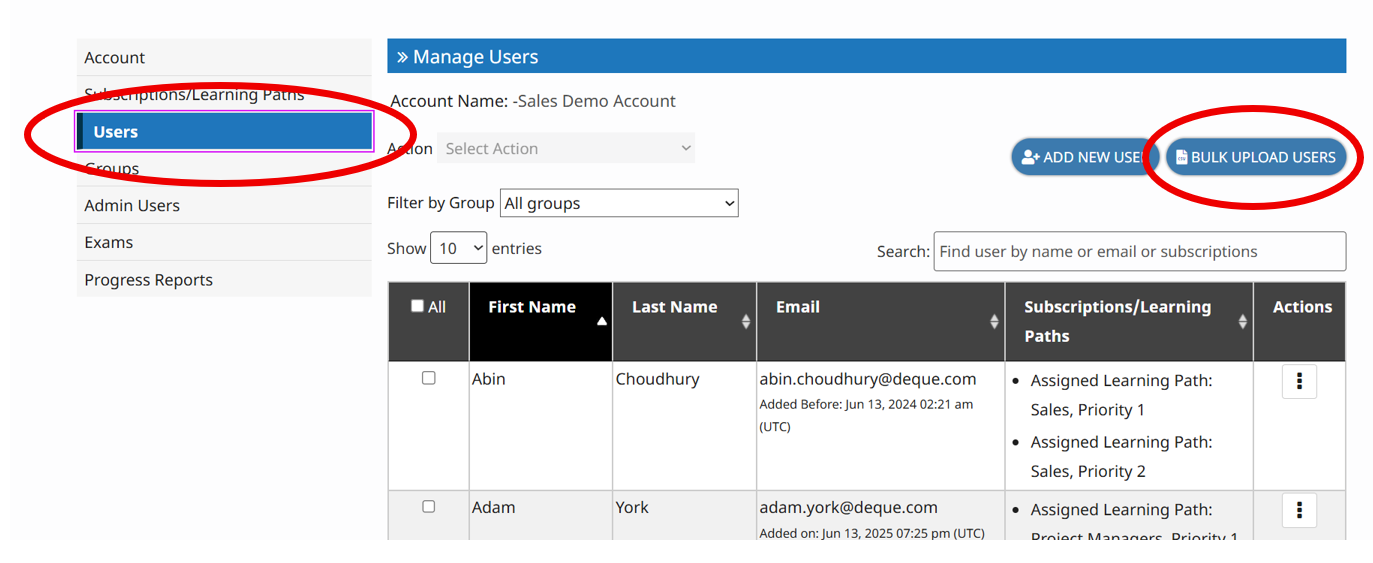
- Go to the Users tab in the Admin Dashboard.
- Click the Bulk Upload Users button.
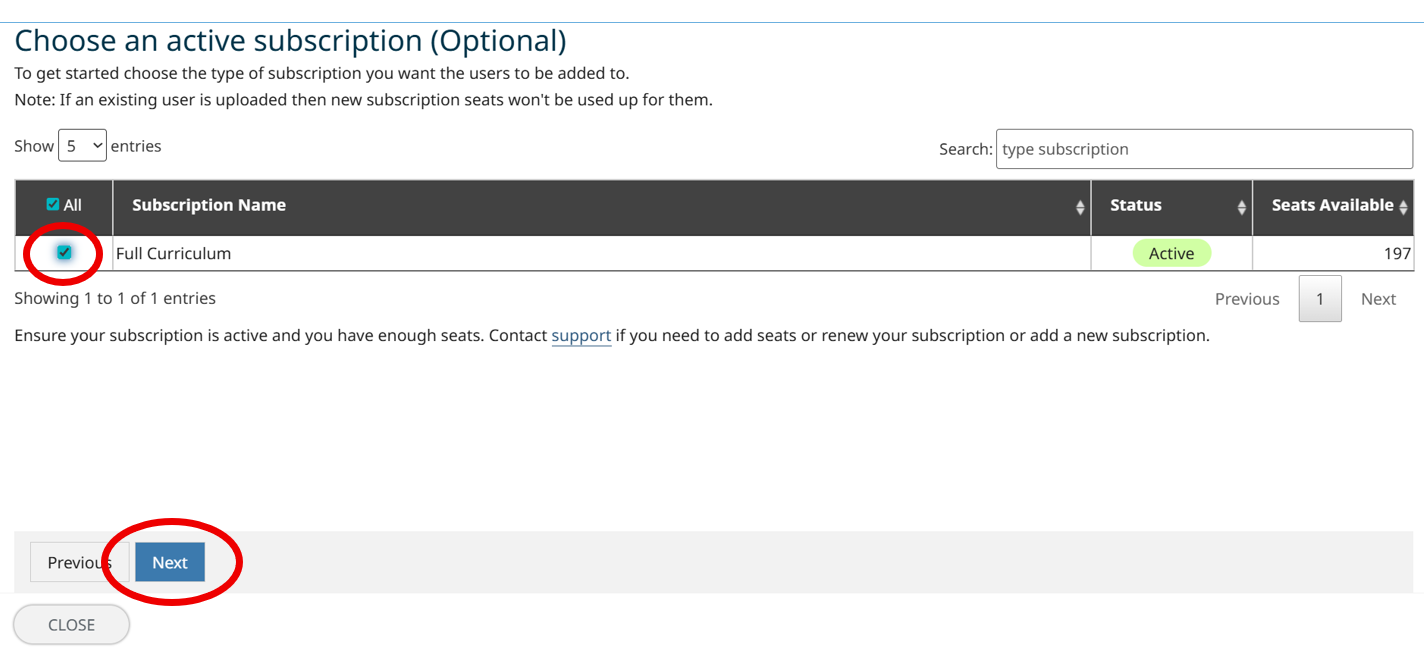
- Optional: Choose one or more subscriptions that you’d like to enroll them in. Note: this step is where you enroll users into subscriptions. In the steps that follow (using the CSV file), you can optionally add them to learning paths and/or groups. IMPORTANT: Although this step is listed as optional, you MUST enroll users into at least 1 active subscription in order for them to have course access. If you only enroll them into a learning path but not a subscription, they will not have course access.
- Click Next.
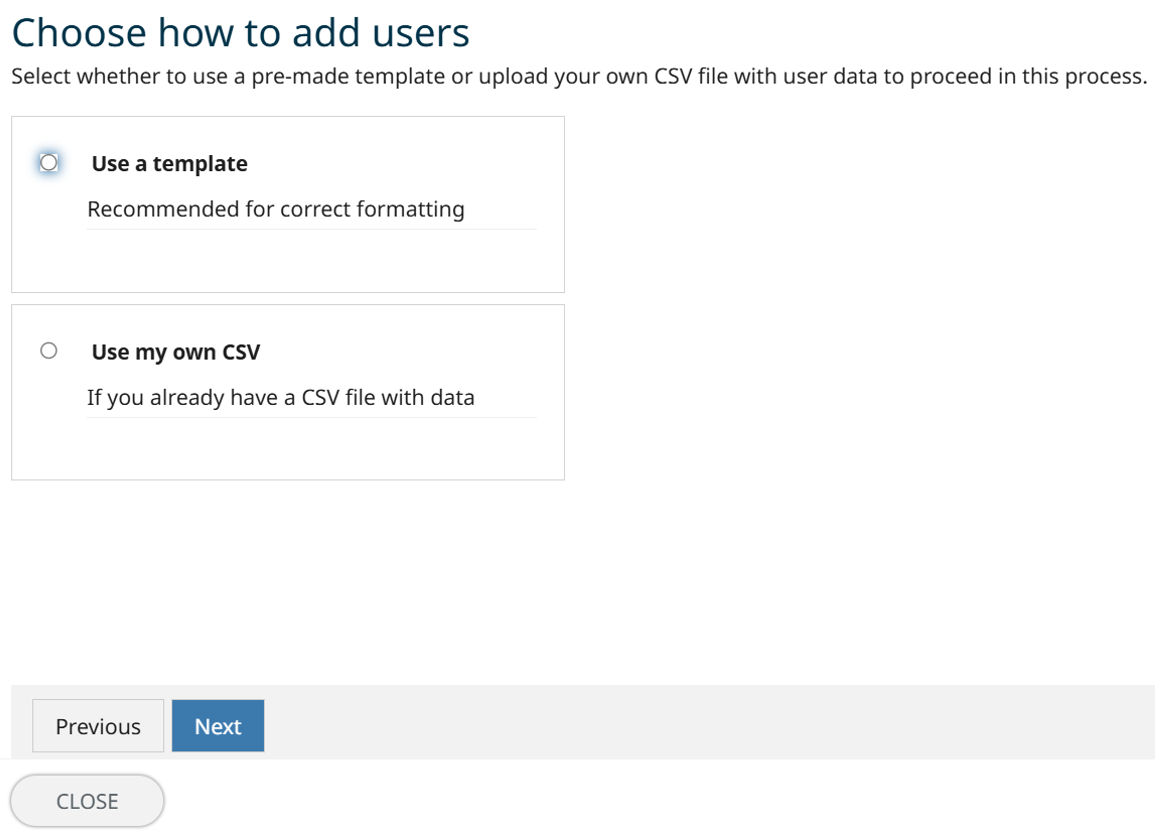
- Select Use a template or Use my own CSV. Follow the steps on screen for the option you selected.
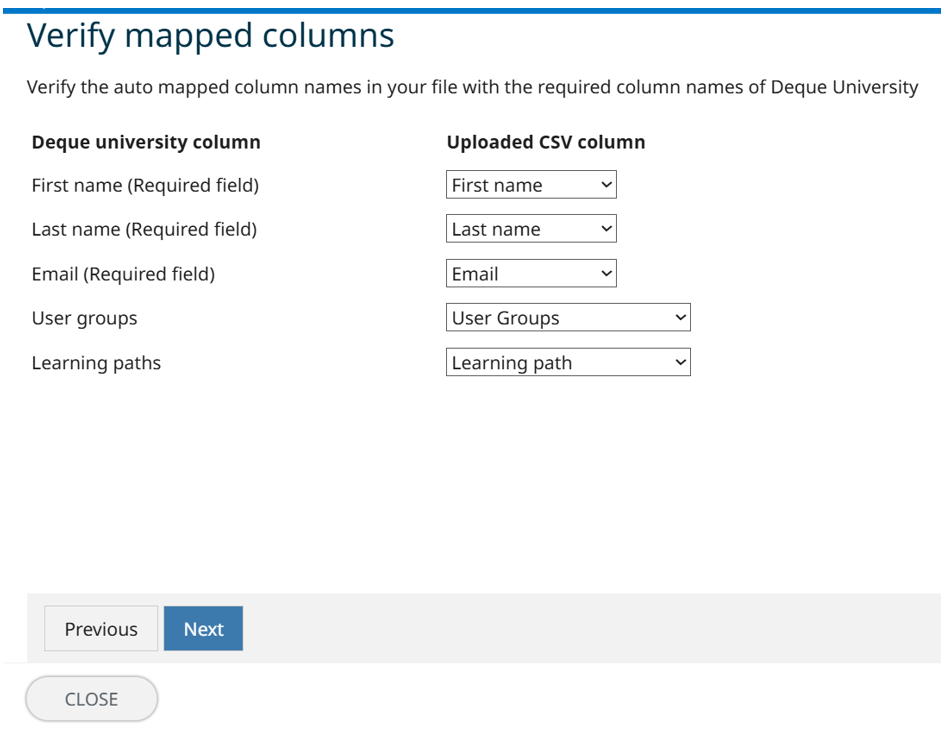
- The data in columns A, B, and C is required (first name, last name, email address). The data in columns D and E is optional (User groups, Learning path). Note that multiple learning paths and/or groups can be assigned to a user at once. Use semicolons to separate them. For example: path1;path2
- If you use the provided template CSV, leave the written instructions in, delete the example entry (alex.wong@example.com), and then fill out the data for your users starting in row 9.
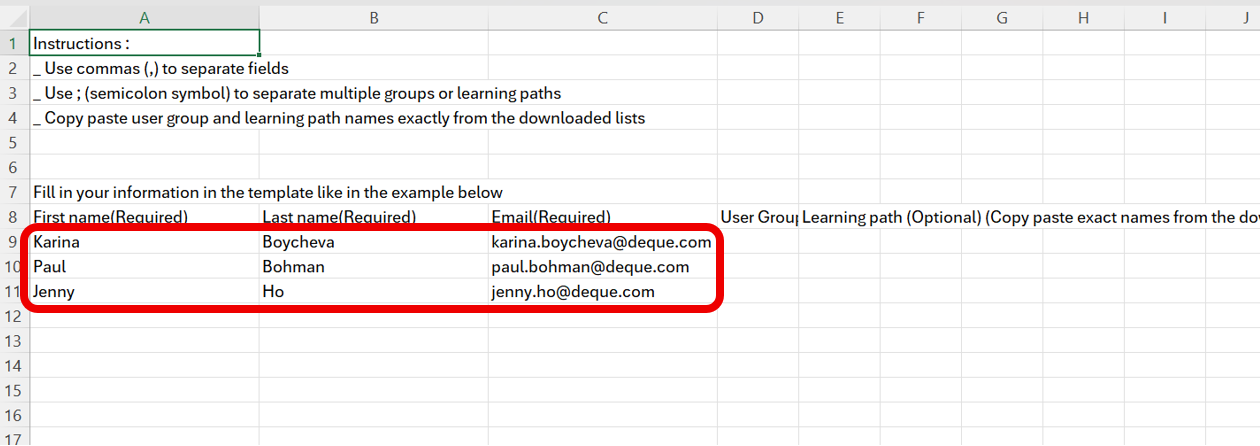
- If you use your own file without the template, you can start in row 1, with or without headers. If you do use headers, ensure they are titled exactly as shown in the demo file:
- Column A name: First name(Required)
- Column B name: Last name(Required)
- Column C name: Email(Required)
- Column D name: User Groups(Optional)
- Column E name: Learning path (Optional)
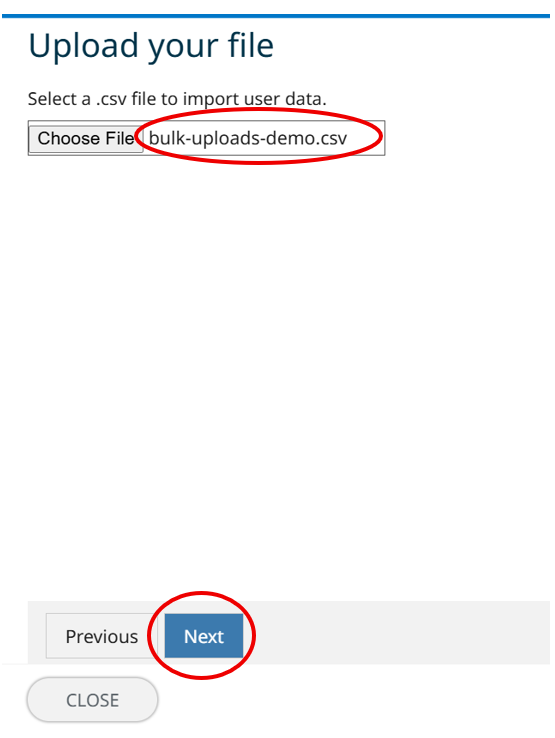
- Upload your file.
- Click Next.
- Verify the mapped columns and review the data in the next 2 screens, and then click Submit.
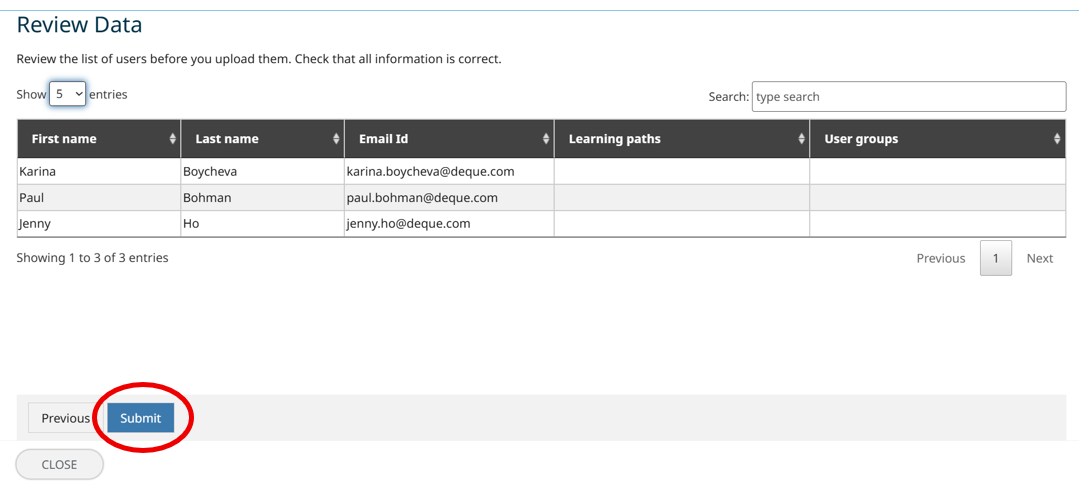
- Once you submit, the system will begin adding users – again, to your account and to any subscriptions, learning paths, and groups that you specified.
- Users will receive an auto-generated email from training@deque.com. If they are a new Deque University user, they will receive instructions for logging in. If they are an existing Deque University user, they will receive an alert that they have been added to subscriptions or learning paths. They will not receive alerts for being added to any groups.
- Do not worry if you accidentally include someone who is already enrolled. This does not create a duplicate account or cause any issues. The system will recognize that they are already enrolled and simply ignore that entry.