
Global Rule Settings
Control which accessibility rules run for your organization
Axe Account admins can choose which accessibility rules run for their organization's mobile scans, and decide whether team members can ignore additional rules in their automated tests. These settings apply to scans you run with our mobile analyzers as well as in your automated test suites.
Admins manage these settings in the Axe Account Portal. For step-by-step instructions, see the Axe Account documentation on global rule configuration.
Global rule settings affect results for everyone in your organization. If a rule is turned off, it won't run, and its issues won't appear in Axe Developer Hub.
Choose Which Rules Run
In the Axe Account Portal, admins see a list of mobile rules for each platform (iOS and Android), and can turn each rule on or off. Rules that are turned off won't run in any scan from your organization, whether the scan comes from an analyzer or an automated test.
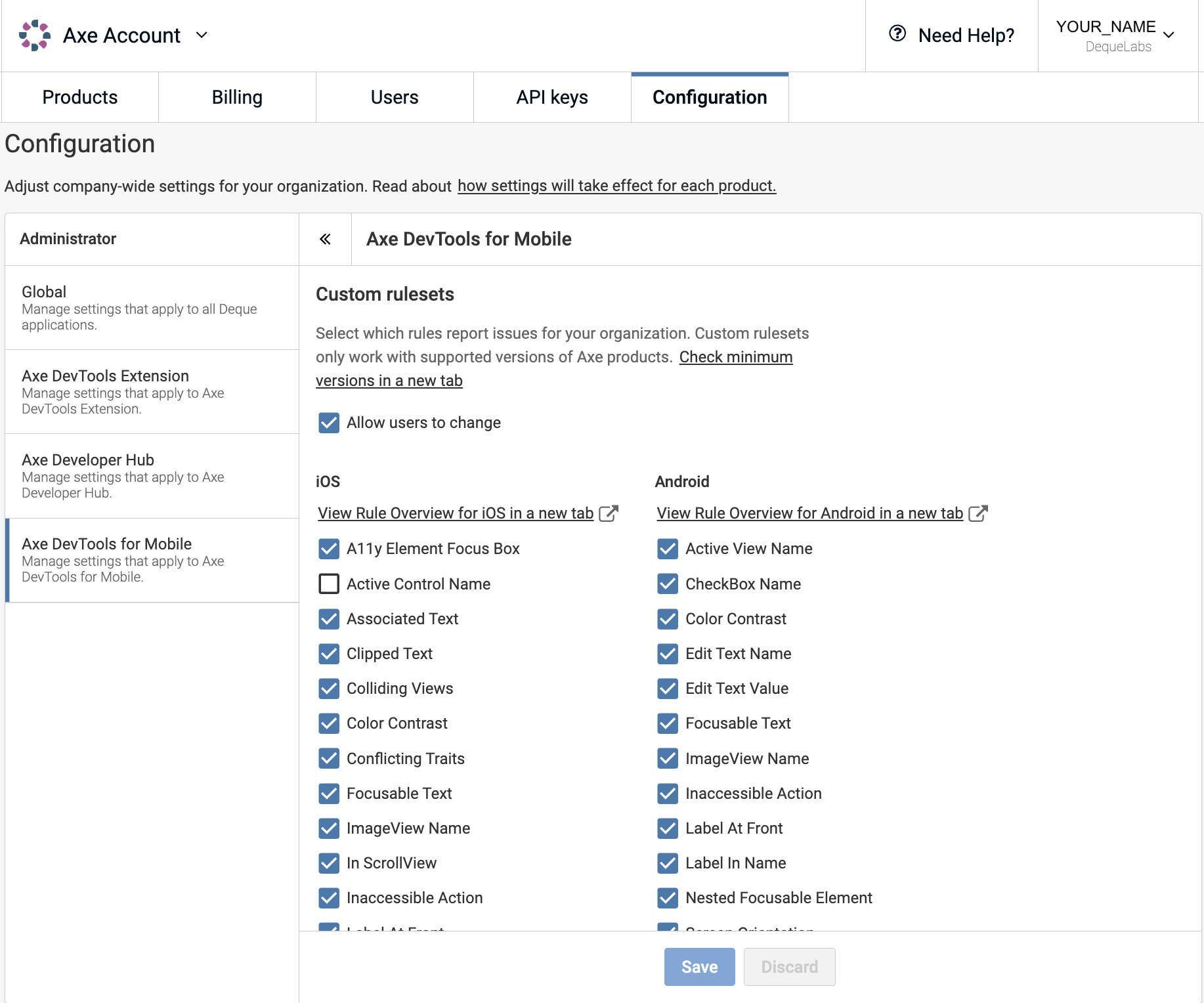
When changes are made to the rule settings, they will apply to new scans only. Results already in Axe Developer Hub won't change. To see results with the updated settings, run your scans again.
Allow Team Members to Ignore Rules
Admins can also choose whether team members can ignore rules in addition to the ones turned off globally. When this setting is enabled, team members can use the ignore rules APIs in their automated tests. See the following pages for more details:
When this setting is disabled, the rules a team member tries to ignore will still run. Test logs will show a message saying: "Rule ignores are disabled for your organization... Contact your Axe Account admin to enable rule ignores."
The mobile analyzers don't have an option to ignore individual rules, so analyzer scans always run every rule that's turned on for your organization. Team members with permissions can ignore additional rules in automated tests, and so the issue count for the same app may be different between analyzer scans and automated test runs.
Supported Versions
Global rule settings require a minimum version of each tool. See Axe Account Global Rule Configuration for the full list.