
Manage Page Details
Not for use with personal data
From the Pages view in axe Monitor, each page in your scan run has issue counts broken down by impact, a total issue count, and status from the scan run.
To get more details on a page, click the eye icon to open a modal with more information.
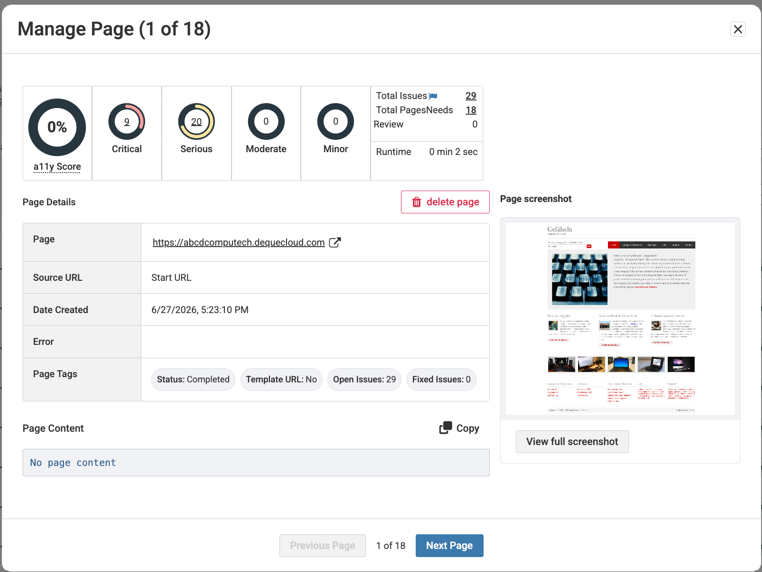
| Field Name | Description |
|---|---|
| Accessibility score | Each page receives an accessibility score based on the issues and impact of the issues for that page. |
| Issue Breakdown | Issue counts for critical, serious, moderate, and minor issues. Select the number in each chart to view these issues. |
| Total Issues | The total number of issues on the page. Select the number to view the total number of issues on the Issues page. |
| Total Pages | The total number of pages in the scan. Select the number to view a list of these pages. |
| Needs Review | The results on the page are marked as needs review. Select the number to view these results. |
| Runtime | The amount of time it took axe Monitor to scan the page. |
| Page re-running | When a page has the “failed” status, check the error to resolve any issues. Then, select the “Re-run page” option to scan the page again. While the scan is in progress, the button is replaced by a "Page re-running..." status message. When the re-run is complete, the page details and results are updated. Note: If the scan is set to send data to Axe Reports, re-running a page will create a new datapoint on the charts in Axe Reports. Note: Re-running a page only scans the individual page, and does not spider any links found on the page. Run another scan once the error is fixed to ensure Axe Monitor picks up any links missed previously by the error. |
| Delete Page | Select the delete icon to delete the page. |
| Page | Select the link to open the page in a new tab. |
| Source URL | Select the link to open the source URL of the page in a new tab. |
| Date Created | The date the page was first scanned. |
| Error | Any errors found while scanning the page. |
| Page Tags | Status, Template URL (Common Components), Open issue count, and Fixed issue count. |
| Page Content | The page's source code is only saved if the scan setting to save page content is turned on. Use the copy button to copy the element source code. |
| Page screenshot | Displays a preview of the PDF page captured during the scan. Select View Full Screenshot to open the full-page screenshot for review. Note: Screenshots are only available when this setting is turned on for the scan. |
Use the Previous Page and Next Page buttons to navigate between pages. Close the Manage Page dialog box to go back to the Pages view.