
Preparing a Unit for Testing
To prepare a component (or page) for testing:
-
On the Prepare Component (or Page) for Automated and Manual Testing screen, click the Open/Send URL button in step 1.
A new browser tab comes up where you can access the page to be tested (for example, logging in to the page). At this point, you have completed preparing the page for automated and manual testing.
Note: If you selected Native Mobile Android or Native Mobile iOS as the digital asset type during the creation of the test case or test run, this field is deactivated.
-
Highlight the Selector in the second step. If you selected Native Mobile Android or Native Mobile iOS as the digital asset type during the creation of the test case or test run, this field is deactivated.
-
Select the elements using the checkboxes in the third step.
Note: Checkpoint tests for elements that do not exist on the page will be marked as "Not Applicable".
-
Select the Capture Screenshots checkbox if you want to capture screenshots during the test run. This is optional.
Note: The application displays a warning message "Please do not switch tabs or perform any other actions while screenshot capture is in progress".
-
Click the Continue button.
-
Click the Start Testing button to proceed. The automated testing in progress screen appears.
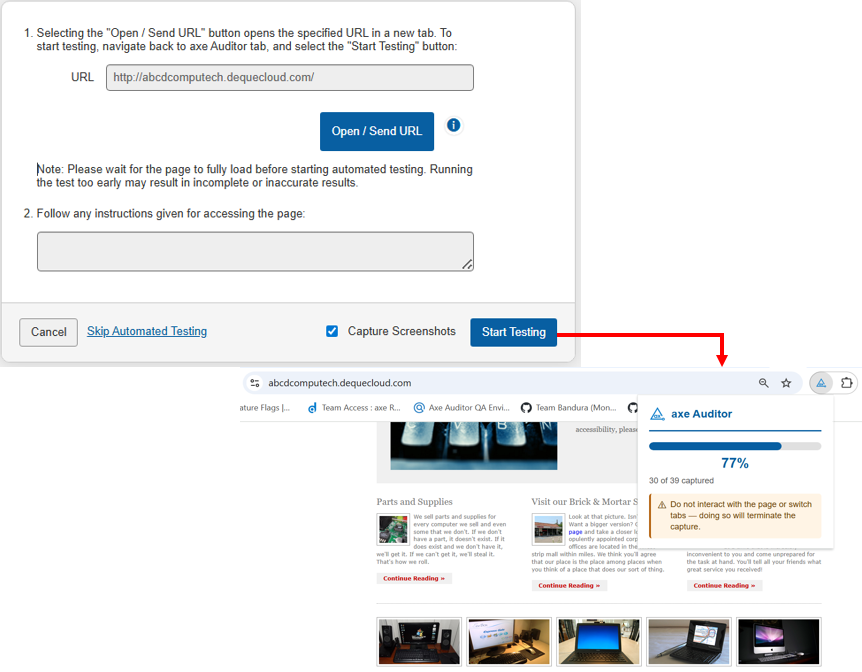
Note: During test execution, if you switch to another tab or window, the test run will be paused and a message "Screenshot capture was interrupted. Automated testing has been terminated. Please rerun the scan." message will be displayed.
For more information, see Automated Testing.
Highlighting a Selector
The highlight tool visually highlights the Component in the connected browser. Before highlighting, make sure you have a browser connected and are on the page the Component appears on.