
Axe Auditor and Axe Account Integration
This section explains how to set up and access Axe Auditor using Axe Account. It is intended for administrators and users who are getting started with Axe Auditor. Administrators can assign users different access roles, such as Viewer, User, or Admin based on the requirement.
System Setup
- Before you set up Axe Auditor, make sure user management is configured in Axe Account.
- Users must be added to the Axe Auditor product in Axe Account.
- Users must accept their email invitation before they can access Axe Auditor.
- For instructions on adding users, see Adding Users to a Product in Axe Account.
- Users must accept their email invitation to Axe Auditor to be added to their enterprise.
Create an Account
Axe Account admins can invite users to Axe Auditor through an invitation email. To accept an invitation to join:
To accept an invitation to join:
-
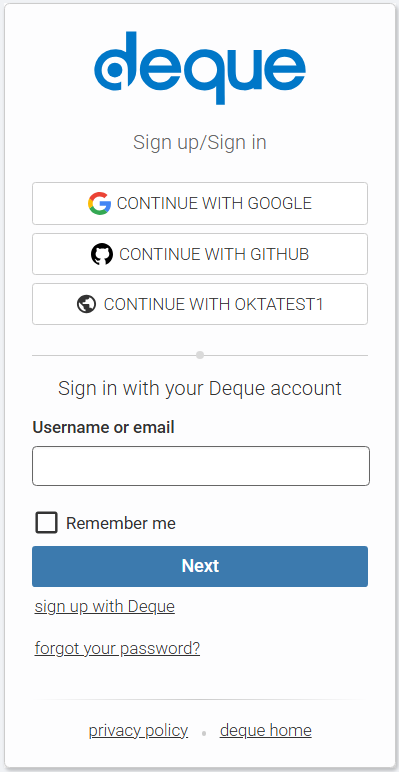
From the Axe Auditor email, click the To view the invitation link. The Sign up/Sign in page appears.
-
Enter your username or email address and click Next.
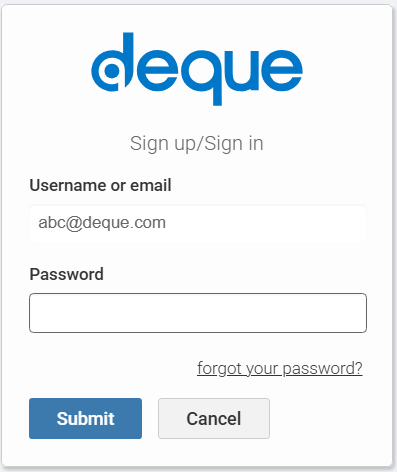
The Password page appears.
-
Enter your password in the Password field and click Submit.
You will receive an Axe Auditor invite email.
-
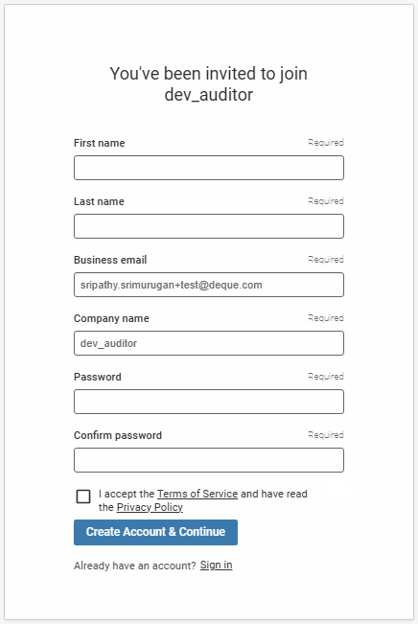
Enter the First name, Last name, Business email, Company name, Password and Confirm password in the appropriate fields.
-
Select the checkbox to accept the terms of service and privacy policy.
-
Click Create Account & Continue.
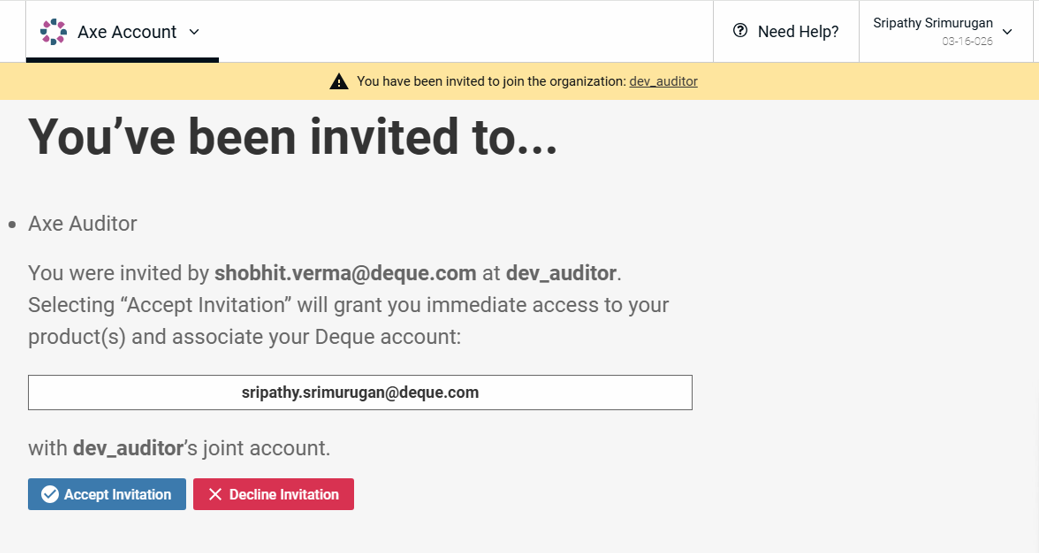
The Axe Auditor user invitation page appears.
-
Click Accept Invitation.
You will be granted access to Axe Auditor.