
Editing an Issue
The Issue Details page provides an Edit Issue button that causes the Edit Issue dialog box to pop up. On the Edit Issue dialog box, you can edit existing issue information, including the Summary, Checkpoint, Issue type, Description type, Description, Source code, Impact, Flag reason, Screenshot, and Notes, either by changing existing text entries, menu list selections, or uploaded image files and then click a button to save those changes.
To edit an issue:
-
In the Summary column, click the desired issue link.
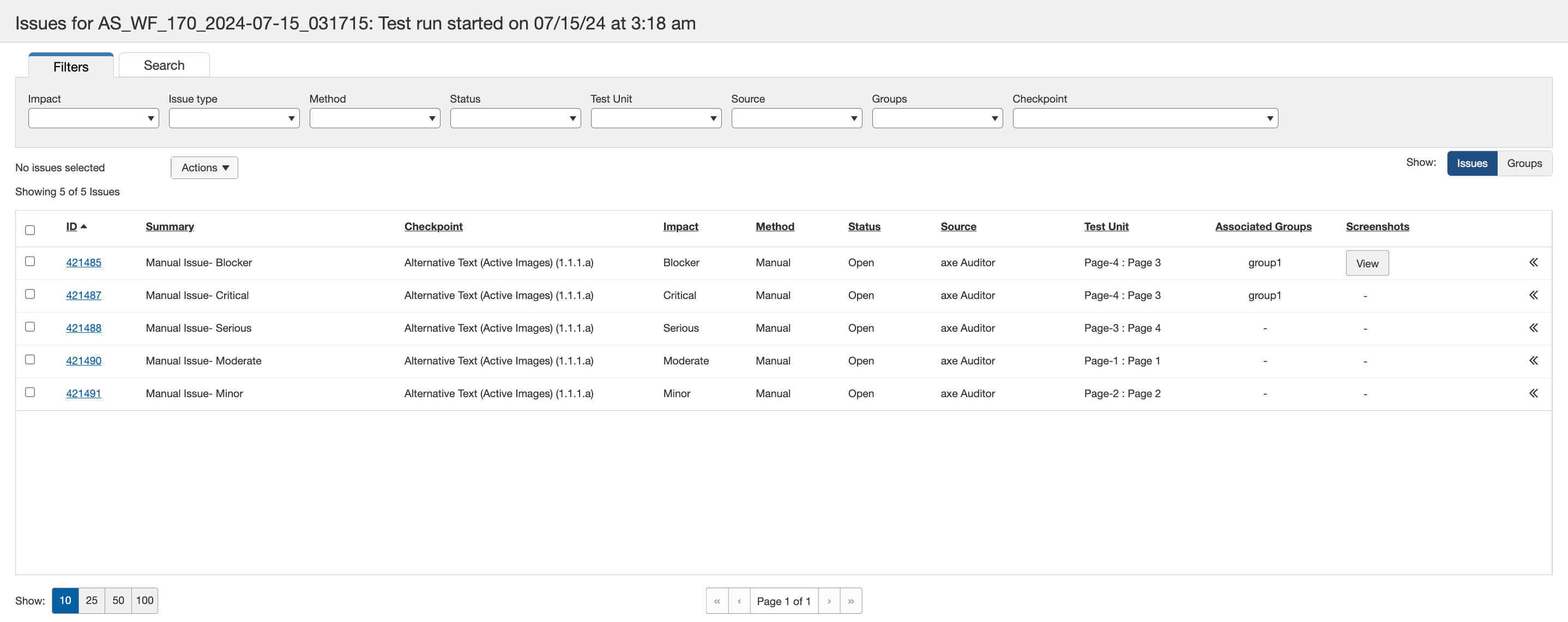 The View Issue # for Test Case:
 screen appears. -
On the View Issue # for Test Case: <Test Case Name> screen, activate the Edit Issue button at the top, right of the screen.
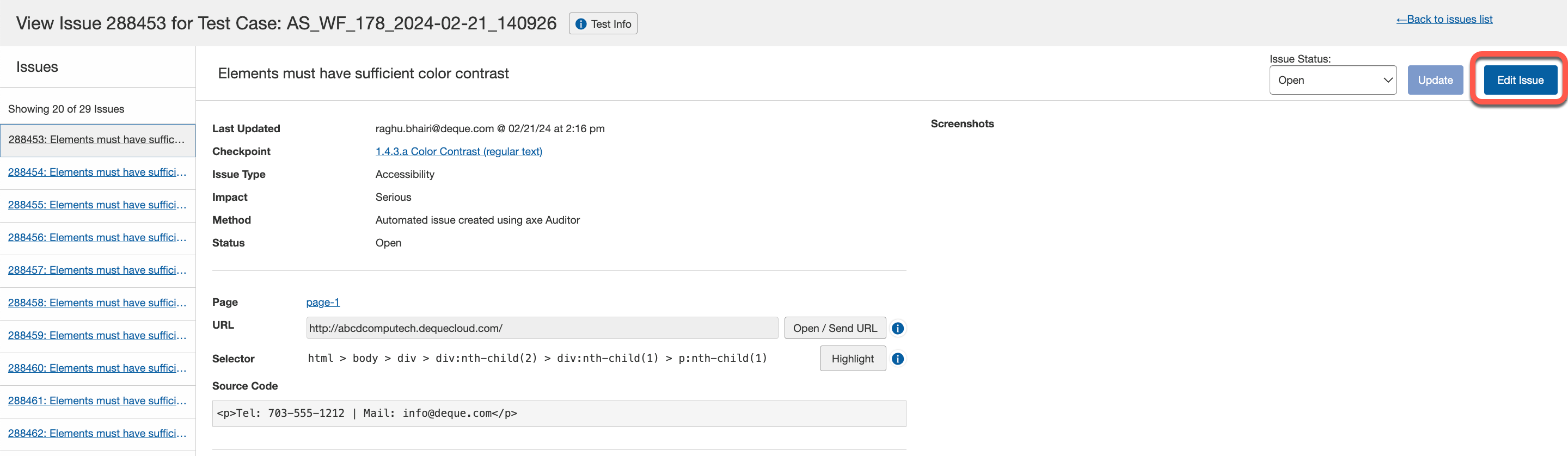
-
Make changes to the fields by editing text entries, changing selections and/or uploading/deleting screenshots. You can also use the Auto Detect feature to automatically add elements for manual issues.
Note: The Impact drop-down for selecting the issue severity level will not be accessible if the admin user enables the Disable manual severity (impact) changes option on the Admin Settings page.
Exception: Exception: If you select Create your own description, the Description field becomes active and the Rule drop-down becomes available. Enter your custom issue description in the Description field, and use the Rule drop-down to assign the appropriate severity. You can also enter recommended steps to resolve the issue in the Recommendation to fix field or select a recommendation technique from the Rule drop-down. This is applicable to Automated and IGT issues only.
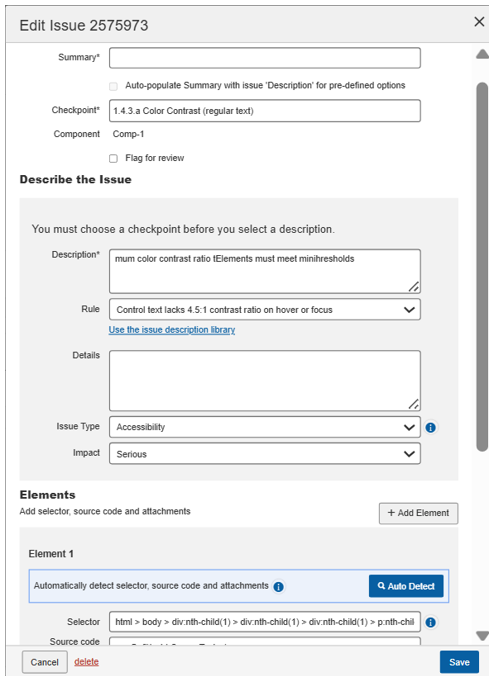
For more information about adding or removing screenshots, see Uploading Attachments to an Issue.
-
Add any comments if required and activate the Add button.
-
Activate the Save button.
Tagging Users in axe Auditor
You can mention a user by tagging them in the comments. The user then receives an email notification. To mention a user (only users with ability to create issues can be tagged) using autocomplete, type '@' in the editor, then start typing their name. Choose the user you want to mention from the list of suggestions.