
Manage Uploads
Not for use with personal data
If you have previously uploaded issues to a scan run in Axe Monitor, the Manage Uploads view allows you to review and update those uploaded issues on the most recent scan run.
From Scan Overview, select Manage uploads.
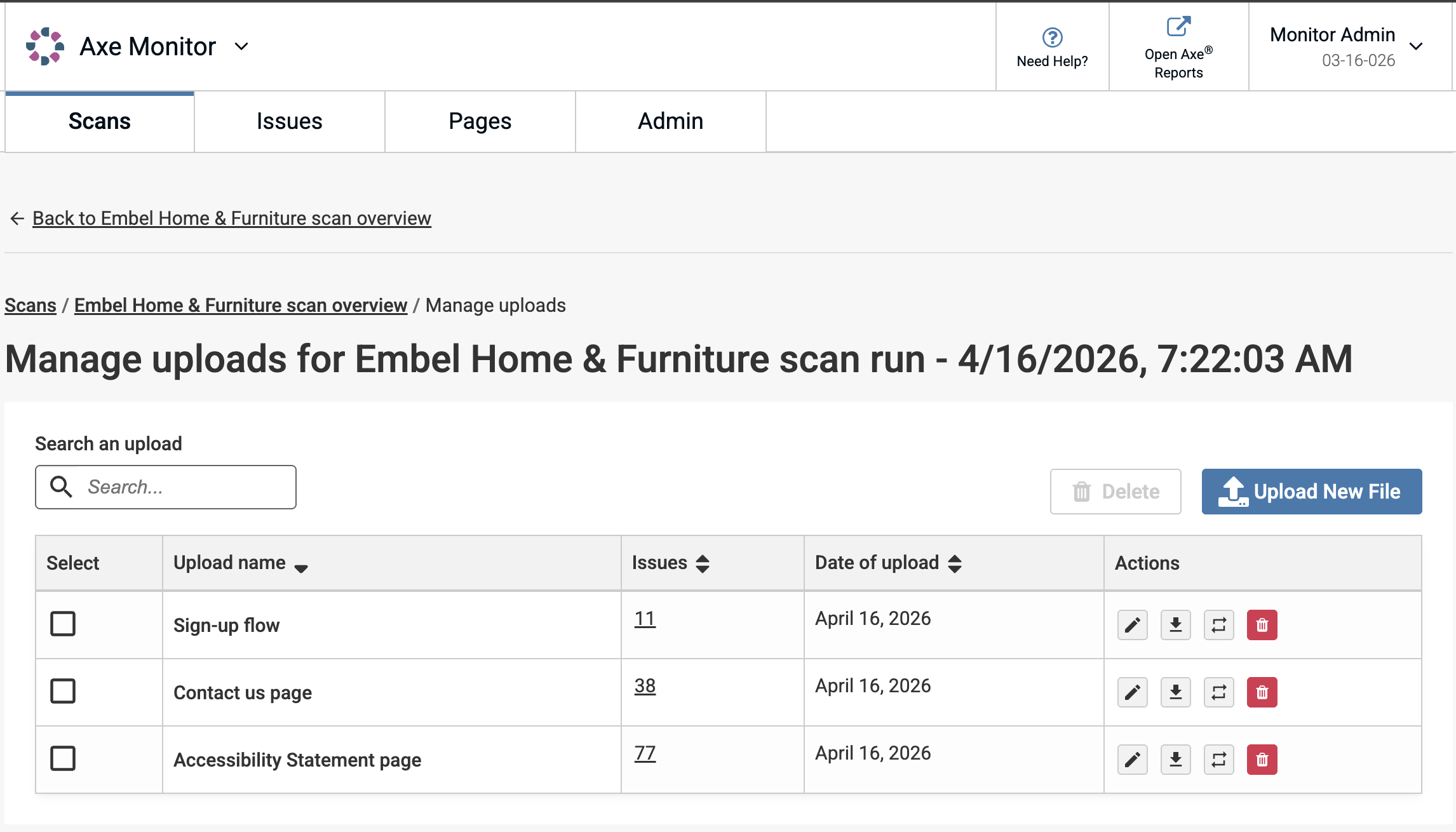
- Search an upload to find a specific file.
- Upload New File to add an upload for a new page or user flow that’s not already added.
- Select files and click Delete to remove files in bulk. The files and associated issues will no longer appear on the current or future scan runs once you confirm. This option only shows for scan admins and members.
Uploaded File Actions
- Select the pencil icon to rename an upload and make it easier to find when prioritizing issues.
- Select the downward arrow icon to download a file. This allows you to review exactly what was uploaded initially.
- Select the rotating arrow icon to replace a file. This option will remove the current file and its issues from the scan run. The replaced file and its issues will apply to the current and future scan runs instead.
- Select the trash icon to delete a single file and its issues from both the current and future scan runs.
Note:
- Starting in Axe Monitor 8.7, uploaded issues will remain on future scan runs unless they are deleted or replaced.
- Older scan runs have an option to “View Uploads” on Scan Overview, but uploaded files cannot be modified on past scan runs, in order to preserve your historic data.
- Issues that were uploaded to a scan run in Axe Monitor 8.6.4 and earlier are available from the Issues list, but are not shown on the new Manage Uploads view.