
Upload Issues
Uploading issues to Axe Monitor from another Axe product can be helpful to manage different types of accessibility test results in one place – Axe Monitor. For example, when you run a manual test, or Intelligent Guided Test in Axe DevTools Extension and upload to Axe Monitor, site owners can get a complete picture of accessibility test results in Axe Monitor. The key user flows which you tested manually can be reviewed and prioritized alongside your recent scan run results.
-
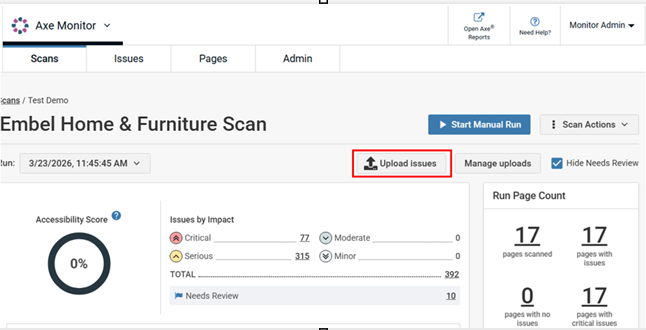
From Scan Overview, select Upload Issues.
-
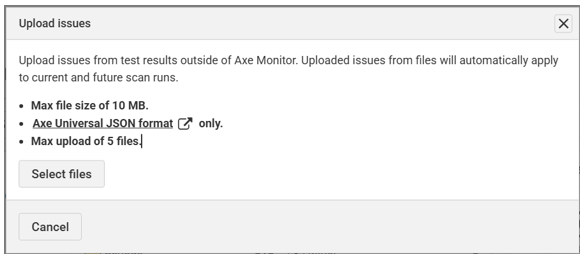
Per the instructions in the Upload Issues modal, you can only upload JSON files that use the Axe Universal JSON format. Files up to 10 MB are allowed, and you can upload up to 5 files at a time.
-
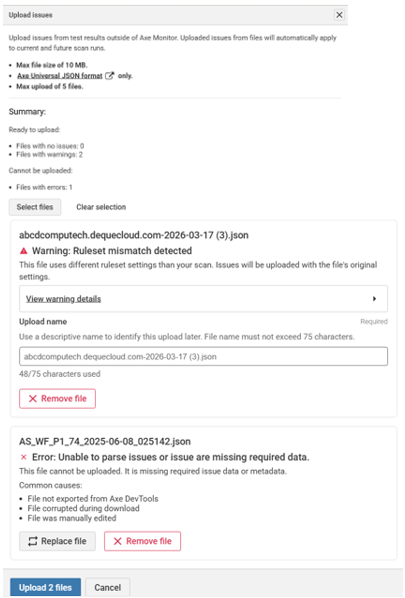
Click the Select files option and choose a .json file from your computer to upload. A summary will show, indicating whether the file can be uploaded.
Note:
- Clear selection allows you to remove a file from the upload.
- Warning: Rule mismatch is displayed if the uploaded results were generated with different settings than the current rulesets for the scan. Expand View warning details link for more information on the rulesets. Files can still be uploaded with a rule mismatch.
- Error: If the uploaded file is not in the Axe Universal JSON format, the application will not parse the issue(s). You can either remove or replace the file.
- Remove file will remove the file from the upload process.
- Enter an Upload name that describes what was tested in the scan run. Something short and user-friendly like “Sign-up flow” will help your colleagues better understand results, so that your results are user-friendly.
You can change the existing file name by providing the new name in the description field. The upload name should not exceed 75 characters.
-
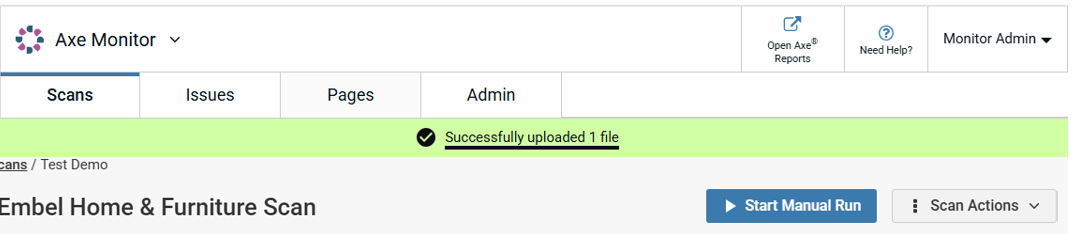
Click Upload. The file uploaded successfully message will be displayed on Scan Overview.
Note: The Upload Issues button is also accessible on the initial Scan Overview page if the scan has not been run before. Uploaded issues will show when the first scan run completes.