Contractor User Access Control
Overview
The Contractor User Access Control feature in axe Auditor allows your organisation to bring in external contributors such as contractors or third-party testers and give them access only to the specific work they need to complete.
Purpose of this Feature
This feature provides a clear overview of how it works, who can do what, and walks you through every step involved from enabling the feature to assigning work to a contractor.
Who Should Read this Guide
| User | What this feature helps you to do |
|---|---|
| Administrators | Enable the feature, manage contractor accounts, and assign test cases. |
| Contractors | Understand what you have access to and how to work within the system. |
| Internal Team Members | Understand how contractor access works alongside your existing access. |
| Client Stakeholders | Understand the security and access model before onboarding contractors. |
Understanding the Roles
Before getting started, it is important to understand the three main roles involved in this feature:
Administrator
Administrators have full control over the system. When it comes to contractor access, they are the only personnel who can:
- Enable or disable the Contractor User Access Control feature
- Add or remove contractor users
- Assign or remove test cases from contractors
Contractor
A contractor is an external user who has been added to the system by an administrator. Contractors have a restricted view of the platform. Specifically, they can:
- View and work on test cases explicitly assigned to them
- Create test runs for their assigned test cases
Contractors cannot see any other data in the system including test cases, test runs, reports, or settings that belong to other projects or users.
Internal Team Members
Internal team members continue to have full visibility into the system, as they always have. The introduction of contractor access does not affect or restrict their permissions in any way. They can continue to collaborate, review, and manage all content across the platform.
Getting Started: Enabling Contractor Access
Before any contractor can be added to the system, an administrator must first enable the Contractor User Access Control feature. This is a one-time setup.
How to Enable the Feature
-
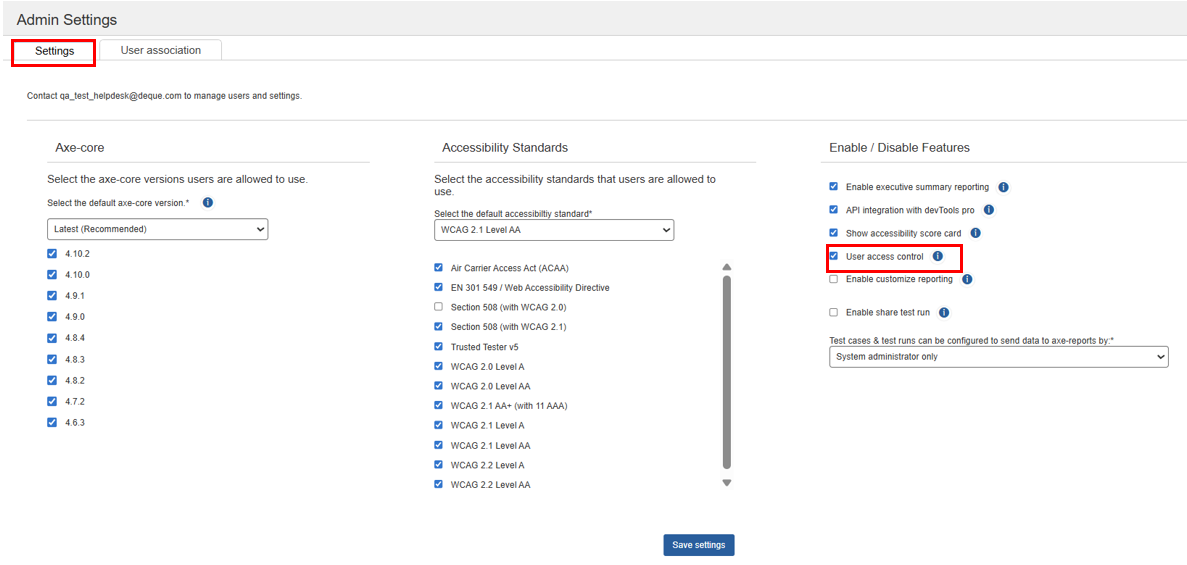
Log in to axe Auditor and navigate to the Admin Settings page. You can usually find this in the top navigation or sidebar under your account menu.
-
Locate the User Access Control option and toggle it on.
-
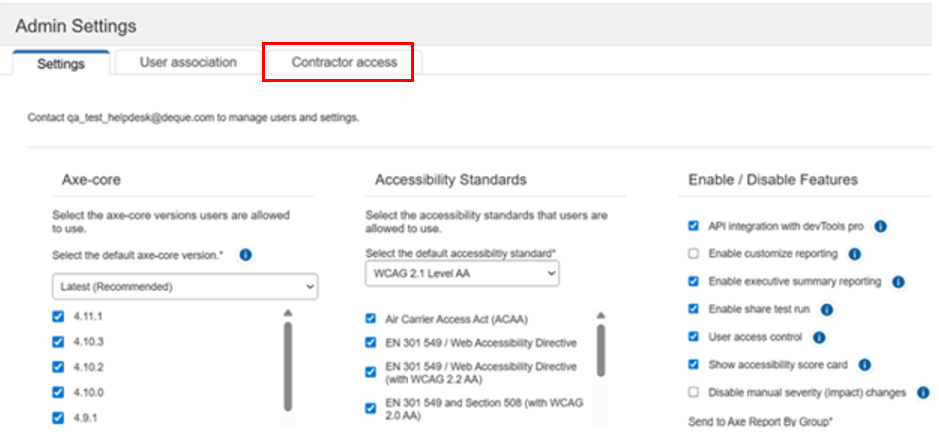
Click Save Settings to apply the change. After you save your changes, a Contractor Access tab appears on the Admin Settings page.
What Happens Next
After you save your changes, the Contractor Access tab appears in Admin Settings. You can now add contractor users and assign work to them.