
Managing Contractors Users
Once the feature is enabled, administrators can view, add, and remove contractor users from the Manage Contractors and their access page.
Viewing Existing Contractors
To see a list of all current contractors in the system:
-
Go to the Admin Settings page and click the Contractor Access tab. The Manage contractors and their access page is displayed.
-
Review the list of contractors. For each contractor, you can see their name, email address, and the test cases assigned to them.
-
To view the specific test cases assigned to a contractor, click View associated test case(s) next to their name. A dialog box will open listing all test cases linked to that contractor. You can also search by test case name within this dialog.
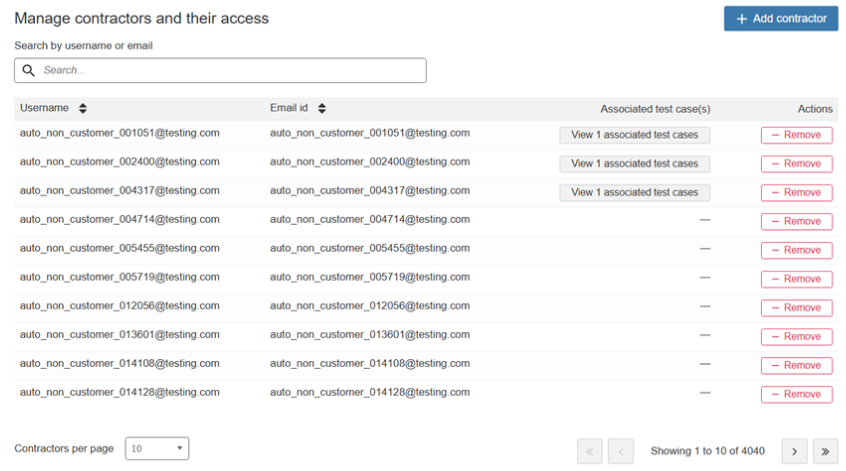
On this page, you can view the contractor’s name, email address, and the associated test case(s) assigned by the administrator.
Adding a User as a Contractor
Contractors must already have an existing user account in axe Auditor before they can be added as a contractor. You are not creating a new account you are changing the access level of an existing user.
Important: Only existing users can be added as contractors. If the person you want to add does not already have a user account, one must be created first before proceeding.
To add an existing user as a contractor:
-
On the Admin Settings page, click the Contractor Access tab.
-
Click the Add Contractor button.
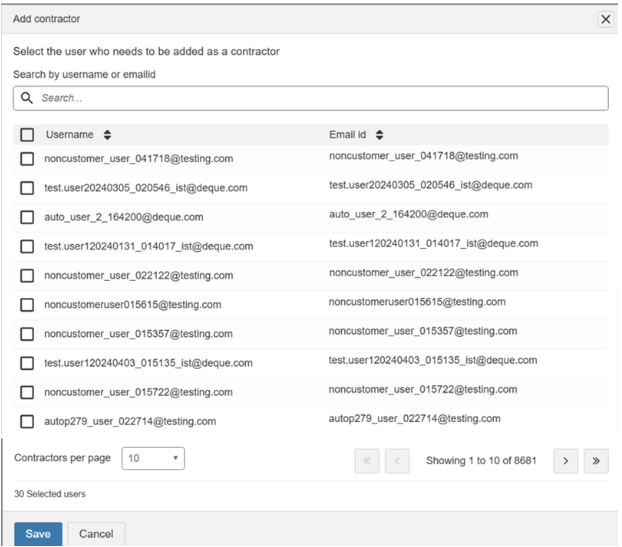
The Add Contractor page is displayed, showing a list of available users.
-
Find the user you want to add. You can scroll through the list, or type the user's name or email address in the Search field to find them quickly.
-
Select the user and click Save. A confirmation message will appear confirming that contractor access has been successfully saved.
You can add multiple contractors at once by selecting more than one user before clicking Save.
Removing a Contractor
If a user does not need to be defined as a contractor anymore, an administrator can remove them at any time.
- Go to the Admin Settings page and click the Contractor Access tab.
- Find the contractor you want to remove in the list.
- In the Actions column next to their name, click Remove. The user will get the member permissions with edit access.
Assigning Test Cases to Contractors
Only administrators can assign test cases to contractors. There are two ways to do this:
- Assign a test case to a contractor when creating a new test case.
- Assign a test case to a contractor by editing an existing test case.
Both approaches are covered below.
Assigning While Creating a New Test Case
Use this approach when you create a new test case and want to assign it to a contractor from the start.
-
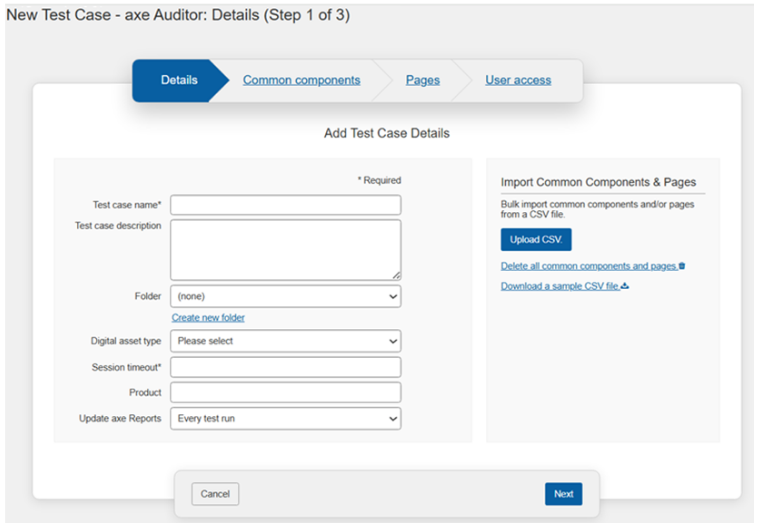
From the axe Auditor dashboard, click New Test Case. The New Test Case page is displayed.
-
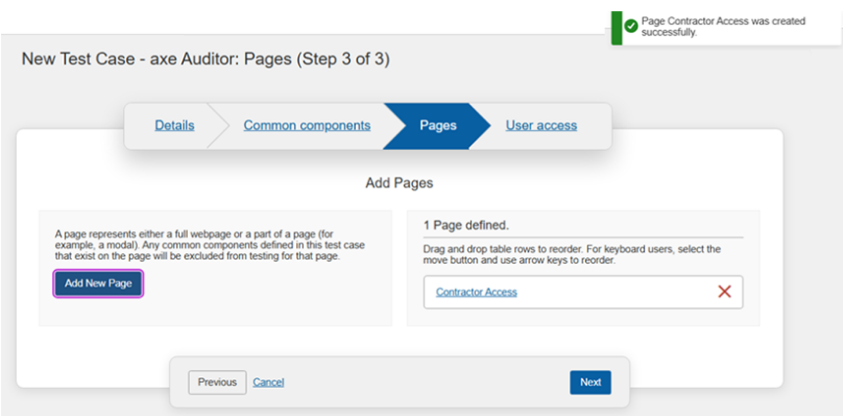
Fill in the required information in the Details, Common Components, and Pages sections. For guidance on each section, see the axe Auditor documentation. Click Next to move between sections.
-
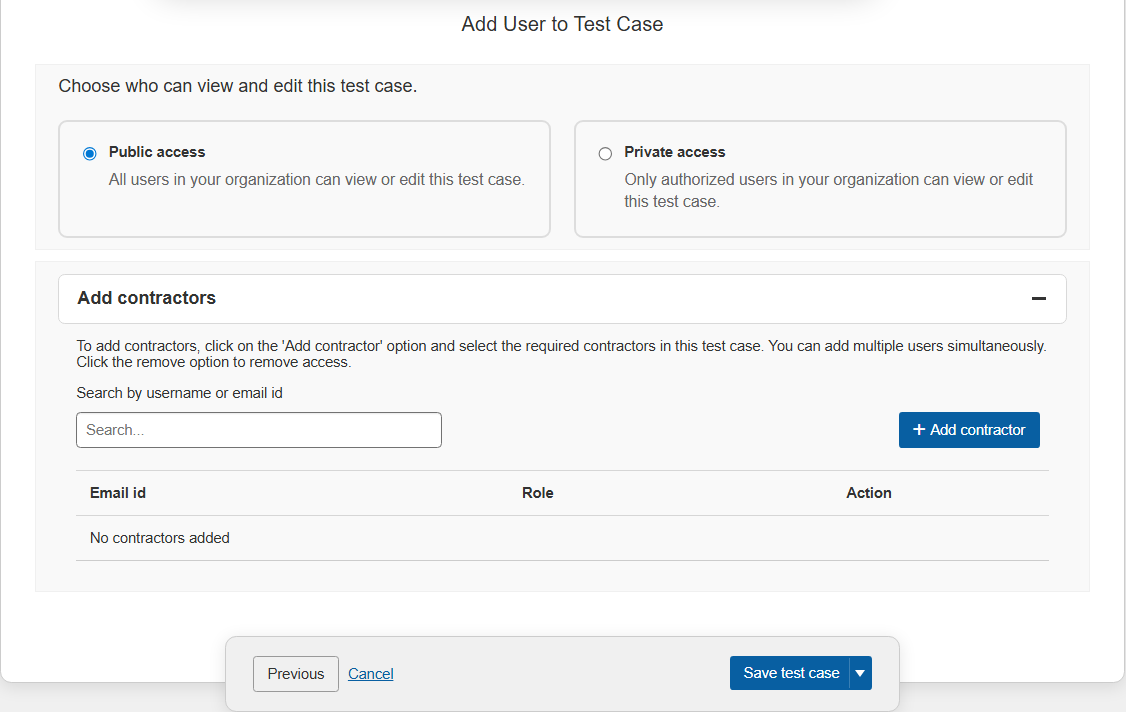
On the Add Users to Test Case page, click the Add Contractors (+) icon. The Add Contractors section expands below.
-
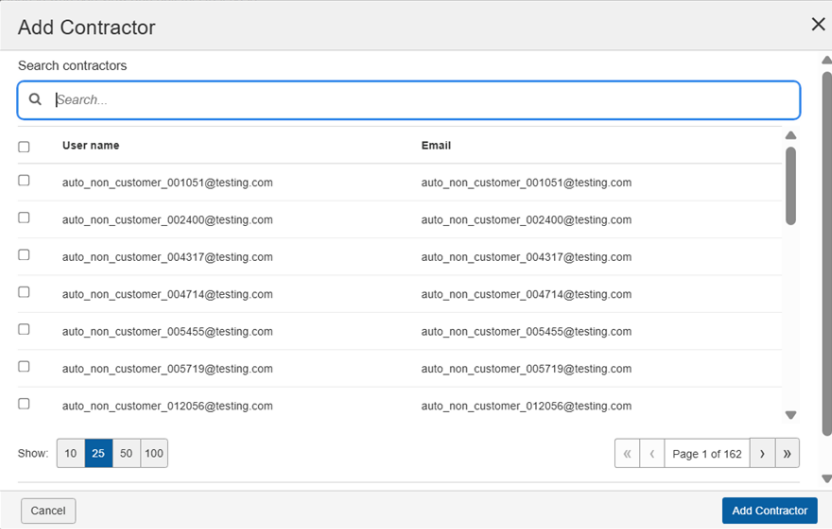
Click Add Contractor. The Add Contractor dialog is displayed, showing a list of available contractor users.
-
Select the contractor(s) you want to assign and click Add Contractor. The selected contractors are added to the test case.
-
Complete the remaining steps and save the test case. A confirmation message will confirm that the new test case has been created and the contractor assigned.

What the contractor views
After you save your changes, the assigned contractor will be able to see and work on this test case the next time they log in. They will not see any other test cases in the system.
Assign Existing Test Cases to Contractors
To assign existing test case to contractors:
- On the Test Cases page, choose the test case name and select the appropriate Create test run drop-down and click Edit test case.
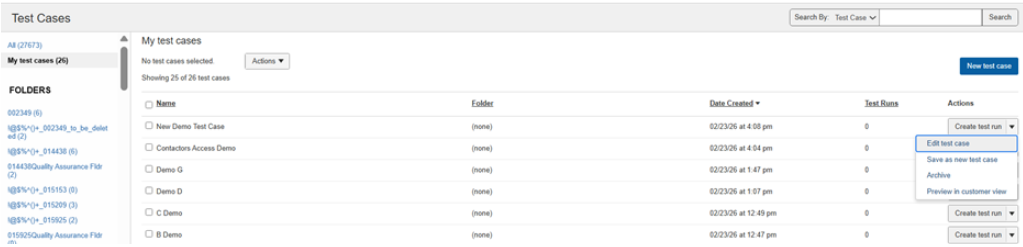
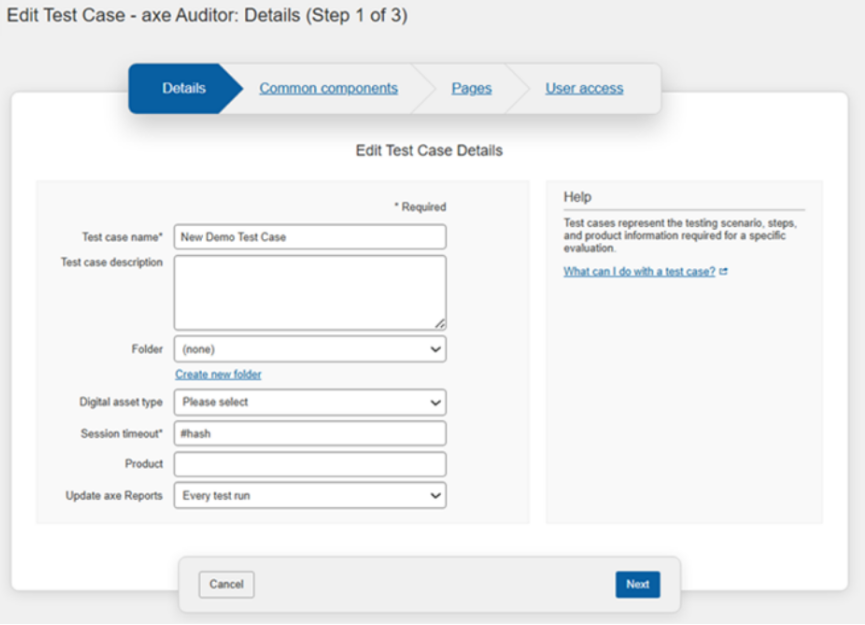
The Edit Test Case page is displayed.
-
Enter the required information on the (Details, Common components, Pages) pages and click Next. The Add Users to Test Case page is displayed.
-
Click the Add Contractors plus icon. The Add Contractor dialog is displayed.
-
Select the users to be added as contractors and click Add Contractor. The newly added contractors page is displayed.
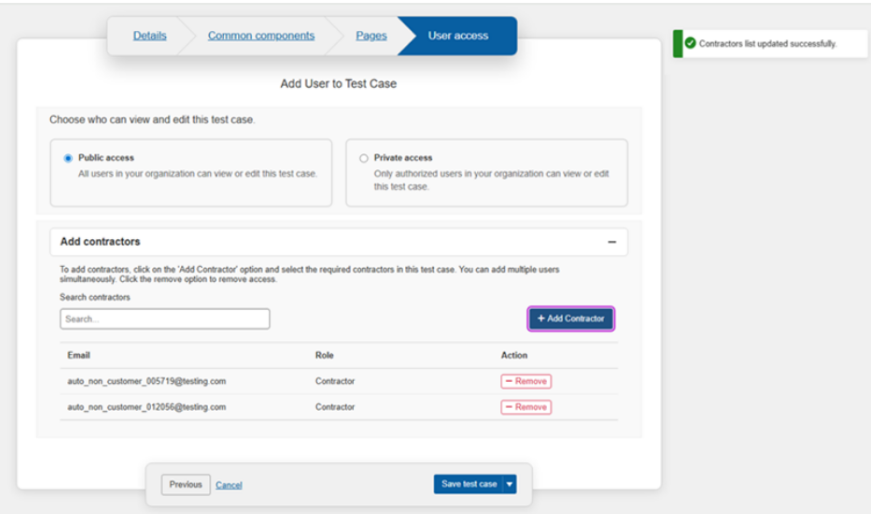
After you create the test case a confirmation popup message is displayed indicating that the new test case has been successfully created.
- Click Save test case. After you save the test case, a confirmation popup message is displayed indicating that the edited test case has been successfully assigned.