
Custom Methodology Support
Custom Manual Testing Methodology Configuration in axe Auditor
Purpose
Customers using axe Auditor sometimes need to adjust the manual testing methodology (the DequeWay). This need can arise from:
- Specific internal policies that require additional or fewer checks.
- Internal guidelines to use specific tools when performing tests.
- Policy decisions that change various issue attributes (impact, descriptions, recommendations).
This document describes the customizations that can be made to the manual testing methodology in axe Auditor, and explains how those changes flow back to Deque for packaging and deployment to your hosted instance.
How this works: roles and workflow
Your organization's axe Auditor instance is hosted and managed by Deque. That means Deque manages the installation, version sequencing, packaging, and deployment of the methodology. Your team is responsible only for editing the methodology configuration files. You do not need to update version numbers, build packages, or run any installation or database commands. Deque handles all of that on your behalf.
The end-to-end process is:
| Step | Owner | Action |
|---|---|---|
| 1 | Deque | Provides your team with the current methodology (DequeWay) bundle. |
| 2 | Customer | Extracts the bundle to a working location, producing a folder named package. |
| 3 | Customer | Backs up the original package folder before making any edits. |
| 4 | Customer | Makes the agreed-upon methodology changes per the sections below. |
| 5 | Customer | Validates the edited JSON files (see Before you begin). |
| 6 | Customer | Sends the entire package folder back to Deque, in the same structure it was provided. |
| 7 | Deque | Versions, packages, and maps the methodology to the correct axe-core version, and deploys it to a test instance for verification. |
| 8 | Customer | Verifies the changes on the test instance and confirms sign-off. |
| 9 | Deque | Promotes the verified methodology to your production instance. |
Scope note: This document lists all available customization types for completeness. The specific changes your team will make should align with the agreed change scope.
Before you begin
1. Back up the original. Before editing anything, make a copy of the untarred package folder. If an edit breaks the bundle, this is your only clean way to revert.
cp -r package package_backup_original2. Edit only the files listed in each section. The files are interdependent. Editing a file not listed for a given change — or missing one that is listed — can produce a bundle that fails only after it round-trips back to Deque.
3. Validate every file you touch. Each file is JSON and must remain valid JSON after editing (no trailing commas, balanced braces/brackets). Validate before sending:
# Validate a single file
python3 -m json.tool package/dist/bundle/descriptions.json > /dev/null && echo "VALID" || echo "INVALID"

# Or validate every JSON file in the bundle at once
find package/dist -name "*.json" -print0 | while IFS= read -r -d '' f; do
  python3 -m json.tool "$f" > /dev/null 2>&1 && echo "VALID:   $f" || echo "INVALID: $f"
done
4. Language assumption. These instructions assume English (en). If your organization requires methodology in additional languages, let Deque know — Deque enables language support during configuration. In that case, every edit you make in an .en.json file must also be made in the corresponding locale file (e.g., the .nl.json equivalent) for each additional language.
Allowed updates
Update the testing methodology for a specific checkpoint
Useful when you want to change the test instructions for a specific checkpoint in axe Auditor.
Files updated: package/dist/bundle/locales/checkpoints.en.json
Steps:
- Locate the specific Deque checkpoint in the JSON file (e.g.,
1.1.1.a). - Search for the
testing-methodologyattribute under that specific checkpoint. - Make appropriate updates to any asset type listed under
testing-methodology. - Save the file in its current location.
Note: The checkpoint name visible in axe Auditor can also be changed using the same instructions. Instead of updating the
testing-methodologysection, update thenameattribute under the relevant checkpoint in the same file.
Update the impact of a rule
You can change the impact level (blocker, critical, serious, moderate, minor) for each issue within axe Auditor. However, if you need to change the default impact for a rule, follow these instructions.
Impacts in axe Auditor are stored at the rule level, not at a WCAG Success Criteria or checkpoint level. A single rule can affect multiple Deque checkpoints (e.g., rule id alt-text-dynamic-image-inconsistent). Modifying the impact for the rule changes the default impact for an issue triggered by the violation of this rule across all WCAG Success Criteria connected to the rule.
Files updated: package/dist/bundle/descriptions.json
Steps:
- Locate the specific Deque rule in the JSON file (e.g.,
alt-text-dynamic-image-inconsistent). - Search for the
impactattribute under that specific rule. - Update the impact with a numeric value (see the table below).
- Save the file in its current location.
Impact value mappings
| Impact value | Impact in axe Auditor |
|---|---|
| 5 | Blocker |
| 4 | Critical |
| 3 | Serious |
| 2 | Moderate |
| 1 | Minor |
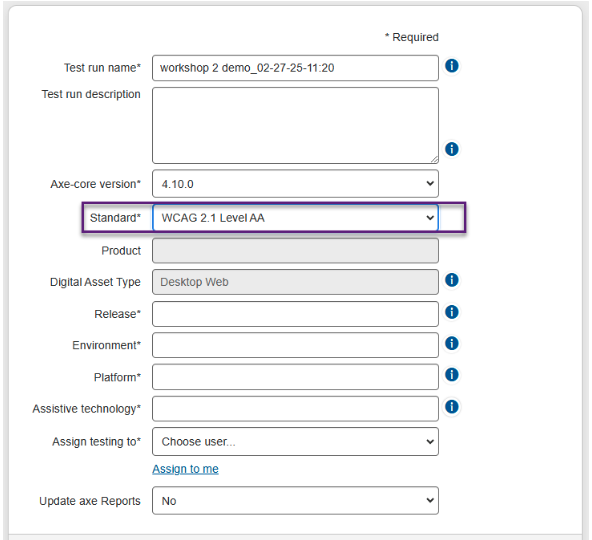
Add a new accessibility standard (e.g., an organization-specific standard)
If you have organization-specific testing standards you would like to provide to your teams in addition to the existing standards (such as WCAG 2.1 AA or ACAA), use the following steps.
⚠️ Deque internal — resolve before publishing: The file list for this section references three checkpoint-related paths that are inconsistent with the rest of the document (which uses
dist/bundle/…):package/dist/checkpoints.json,package/dist/issue-descriptions.json, andpackage/dist/bundle/checkpoints.json. Confirm whetherdist/checkpoints.jsonanddist/issue-descriptions.jsonare genuinely distinct compiled files, or whether these are path errors, then update the list accordingly and remove this note.
Files updated:
package/dist/bundle/standards.jsonpackage/dist/bundle/descriptions.jsonpackage/dist/bundle/testingMethodologies.jsonpackage/dist/bundle/locales/standards.en.jsonpackage/dist/checkpoints.jsonpackage/dist/issue-descriptions.jsonpackage/dist/bundle/checkpoints.json
Steps:
- Create a new array object for the standard in
standards.json. The easiest approach is to copy the entire object forwcag21aaand add it to the bottom of the file. - Change the
idof the newly copied object to something unique that signifies the standard it represents. - Update the
rubricarray for the new object to represent all underlying testing standards that are part of this new standard. - In
descriptions.json, for all rules associated with your new standard, add the id of the new standard (fromstandards.json) to thestandardsarray. - In
testingMethodologies.json, add the id of the new standard under thestandardsarray for each digital asset type to which this standard applies. - In
standards.en.json, add a new object with the new standard's id and name. Thenamefield is what users see in the axe Auditor user interface. - In
dist/checkpoints.json, update thestandardsarray under each issue-description for the applicable checkpoints. - In
issue-descriptions.json, update thestandardsarray for all applicable rule objects. - In
dist/bundle/checkpoints.json, update each applicable checkpoint'sstandardsarray with the correct standard.
Update the short and long issue descriptions for specific rules
Use these instructions to update the issue-description selection text (short) and the long description of the issue type for each rule. A single rule can affect multiple WCAG Success Criteria — changing this text affects all Success Criteria it is connected to.
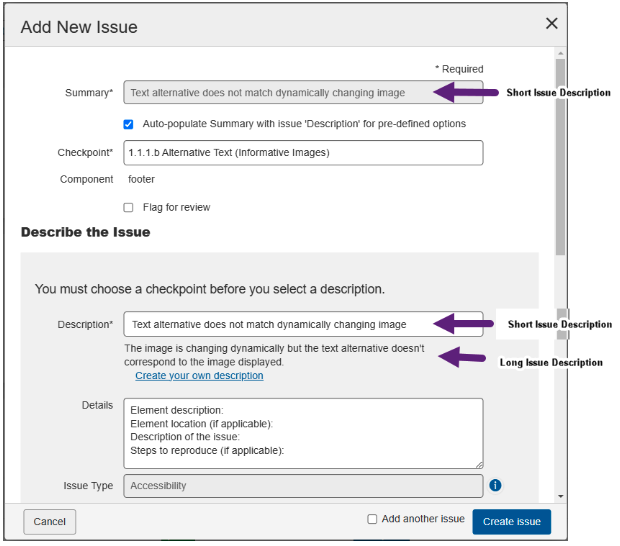
Files updated: package/dist/bundle/locales/descriptions.en.json
Steps:
- In
descriptions.en.json, search for the specific rule (e.g.,alt-text-dynamic-image-inconsistent). - Update the text for
shortText(Short Issue Description) andissueDescText(Long Issue Description) as appropriate. - Save the file in its current location.
Update the remediation recommendation
If you want to change the remediation library and associated descriptions to align with your policy, use the following instructions.
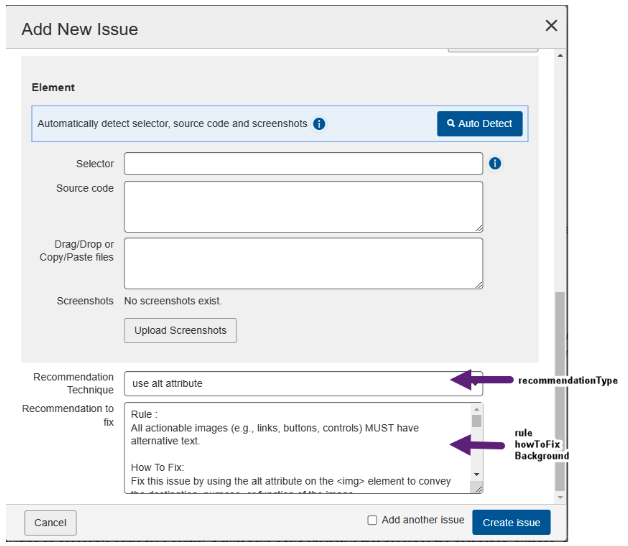
Files updated: package/dist/bundle/locales/recommendations.en.json
Steps:
- In
recommendations.en.json, search for the specific rule (e.g.,alt-text-dynamic-image-inconsistent) and checkpoint combination for which you want to change the remediation library. - Update the text for
recommendationType(Recommendation Technique),rule,howtofix, andbackground(sections of the recommendation to fix) as appropriate. - Save the file in its current location.
Remove digital asset types
Use this when a given asset type does not apply to your organization (for example, if PDF or Android testing is out of scope).
Files to update:
dist/bundle/testingMethodologies.json— main testing methodologies datadist/bundle/locales/testingMethodologies.en.json— English translations
Step 1: Remove from the testing methodologies file
File: dist/bundle/testingMethodologies.json
Find and remove the entire object for the methodology you want to delete.
// BEFORE — remove this entire object (example: "native-mobile-android"):
{
  "id": "native-mobile-android",
  "techniques": ["general"],
  "standards": [
    "wcag2a", "wcag21a", "wcag22a",
    "wcag2aa", "wcag21aa", "wcag22aa",
    "acaa", "en301549-wad",
    "508-2017-wcag2", "508-2017-wcag21"
  ]
}
// AFTER — object completely removed
Step 2: Remove from the English locale file
File: dist/bundle/locales/testingMethodologies.en.json
Remove the same methodology object from this file.
Add a new digital asset type
Use this to add a new digital asset type — for example a web-app or macos methodology. The example below uses web-app; substitute your own asset-type id as needed.
Files to update:
dist/bundle/testingMethodologies.json— main testing methodologies datadist/bundle/locales/testingMethodologies.en.json— English translationsdist/bundle/locales/checkpoints.en.json— English checkpoint content with testing-methodology sectionsdist/bundle/checkpoints.json— main checkpoints datadist/bundle/descriptions.json— issue descriptions with testing-methodology referencesdist/bundle/schemata.json— schema definitions with testing-methodology references
Step 1: Add to the testing methodologies file
File: dist/bundle/testingMethodologies.json
Add the new methodology object to the array.
{
  "id": "web-app",
  "techniques": ["general", "html", "aria", "css"],
  "standards": [
    "wcag2a", "wcag21a", "wcag22a",
    "wcag2aa", "wcag21aa", "wcag22aa",
    "acaa", "en301549-wad",
    "508-2017-wcag2", "508-2017-wcag21"
  ]
}
Step 2: Add to the English locale file
File: dist/bundle/locales/testingMethodologies.en.json
Add the same methodology object to this file.
Step 3: Add references to the checkpoint file
File: dist/bundle/checkpoints.json
For each checkpoint that should support the new methodology, add it to that checkpoint's testingMethodologies array.
{
  "id": "1.4.3.a",
  "testingMethodologies": [
    "desktop", "mobile", "kiosk",
    "native-mobile-ios", "native-mobile-android",
    "pdf",
    "web-app",          // ← Add this line
    "ms-excel", "ms-powerpoint", "ms-word", "windows-desktop"
  ]
}
Step 4: Add testing-methodology content to the checkpoint locale file
File: dist/bundle/locales/checkpoints.en.json
For each checkpoint that should support the new methodology, add the testing-methodology content.
{
  "1.4.3.a": {
    "name": "Color Contrast (Minimum)",
    "testing-methodology": {
      "desktop": "<ol>...</ol>",
      "mobile": "<ol>...</ol>",
      "native-mobile-android": "<ol>...</ol>",
      "web-app": "<ol>\n<li>Open the web application in a modern browser</li>\n<li>Use browser developer tools to inspect text elements</li>\n<li>Check color contrast ratios using accessibility tools</li>\n<li>Verify contrast meets WCAG requirements</li>\n</ol>",  // ← Add this new entry
      "pdf": "<ol>...</ol>"
    }
  }
}
Step 5: Add references to the descriptions file
File: dist/bundle/descriptions.json
For issue descriptions that should support the new methodology, add it to their testingMethodologies array.
{
  "id": "some-issue-id",
  "data": [
    {
      "type": "issue",
      "testingMethodologies": [
        "desktop", "mobile",
        "native-mobile-android", "pdf",
        "web-app"        // ← Add this line
      ]
    }
  ]
}
Step 6: Add references to the schema file
File: dist/bundle/schemata.json
Add the new testing methodology to the schema definitions.
{
  "testingMethodologies": {
    "desktop": null,
    "kiosk": null,
    "mobile": null,
    "native-mobile-ios": null,
    "native-mobile-android": null,
    "pdf": null,
    "web-app": null,   // ← Add this line
    "ms-excel": null,
    "ms-powerpoint": null,
    "ms-word": null,
    "windows-desktop": null
  }
}
Add a new checkpoint
Adding a non-WCAG checkpoint
Important: Non-WCAG checkpoints do not support pre-defined descriptions or recommendations through
descriptions.jsonandrecommendations.json. When logging issues with these checkpoints, you enter descriptions and recommendations manually using the Create your own description feature in the tool.
Files to update — only 2:
package/dist/bundle/checkpoints.json— define the checkpointpackage/dist/bundle/locales/checkpoints.en.json— provide localized testing methodology
Step 1: Add the checkpoint to checkpoints.json
{
  "id": "custom.1.1",
  "requiredSenses": {
    "sight": true,
    "hearing": false
  },
  "successCriteria": "",
  "automatedRules": [],
  "testingMethodologies": ["desktop", "mobile"],
  "grouping": "custom.1",
  "categories": [],
  "standards": ["custom"]
}
Key fields:
id— unique identifier using your custom format (e.g.,custom.1.1,brand.2.3,TT.01.A,s.1.1).successCriteria— empty string""for non-WCAG checkpoints (or a custom format like"tt-01.A").standards— your custom standard identifier, e.g.,["custom"],["TT508"],["smoke"],["brand"](not["wcag2a"]).testingMethodologies— platforms where this checkpoint applies:desktop,mobile,kiosk,native-mobile-ios,native-mobile-android,pdf,windows-desktop,ms-excel,ms-powerpoint,ms-word.requiredSenses— which senses are needed to test this checkpoint (sight,hearing:true/false).automatedRules— optional array of automated rule ids (typically empty[]for custom checkpoints).grouping— logical grouping for organization (e.g.,"custom.1","1","s.1").categories— relevant accessibility categories (can be empty[]for non-WCAG).terms— optional array of glossary term references withidandordinalproperties.
Step 2: Add localized content to checkpoints.en.json
Use the hyphenated id format: convert dots to hyphens (e.g.,
custom-1-1, notcustom.1.1).
"custom-1-1": {
  "examples": "<ul>\n  <li>Example 1: Describe a scenario where this applies</li>\n  <li>Example 2: Describe another scenario</li>\n</ul>",
  "related-techniques": {
    "general": "<ul>\n  <li>Technique reference 1</li>\n  <li>Technique reference 2</li>\n</ul>",
    "html": "<ul>\n  <li>HTML-specific technique</li>\n</ul>"
  },
  "testing-methodology": {
    "desktop": "<ol>\n  <li>Step 1 for desktop testing</li>\n  <li>Step 2 for desktop testing</li>\n</ol>",
    "mobile": "<ol>\n  <li>Step 1 for mobile testing</li>\n  <li>Step 2 for mobile testing</li>\n</ol>"
  },
  "name": "Your Custom Checkpoint Name",
  "overview": {
    "general": "General description of what this checkpoint tests and why it matters for accessibility.",
    "html": "HTML-specific description if applicable; otherwise can match general."
  }
}
Use
\nfor newlines and proper HTML tags for lists.
Adding a WCAG checkpoint
Files to update — 6 files for a complete WCAG checkpoint implementation:
package/dist/bundle/checkpoints.json— define the checkpoint with WCAG-specific fields.package/dist/bundle/locales/checkpoints.en.json— localized testing methodology, examples, related techniques (use the hyphenated id format:1-4-3-a, not1.4.3.a).package/dist/bundle/descriptions.json— issue descriptions with impact levels and checkpoint references.package/dist/bundle/locales/descriptions.en.json— localized issue descriptions.package/dist/bundle/recommendations.json— remediation recommendations linked to issue descriptions.package/dist/bundle/locales/recommendations.en.json— localized recommendation content (title, description, steps, resources).
Optional — manual entry: If you prefer to skip adding pre-defined descriptions and recommendations to the JSON files, you can handle them when logging issues in the tool: select your WCAG checkpoint, choose Create your own description instead of a pre-defined one, then manually enter the description and (if needed) recommendation tailored to the issue found.
Step 1: Define the checkpoint
File: package/dist/bundle/checkpoints.json
{
  "id": "1.4.3.a",
  "requiredSenses": {
    "sight": true,
    "hearing": false
  },
  "successCriteria": "1.4.3",
  "automatedRules": ["color-contrast"],
  "testingMethodologies": [
    "desktop", "mobile", "kiosk",
    "native-mobile-ios", "native-mobile-android",
    "pdf", "ms-excel", "ms-powerpoint", "ms-word", "windows-desktop"
  ],
  "grouping": "1.4",
  "categories": ["cat.distinguishable"],
  "standards": ["wcag2aa"]
}
Key fields:
id— WCAG numbering pattern (e.g.,"1.4.3.a","2.1.1.b").successCriteria— WCAG success-criteria number (e.g.,"1.4.3").standards—"wcag2a"(Level A),"wcag2aa"(Level AA), or"wcag2aaa"(Level AAA).automatedRules— array of automated rule ids.grouping— WCAG guideline number (e.g.,"1.4","2.1").
Step 2: Add the testing methodology
File: package/dist/bundle/locales/checkpoints.en.json — use the hyphenated format (1-4-3-a).
"1-4-3-a": {
  "name": "Color Contrast (Minimum)",
  "overview": {
    "general": "Text and images of text have a contrast ratio of at least 4.5:1, except for large text which has a contrast ratio of at least 3:1.",
    "html": "Text and images of text have a contrast ratio of at least 4.5:1, except for large text which has a contrast ratio of at least 3:1."
  },
  "examples": "<ul>\n  <li>Gray text on white background with insufficient contrast</li>\n  <li>Blue text on blue background that doesn't meet requirements</li>\n</ul>",
  "testing-methodology": {
    "desktop": "<ol>\n  <li>Identify all text content on the page</li>\n  <li>Use a color contrast analyzer tool</li>\n  <li>Ensure normal text has at least 4.5:1 contrast ratio</li>\n  <li>Ensure large text has at least 3:1 contrast ratio</li>\n</ol>",
    "mobile": "<ol>\n  <li>Test on a mobile device under various lighting conditions</li>\n  <li>Use mobile accessibility testing tools</li>\n  <li>Verify contrast ratios meet WCAG requirements</li>\n</ol>",
    "assistive-technology": "<p><strong>Screen reader testing is optional for this checkpoint.</strong></p>\n<p><strong>Using NVDA:</strong></p>\n<ol>\n  <li>Navigate through text content</li>\n  <li>Verify text readability</li>\n</ol>"
  },
  "related-techniques": {
    "general": "<ul>\n  <li><a href=\"https://www.w3.org/WAI/WCAG22/Techniques/general/G18\">G18: Ensuring contrast ratio of at least 4.5:1</a></li>\n</ul>",
    "html": "<ul>\n  <li><a href=\"https://www.w3.org/WAI/WCAG22/Techniques/css/C21\">C21: Specifying line spacing in CSS</a></li>\n</ul>"
  }
}
Step 3: Add issue descriptions
File: package/dist/bundle/descriptions.json
{
  "id": "insufficient-color-contrast",
  "data": [
    {
      "type": "issue",
      "impact": 4,
      "checkpoint": "1.4.3.a",
      "standards": ["wcag2aa"],
      "references": [
        {
          "standards": ["wcag2aa"],
          "checkpoint": "1.4.3.a"
        }
      ],
      "testingMethodologies": ["desktop", "mobile"]
    }
  ]
}
Step 4: Add localized issue descriptions
File: package/dist/bundle/locales/descriptions.en.json
Add an object for the new description:
"insufficient-color-contrast": {
  "shortText": "Insufficient color contrast",
  "issueDescText": "Text does not have sufficient contrast against its background to meet WCAG 2.1 AA requirements."
}
Step 5: Add recommendations
File: package/dist/bundle/recommendations.json
Use the hyphenated format (
1-4-3-a) and append it to the recommendation id.
{
  "id": "insufficient-color-contrast-fix-1-4-3-a",
  "data": [
    {
      "type": "recommendation",
      "description": "insufficient-color-contrast"
    }
  ]
}
Step 6: Add recommendation content
File: package/dist/bundle/locales/recommendations.en.json
"insufficient-color-contrast-fix-1-4-3-a": {
  "title": "Improve Color Contrast",
  "description": "Increase the contrast ratio between text and background colors to meet WCAG 2.1 AA requirements.",
  "steps": [
    "Use a color contrast analyzer to identify insufficient contrast",
    "Adjust text color, background color, or both to achieve a minimum 4.5:1 ratio",
    "For large text (18pt+ or 14pt+ bold), ensure a minimum 3:1 ratio",
    "Test the changes across different devices and lighting conditions"
  ],
  "resources": [
    "WebAIM Color Contrast Checker",
    "W3C Color Contrast Analyzer",
    "Chrome DevTools Accessibility Panel"
  ]
}
Remove a specific checkpoint
Use these instructions if there is a specific checkpoint you don't want your team to test and report against.
Files updated:
package/dist/bundle/checkpoints.jsonpackage/dist/bundle/descriptions.jsonpackage/dist/bundle/recommendations.jsonpackage/dist/bundle/locales/checkpoints.en.jsonpackage/dist/bundle/locales/recommendations.en.json
Steps:
- In
checkpoints.json, search for the specific checkpoint (e.g.,1.2.1.b). Delete the entire object associated with this checkpoint while maintaining valid JSON. Save the file. - In
descriptions.json, search for the specific checkpoint (e.g.,1.2.1.b). Delete only the object that uses the checkpoint under the rule while maintaining valid JSON. A single rule can apply to multiple checkpoints — remove only the object for the checkpoint you are removing; do not remove the complete rule. Save the file. - In
recommendations.json, search for the specific checkpoint (e.g.,1.2.1.b). Delete every object associated with this checkpoint (there can be more than one) while maintaining valid JSON. Save the file. - In
checkpoints.en.json, search for the specific checkpoint using the hyphenated format (e.g.,1-2-1-b). Delete the entire object while maintaining valid JSON. Save the file. - In
recommendations.en.json, search for the specific checkpoint using the hyphenated format (e.g.,1-2-1-b). Delete every object associated with this checkpoint (there can be more than one) while maintaining valid JSON. Save the file.
Sending changes back to Deque
When edits are complete and validated:
- Confirm every edited file still passes JSON validation (see Before you begin).
- Confirm the changes match the agreed scope.
- Send the entire
packagefolder back to Deque in its original structure (do not send only individual files).
Deque will assign the version, package the bundle, map it to the correct axe-core version, and deploy it to a test instance for verification. After your team verifies the changes on the test instance and signs off, Deque promotes the methodology to your production instance.
Support
For questions about this process, the agreed change scope, or to request additional language support, contact your Deque point of contact.