Review and Generate ACR/VPAT Report
The ACR/VPAT report allows you to review and update report information, including the product description, contact information, and notes. The product name and document version are set when the VPAT is created, and the report's evaluation date range is calculated automatically from the selected test runs, so neither is edited from this screen. A report can be edited only while it is in Draft or Changes Requested status; in every other status — Ready for QA, QA in Progress, Ready to Publish, Blocked, and Published — it is read-only. At each review stage, reviewers can either approve the report and move it to the next stage or request changes. When requesting changes, reviewers add QA comments to the Request changes dialog to explain what needs to be updated. These QA comments are internal workflow notes and are not included in the published VPAT report.
For example:
-
If a reviewer determines that a conformance level is incorrect, they can change it using the conformance drop-down, which lists all five levels: Supports, Partially Supports, Does Not Support, Not Applicable, and, on Level AAA criteria only, Not Evaluated.
-
Reviewers can edit the Remarks and Explanations directly for each criterion. Any updates to the remarks or explanations are included in the published VPAT report.
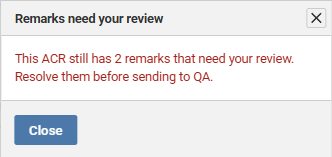
Note: If a report includes unresolved remarks, Axe Auditor displays the following message and prompts you to resolve them.
To review and submit the VPAT report for QA review, perform the following steps:
-
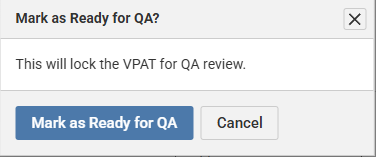
On the VPAT report generation page, review the report and then click Mark as ready for QA. The Mark as Ready for QA dialog appears.
-
Click Mark as Ready for QA. A confirmation message “Your VPAT has been marked as Ready for QA” message appears that confirms the VPAT is ready for QA review. This action will be performed by a QA reviewer.
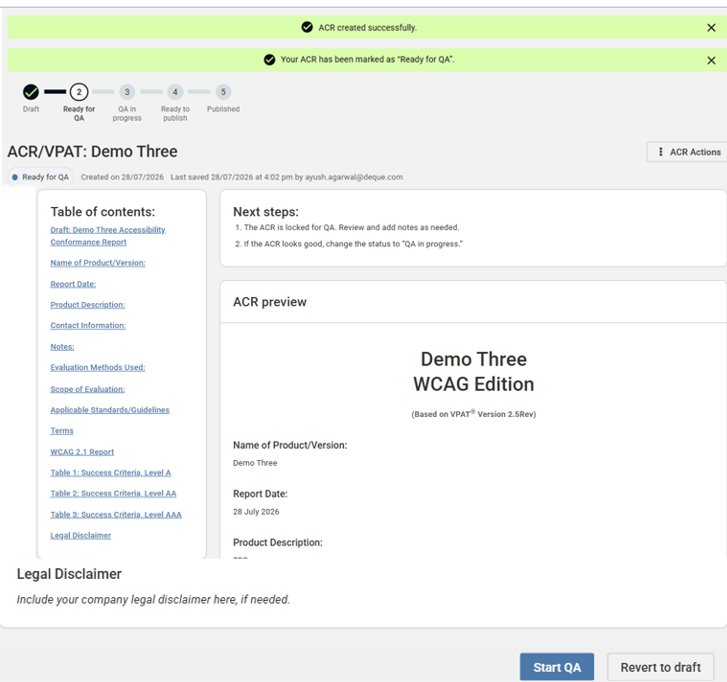
The VPAT report is submitted and locked for QA review.
-
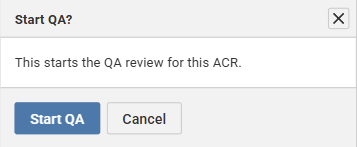
If the report is ready for QA, click Start QA. The Start QA? confirmation dialog appears.
If the report requires changes, enter your review comments in the appropriate section, and then click Revert to draft. This action unlocks the VPAT for editing again and will redirect to the Draft status.
-
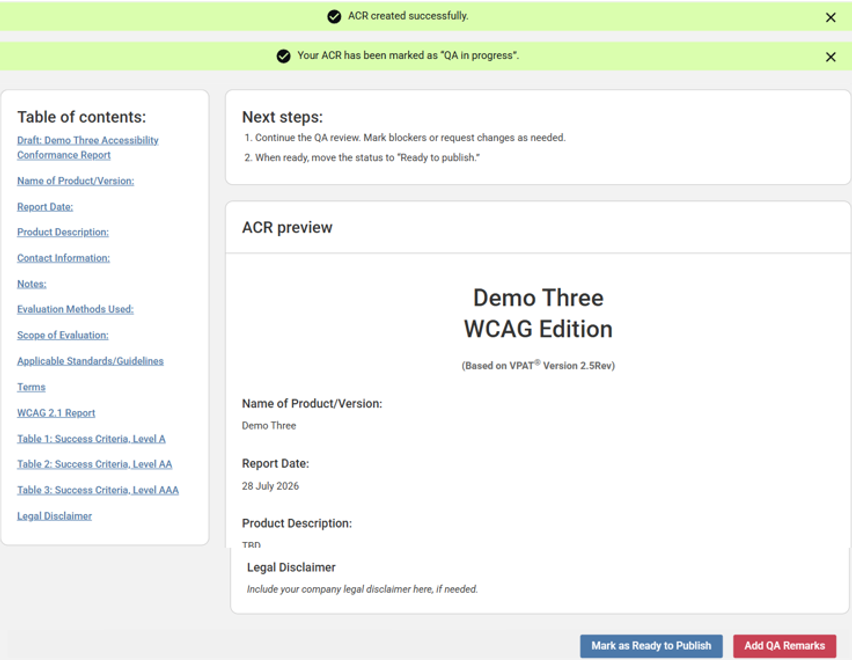
Click Start QA. A confirmation message “Your ACR has been marked as QA in progress” appears.
Note: This action will be performed by project managers.
-
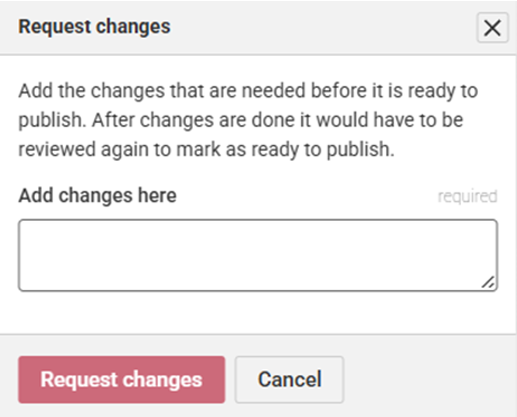
If the report requires any QA review to be addressed then click Add QA Remarks. The Request changes dialog appears.
-
Enter the review comments in the Add changes here description field and click Request changes. A confirmation message “Your ACR has been marked as Changes requested” appears.
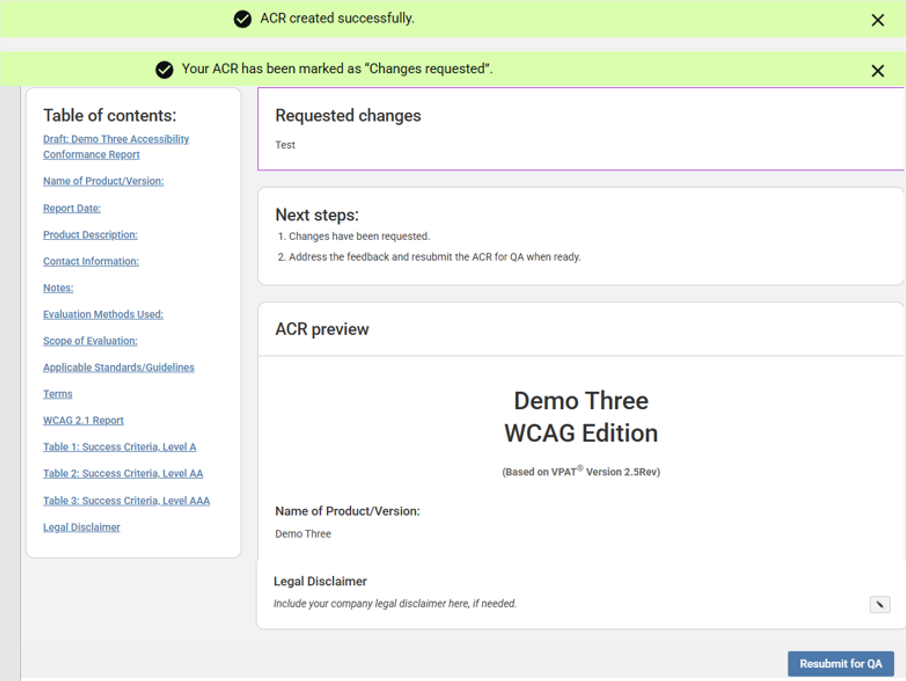
The requested changes appear in the Requested changes description field.
-
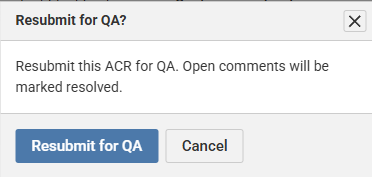
Click Resubmit for QA. The Resubmit for QA dialog appears.
-
Click Resubmit for QA. A confirmation message “Your ACR has been marked as Ready for QA” appears.
-
Click Start QA. Select Start QA. The ACR moves to the QA in Progress status, and the QA review begins.
-
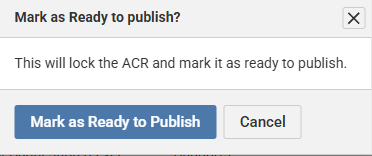
If the report is ready to publish without any remarks then click Mark as Ready to Publish. The Mark as Ready to Publish confirmation dialog appears.
-
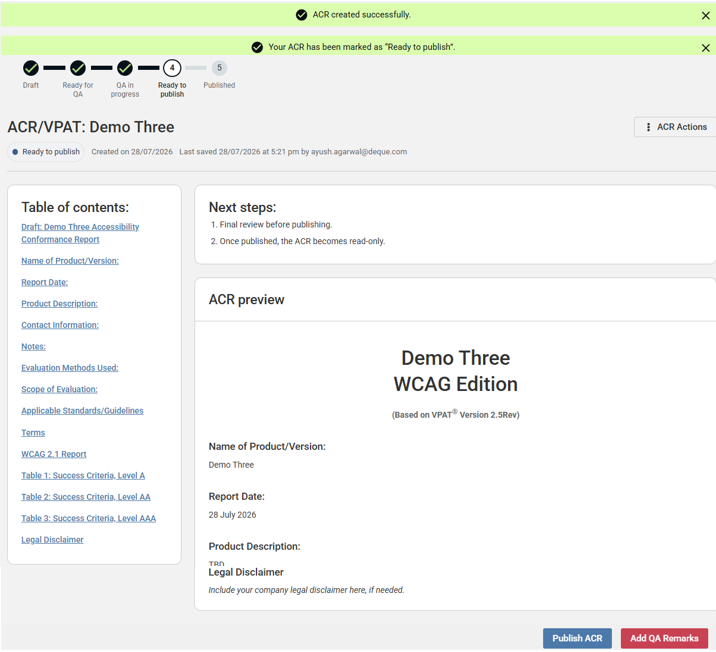
Click Mark as Ready to Publish. A confirmation message “Your ACR has been marked as Ready to publish” appears.
-
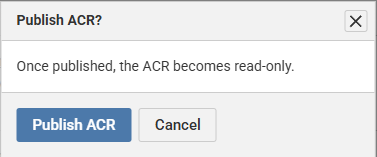
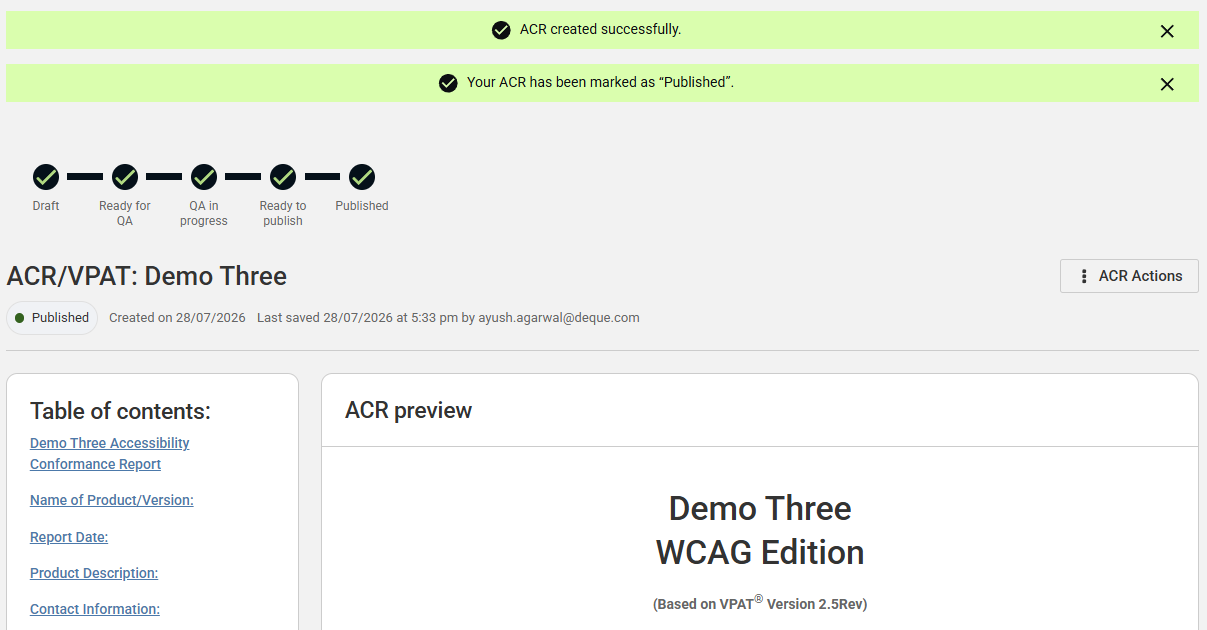
Click Publish ACR. The Publish ACR confirmation dialog appears.
-
Click Publish ACR. A confirmation message “Your ACR has been marked as Ready to publish” appears.
The Published ACR/VPATs section on the Manage ACR/VPATs page displays all published ACR/VPATs, which are read-only. This section includes the product name, document version, publication date, selected accessibility standards, test case, test run, and publisher.
To download a published ACRs:
On the Manage ACR/VPATs page, under the Actions column, click View, and then click Download. The ACR/VPAT report is downloaded to your local system.
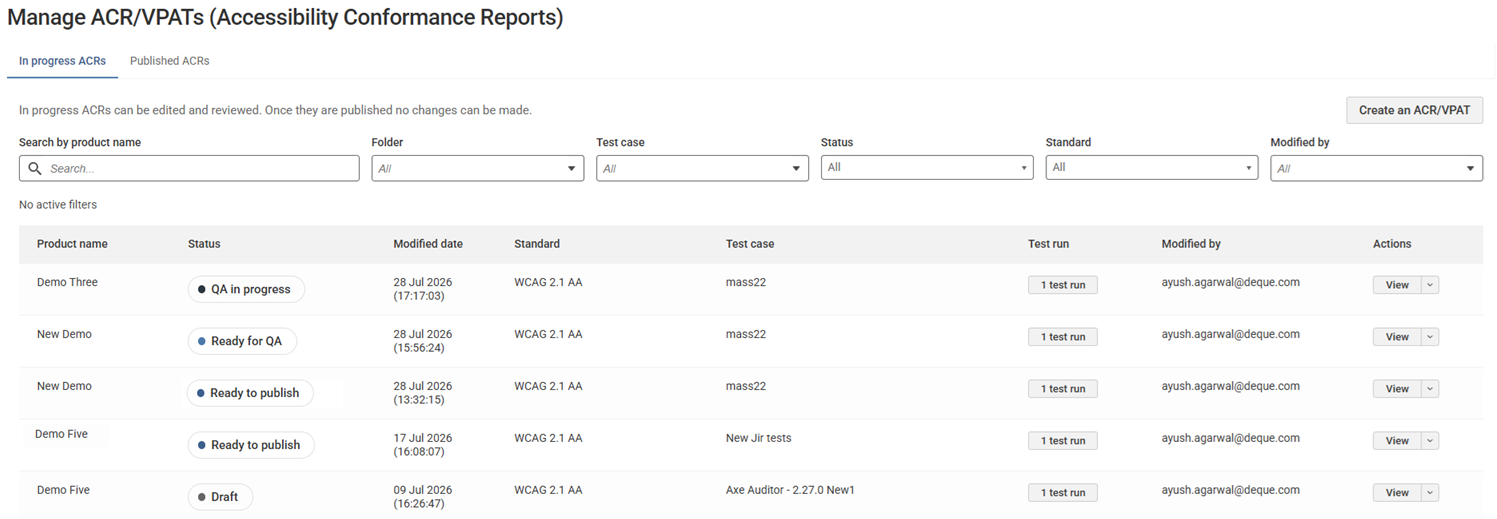
Visibility into the In Progress VPATs section, and the ability to edit a report, are governed by a user's role together with the report's status, not by organization membership alone. Reviewers without an editing role can view a report but not change it, and customers can be granted scoped visibility to VPATs assigned to them. This section displays the product name, document status (Draft, Ready for QA, QA in Progress, Changes Requested, Ready to Publish, or Blocked), last modified date, selected accessibility standards, test case, test run, and the user who last modified the VPAT.
From the In Progress VPATs section, you can download or delete a VPAT.
To download a draft VPAT:
On the Manage ACR/VPAT page, under the Actions column, click View, and then click Download. The VPAT report is downloaded to your local system.
To delete a draft VPAT: On the Manage ACR/VPAT page, under the Actions column, click Delete. The VPAT is removed from the list.