
Duplicate a Test Run
Overview
Duplicating creates an independent copy of a test run (in progress or completed), so you can revalidate issues without changing the original results. Duplicating matters most for completed test runs. A completed test run is recorded in the public register and can no longer be edited, so the only way to recheck findings used to be creating a new test run and repeating the testing process. When you duplicate instead, you start from the existing findings, update each issue as you verify it, and share the results with your customer. The source test run stays exactly as it was. The copy carries over both the setup and the findings: pages, components, test units, screenshots, attachments, issues, issue statuses, and comments.
What a Duplicate Contains
| Items | In the duplicate |
|---|---|
| Pages and components | Copied from the source test run |
| Test Units | Copied from the source test run |
| Screenshots and attachments | Copied from the source test run |
| Issues and issue statuses | Copied, so you can update each issue as you validate it |
| Comments | Copied with their original authors and chronological order |
| Test case | The duplicate is created under the same test case as the source |
| Assignee | The duplicate is assigned to the same user as the source |
| Test run settings | Standard, digital asset type, release, environment, and platform are copied |
| Testing progress, flags, and completion status | Copied from the source test run |
| Test run name | You enter a name for the copy when you create it |
Before you Begin
- You can duplicate a test run whether it's in progress or completed.
- Before you start, make sure that you have access to the test case that contains the test run, and that you've decided on a name for the copy. You enter the name when you create the duplicate.
- Duplicating doesn't affect the source test run, its public register entry, or any report already generated from it.
Duplicate a Test Run
-
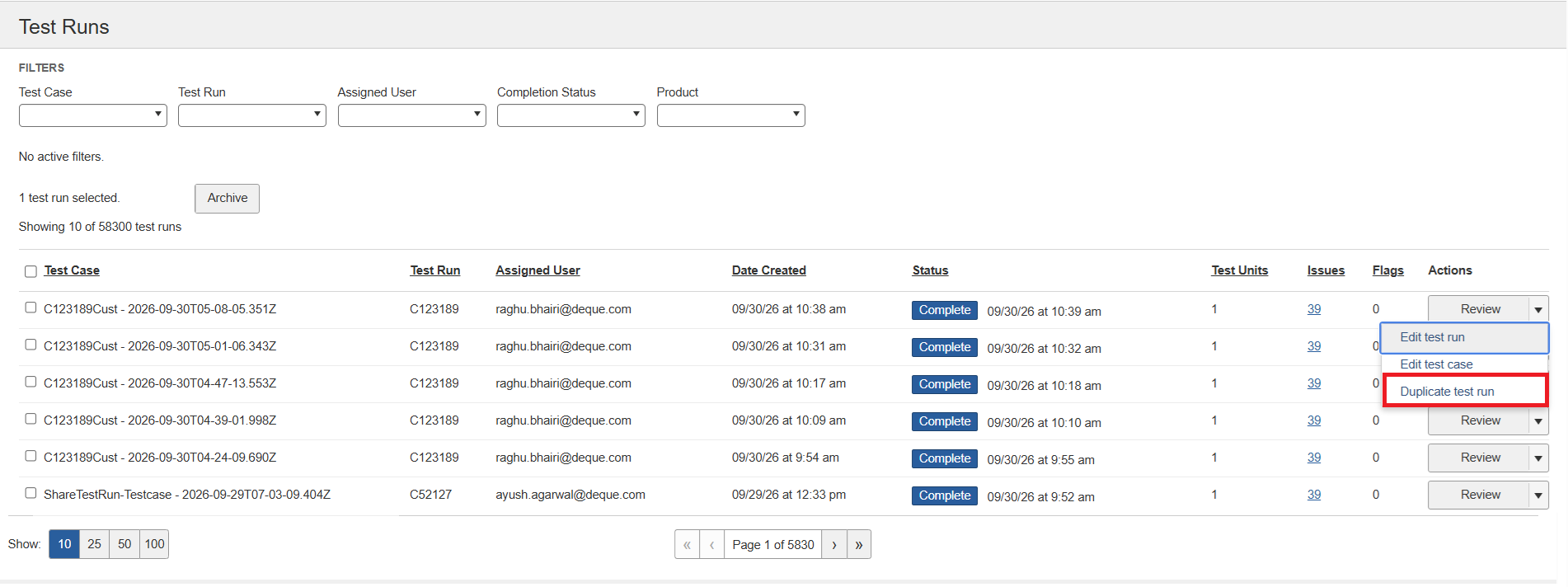
On the Test runs page, find the test run you want to duplicate.
-
In the Actions column, open the Review list, and then select Duplicate test run.
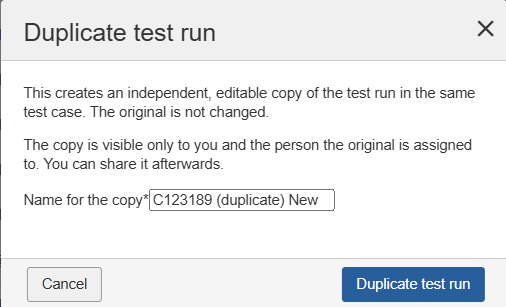
The Duplicate test run dialog opens.
-
In Name for the copy, enter a name for the new test run and select Duplicate test run.
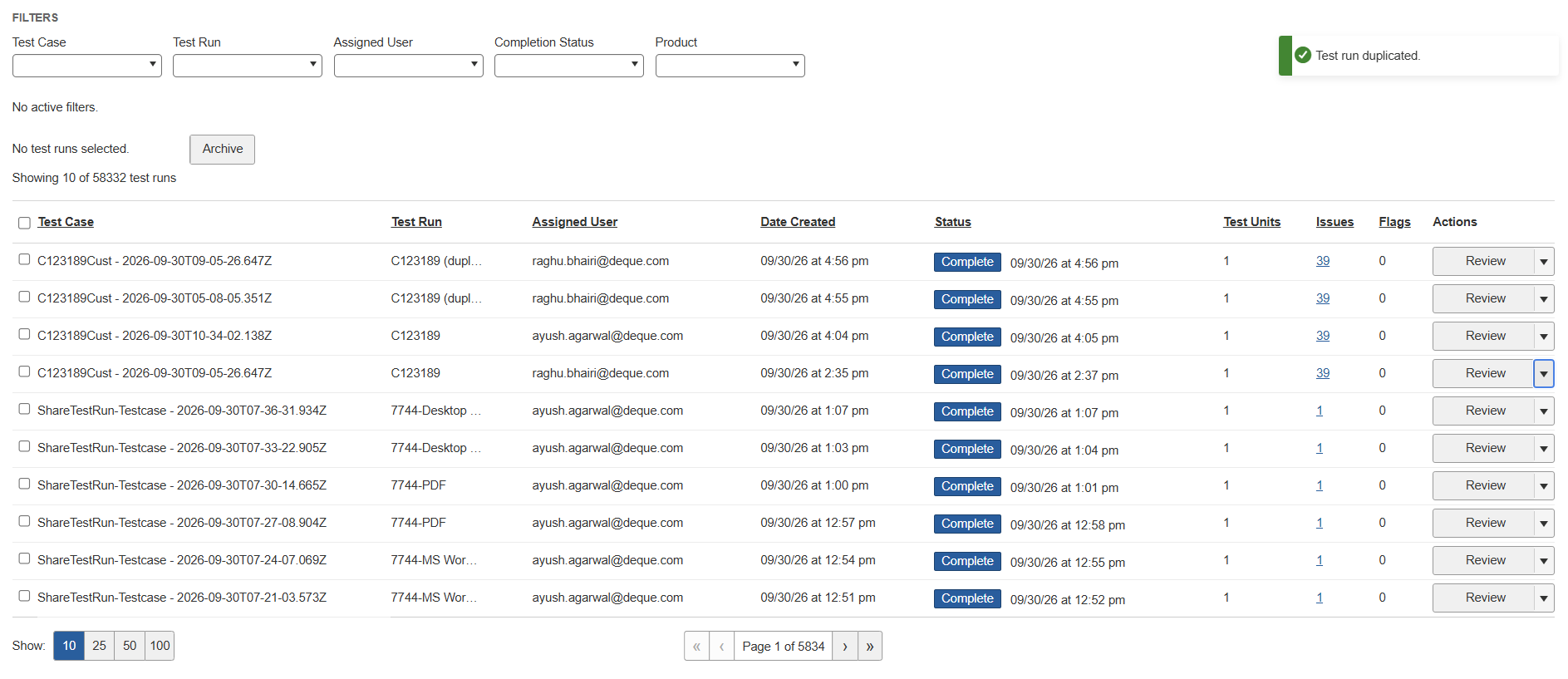
A Test run duplicated message appears, and the copy is added to the test run list under the same test case.
Open the Duplicated Test Run
- On the Test runs page, select the name of the duplicated test run.
- Select Review.
The Test run overview page opens.
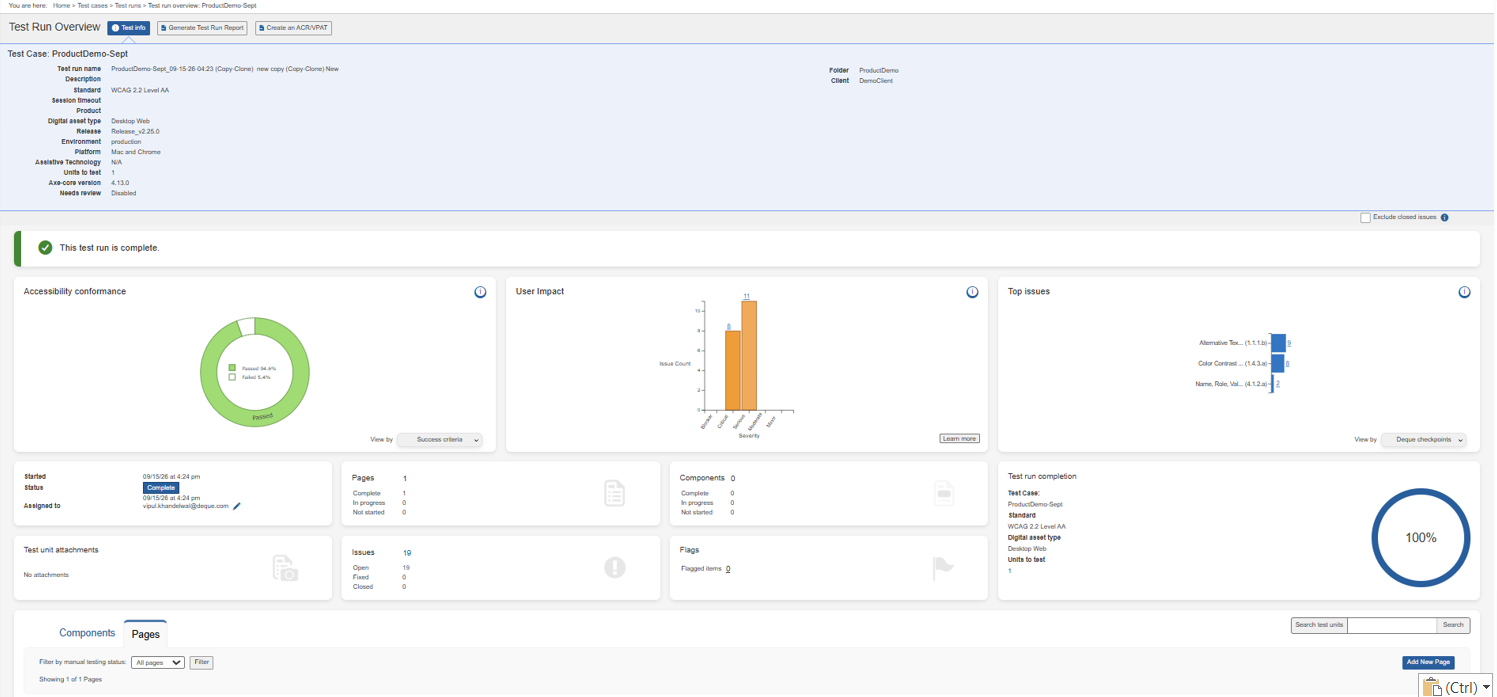
The Test run name field shows the name you entered for the copy. The overview shows the same details and results as the source test run, including the standard, digital asset type, release, environment, platform, issues, flags, and completion status.
From here, work with the duplicate as you would with any other test run: review each issue, update its status as you validate it, and add comments for your customer.
How Duplicates Behave
The duplicate is fully independent. Changes you make to the duplicate don't affect the source test run, and changes to the source don't affect the duplicate.
The duplicate inherits the visibility of the source test run. If the source test run is public, the duplicate is public. If the source test run is private, the duplicate is private, and only the users with access to the source can view it.