
What's New for Release 2.34
Access the Knowledge Base here.
Sign Up to receive the latest updates on Axe Auditor in an email.
Bug Fix - 2.34.1
User Sync No Longer gets Stuck When Sign-In Access Expires
Axe Auditor regularly syncs user accounts from your sign-in service (Keycloak). Previously, if the sync’s access expired partway through, the sync could get stuck repeating the same request until the server was restarted. This could put heavy load on the sign-in service and send a large number of notification emails to its administrator.
With this fix, the user sync:
- Gets fresh access at the start of each run, and again if access is refused partway through.
- Tries a refused request once more, then stops if it still fails, instead of repeating it indefinitely.
- Records a failed run in its log so administrators can see what happened.
- Runs again as usual at its next scheduled time.
Note: If a sync run fails, existing user accounts aren’t changed or deactivated. This fix doesn’t affect how you use axe Auditor.
What's New for Release 2.34
Duplicate a Test Run
In one step, you can create an independent copy of an in-progress or completed test run, including its issues, attachments, and comments. You can then revalidate findings without changing the original results.
Before, reusing a test run's findings meant setting up a new test run and copying each issue, screenshot, attachment, and comment by hand. On a large test run, that could take hours, and details could get missed. Now you start from the existing findings and update each issue as you revalidate it.
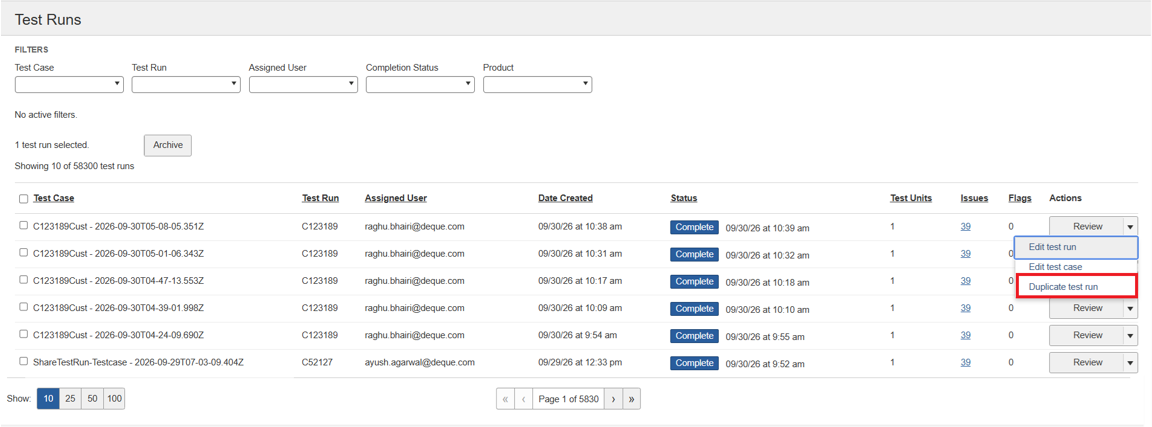
What's copied
- Findings: Pages, components, test units, screenshots, attachments, issues, issue statuses, and comments.
- Setup: Test case, assignee, standard, digital asset type, release, environment, and platform.
- Progress: Testing progress, flags, and completion status. A duplicate of a completed test run is also marked Completed, and you can still update issue statuses and add comments.
How duplicates behave
- Fully Independent: Changes to the duplicate don't affect the source, and changes to the source don't affect the duplicate.
- Same Visibility as the Source: A duplicate of a public test run is public. A duplicate of a private test run is private, and only users with access to the source can see it.
- Original record preserved: The source test run, its published record, and any reports generated from it stay unchanged.
Who it's for
- Accessibility consultants and testers: Revalidate issues after fixes without repeating the full test.
- Project managers: Deliver updated results while keeping the original published record intact.
- In-house accessibility teams: Retest after each product release, starting from your last test run instead of from scratch.
Why it matters Retesting is a routine part of every accessibility engagement, but recreating a completed test run duplicates effort and can lead to inconsistent results. Duplicating lets you build on existing work, keep the original record intact, and deliver updated findings faster.
Access Management for Client Administrators
Client administrators can now manage user access to their client and control which audits users can view without contacting Deque.
Availability: SaaS only, for customers with Deque audit services.
When a customer administrator invites a user, they select the audits (test cases) that the user can access. The user receives an email to activate their Axe Account and appears as Pending until they activate the account. For example, if a user needs to work on only two audits, you can grant access to those audits without giving them access to the client's other audits.
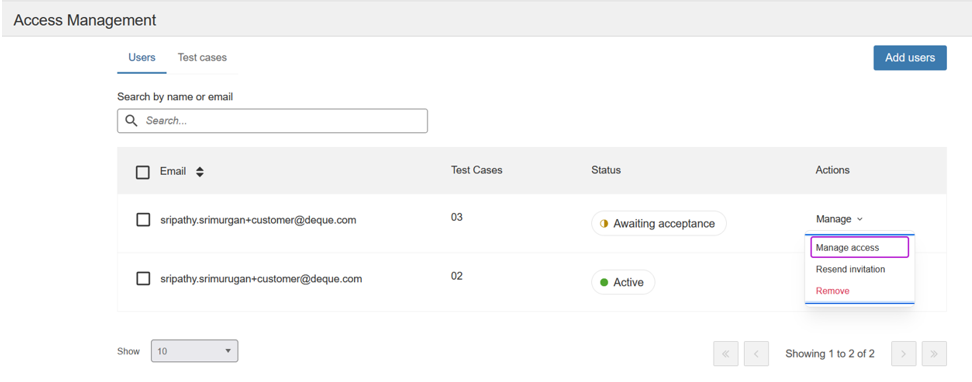
- Invite users to the client and choose the audits they can access.
- View and change each user's access at any time.
- Remove a user's access when they no longer need it. Removal takes effect immediately and applies only to the current client.
- View all public audits for the client without granting individual access. Public audits are read-only, and private audits aren't included.
Client administrators can manage users and access only within their own client.
Client Manager Access
System administrators can now let selected members add and manage clients without giving them full administrator rights. Only existing members can be made client managers.
Availability: SaaS only, for customers with Deque audit services.
Before you begin: Turn on User access control on the Admin Settings page. The Access control tab, including the new Client Manager section, appears only when this option is on.
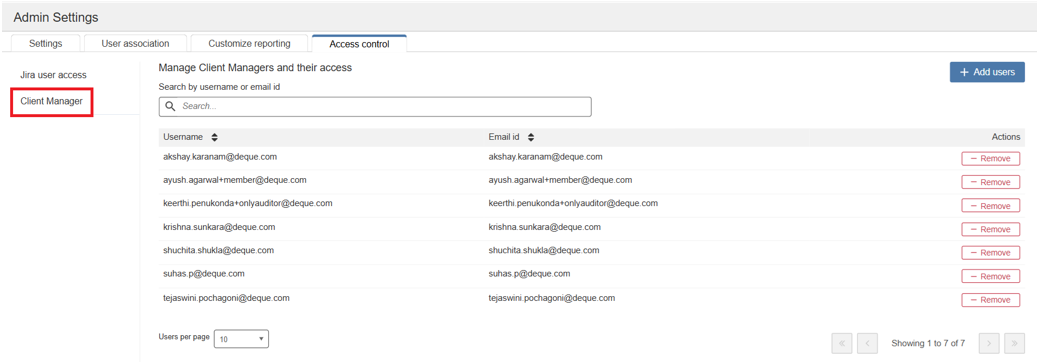
What system administrators can do:
- Grant Client Manager access to one or more existing members from the Add users dialog.
- Search for client managers by username or email address.
- Sort the list by username or email address, and choose how many users to show per page.
- Remove Client Manager access at any time.
Folder, Client, and Jira Connections in Test Info
The Test Info section on the Test Run Overview page now includes three additional fields: Folder, Client, and Jira Connections. You can view where a test run is organized, which client it belongs to, and which Jira connection it uses without leaving the test run.
What you can see
Folder: The folder where the test case for the test run is stored. Client: The client associated with the test run. Jira Connections: The Jira connection configured for the test run. Issues that you push to Jira use this connection.
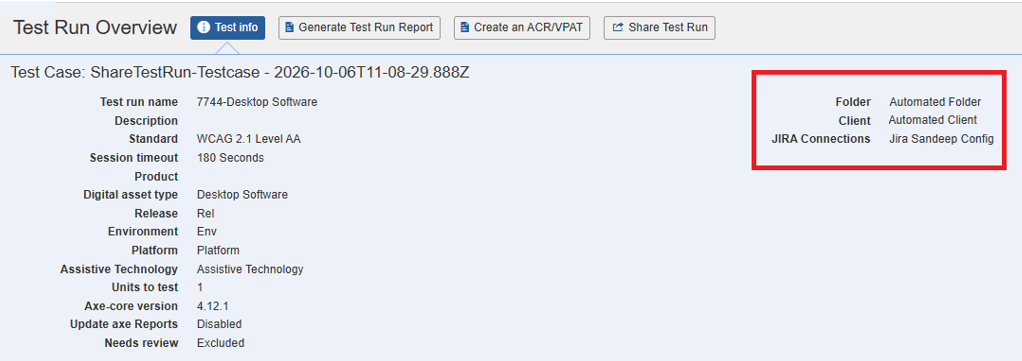
Who it's for
Testers and reviewers: Verify the folder, client, and Jira connection before testing or pushing issues to Jira. Administrators and managers: Verify that test runs are organized under the correct folder and client and use the correct Jira connection.
Why it matters Previously, you had to return to the test case, open the Clients Management page, or view the Jira configuration to find this information. Showing these details in Test Info gives you the context you need at a glance. It also helps reduce the risk of pushing issues to the wrong Jira project or reporting results for the wrong client.
Increased Element Limit for Issues
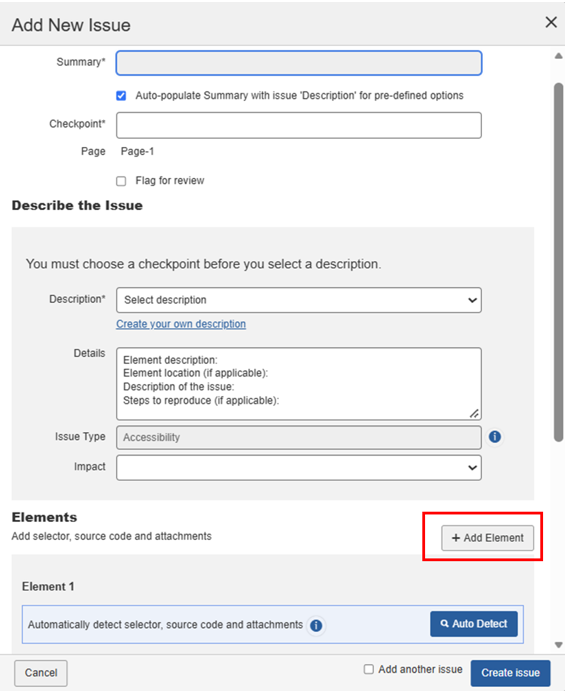
You can now add up to 10 elements to a single issue, up from the previous limit of 3. This allows you to capture all affected instances of an accessibility issue in one place, so you don't need to create duplicate issues when the same problem occurs on more than three elements.
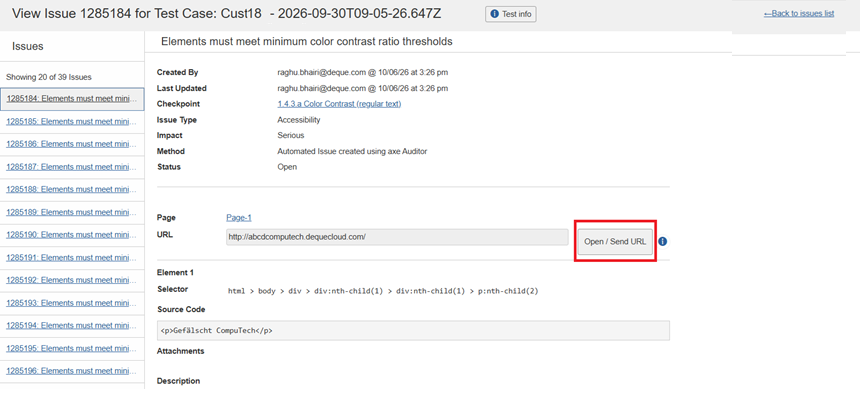
Open/Send URL for Share-Link Reviewers
External users who view a test case's issues through a share link can now use the Open/Send URL button next to the page URL on the issue details page. Before, only signed-in administrators and members had this button, and share-link users had to copy the URL by hand.
-
If the axe extension is installed, the URL is sent through the extension.
-
If it isn't, the page opens in a new browser tab.
-
The issues table preview also shows these users the URL and the button.
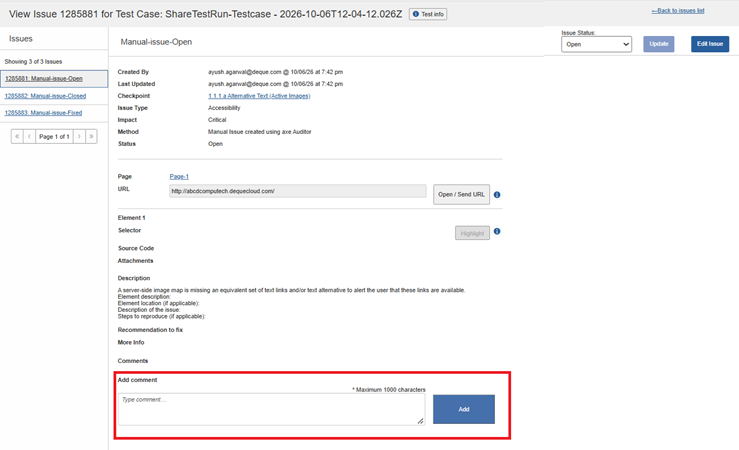
Tag View Only Users in Add Comment
You can now @-mention View Only users in comments on the View Issue page. Before, you could tag only users who could create issues. This lets you bring clients and stakeholders into issue discussions without changing their role.
-
View Only users appear in the suggestions list when you type @.
-
Tagged View Only users get the same email notification as other tagged users.
-
Tagging doesn't change access. View Only users can open and view the issue but still can't edit it.
Recommendations for Native Mobile Methodologies
We've introduced recommendations for the Native Mobile iOS and Native Mobile Android methodologies. When you test a native mobile app, you get remediation guidance written for that platform.
Not Applicable checkpoints reflected in ACRs
Checkpoints marked Not Applicable in a test run are reflected in Accessibility Conformance Reports (ACRs) created afterward, including WCAG, Section 508, and EN 301 549.
- When every checkpoint mapped to a criterion is Not Applicable and there is no open issue, the report shows Not Applicable.
- An open issue still reports Does Not Support or Partially Supports.
- A Pass on any mapped checkpoint still reports Supports.
Infrastructure Upgrade
- Deque Way version has been upgraded to 4.1.0
- The Axe-core version has been upgraded to 4.13.0
Known Issues
- The filter doesn't work on the Checkpoint tab for flagged issues.
- Running automated testing on a component inside an iframe causes an error and a loading icon that doesn't go away.
- The Accessibility Conformance chart doesn't show results for test runs that use the ACAA standard with Mobile Web as the digital asset type.
- On the Issues list page, filtering by Status: Open and Groups: No Group, then sorting by the Checkpoint column, shows no records.
Browser and Driver Support
The following table describes the minimum and recommended versions on which Axe Auditor is actively tested and best supported.
| Browser | Min Version | Recommended Version | Long Support Channel |
|---|---|---|---|
| Chrome | 144 | 154.0.x | Extended Stable (Win/Mac) |
| Firefox | 140 | 157.0.x | ESR |
| Safari | 18 | 27.0 | |
| Edge | 144.0 | 154.0.x | Extended Stable (Win/Mac) |
Automated Testing: Supported Browser and Driver
The following table describes the supported browsers, the minimum and recommended versions to perform automated testing in Axe Auditor.
| Browser | Min Version | Recommended Version | Long Support Channel |
|---|---|---|---|
| Chrome | 144 | 154.0.x | Extended Stable (Win/Mac) |
| Firefox | 140 | 157.0.x | ESR |