
Team Access
Team Access
If you’re both an Axe Account admin and an axe Reports Admin, you can modify teams’ access to view reporting data for certain Deque products, or certain areas of your business. This allows you to limit a team’s view of Axe Reports to only the data relevant to them.
For example, you may prefer that your Executive team only has access to view Axe Monitor charts, so that executives can't access Axe DevTools, or pre-production reporting data. Or, you may prefer that teams working on European sites can only access charts in the “EU” subdimension of your “Regions” dimension.
Example: Scoping access for a French Marketing team
Suppose your organization runs marketing websites in several countries. You might have a “Regions” dimension with subdimensions for different countries where you operate. You also have a “Departments” dimension with subdimensions like “Sales,” “Marketing” and “Products.” rather than providing the French marketing team visibility into all departments’ data or all regional data.
You can Assign the team to view limited data:
- Within the Regions dimension, select only the relevant marketing subdimension, and deselect all other countries.
- Within the Departments dimension, select only the relevant Marketing subdimensions.
After you save the changes, team members can view report data only for French sites and marketing sites. They can’t view non-marketing data for other countries, or data for unrelated business areas outside France — such as Sales or Engineering — even though those subdimensions are available elsewhere in your organization’s Axe Reports instance.
Begin Setting Up Axe Reports Users & Teams
Starting with version 2.4, Axe Reports users must belong to a team in Axe Account. Then, the team must be assigned access to product and dimension charts in Axe Reports.
-
In axe Account, add users to axe Reports.
Note: Users added to Axe Reports before version 2.4 can access all charts until they’re added to a team with limited permissions.
View Teams in Axe Reports
-
In Axe Reports, find Global Options in the menu, and click Team Access. Your organization’s teams will show in Axe Reports when at least one user on the team has access to Axe Reports.
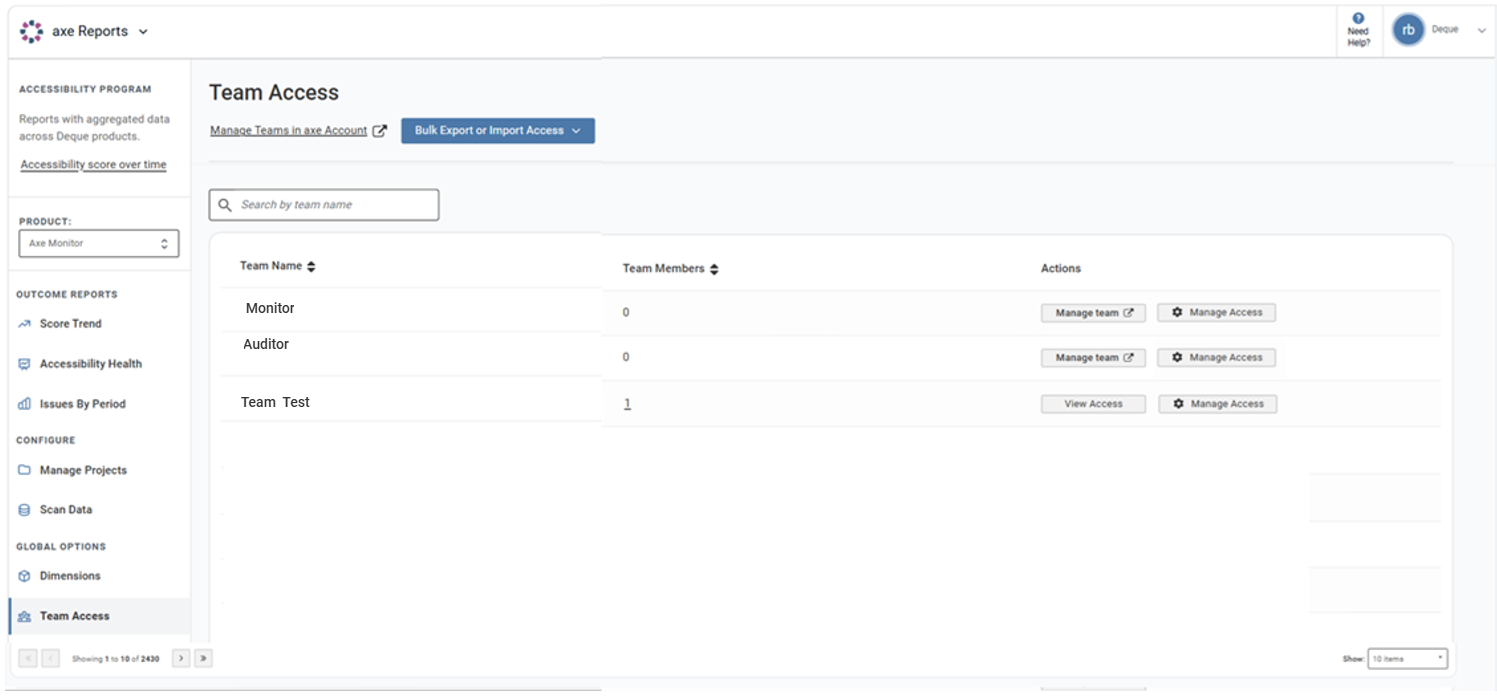
Search to find a specific team. You can also click the sort icon to arrange the team names alphabetically.
To create new teams or modify existing teams, select Manage Teams in axe Account.
Note: No Teams found page is displayed when teams haven’t been configured by your organization’s Axe Account Admin, or there are not teams with Axe Reports users. If you are an axe Account admin, select Manage Teams in axe Account.
To view more than 10 teams in a single view and their associated team members, find the Show drop-down, and select either 10, 25, 50, or 100 items.