
How to Install axe® Assistant in Microsoft Teams
Your company must have an active, paid subscription to axe® Assistant.
Steps
axe Account Setup
-
Log in to axe Account. The
axe Assistant Teamsproduct card should be visible in your Active Product Subscriptions section. -
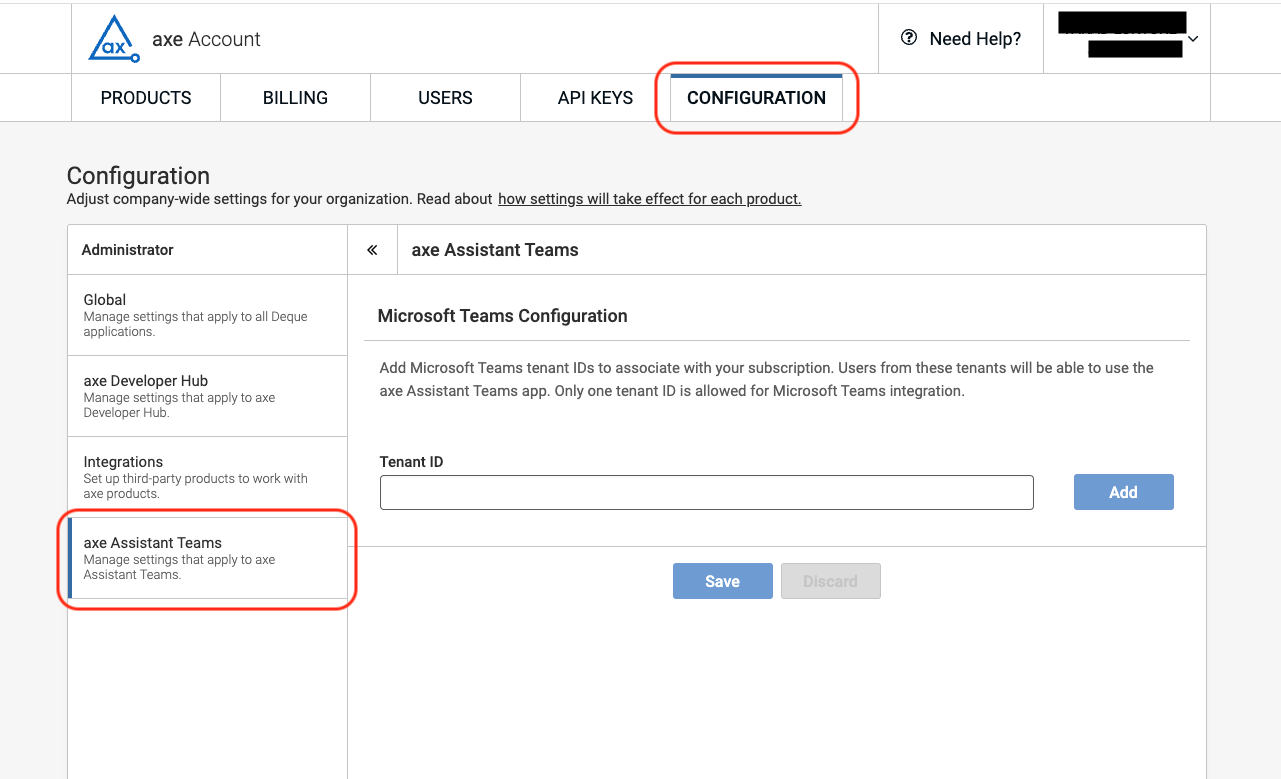
Navigate to Configurations > axe Assistant Teams tab. Enter your tenant ID in the designated field. This step is crucial for enabling tenant access to axe Assistant on Microsoft Teams. The tenant ID is used to verify your subscription validity. Click Save after entering the Tenant ID.
Microsoft Teams Setup
-
You will be able to access the zipped app package from our Agora repository linked here
-
Once you receive the App package, the Microsoft Teams administrators must access the Microsoft Teams admin center to install the app.
-
Navigate to Teams apps > Manage apps > Actions > Upload new app, and upload the provided App package.
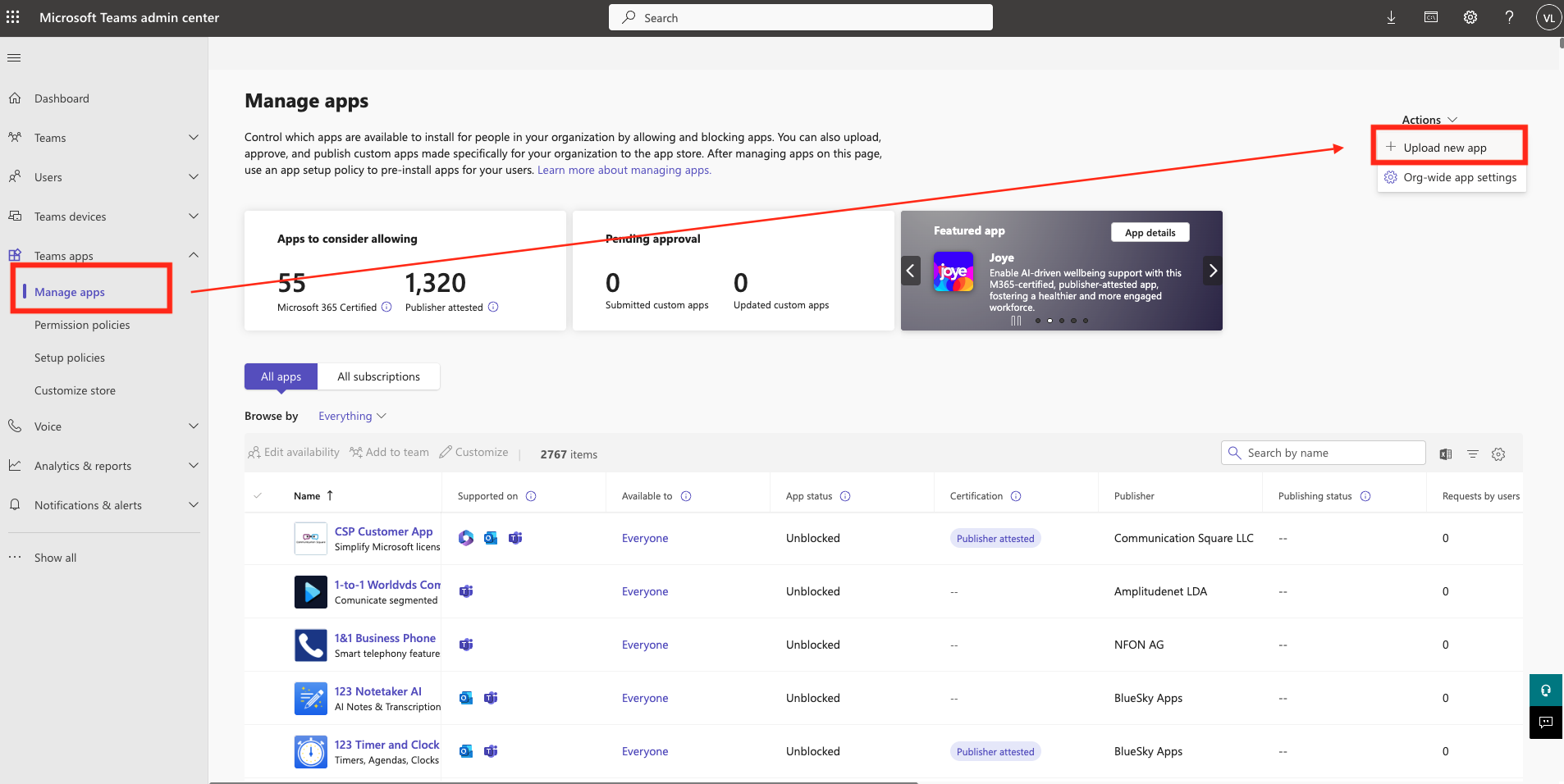
- After successful upload, navigate to the application settings > Permissions, and grant organizational admin consent.
Upon completion of these steps, the application will be available within your Microsoft Teams environment for user installation and usage. Start chatting!
Application Updates
For updates requiring application package modifications:
-
Client organization's Teams administrators should navigate to Teams apps > Manage apps >
axe Assistant, and upload the new application package under 'New version' -
Review and grant consent for any new permissions if required
-
Updates will be automatically propagated to end users within Microsoft Teams
Managing Users (if using user based licensing)
If your subscription uses user based licensing, instructions on how to add users can be found at the Axe Account Portal User Management Documentation.
Sign in Axe Assistant
Perform the following steps to sign in to Axe Assistant.
-
Open Microsoft Teams.
-
Navigate to the Axe Assistant app in Microsoft Teams.
Verify that Axe Assistant is updated to version 1.2.0. If an update is available, upgrade to the latest version.
-
Select Messages in Axe Assistant.
-
In the Message description box, type any message (for example, Hello) and click Enter to send it to start the sign-in flow.
-
When the sign-in prompt appears, click Sign in.
-
Log in using your Microsoft Teams account credentials.
Notes
-
If the Need admin approval screen appears, the Axe Assistant app requires permissions that can be granted only by an administrator. An admin user must sign in and approve the requested permissions before the app can be used by users in the organization. Contact your administrator to request approval (or)
-
If you are an admin user and if the permission for Axe Assistant app not granted, then the Permissions requested dialog appears.
-
For Admin Users (First-Time Organization Setup)
- Review the permissions requested by the application.
- Enable the Consent on behalf of your organization check box.
- Click Accept to authorize the application.
For Standard Users
- If admin consent has already been granted:
The sign-in process continues and steps 7 through 9 are skipped.
- If admin consent has not been granted:
An error dialog is displayed indicating that administrator approval is required. Contact your organization’s administrator to grant the required consent before proceeding.
The application will display You are now logged in message. If the message is not displayed, repeat the sign-in steps.
After successful authentication, Axe Assistant is configured and ready to use.
How to remove axe Assistant from conversations
To remove axe Assistant from different conversation types in Microsoft Teams:
Remove from Personal Chat
You have two options:
-
Delete the chat:
- Right-click on the chat with axe Assistant in your chat list
- Select "Delete"
-
Uninstall the bot for yourself:
- Click on the "..." menu (More added apps) at the left side of Teams
- Right-click on axe Assistant
- Select "Uninstall"
Remove from Group Chat
- Click on the chat name at the top
- Click on "Manage apps" in the settings
- Find the bot
- Click "..." next to the bot
- Select "Remove"
Remove from Channel
- Navigate to the team containing the channel
- Click "..." next to the team name
- Select "Manage team"
- Go to the "Apps" tab
- Find axe Assistant in the list
- Click "..." next to the app and select "Remove"
Note: Removing the bot from a conversation does not uninstall it from your Teams environment.
For Teams Administrators
- Access the Microsoft Teams admin center
- Go to "Teams apps" > "Manage apps"
- Search for axe Assistant
- Select the app
- Click "Actions" > "Block app" to prevent future installations
- Click "Actions" > "Delete" to remove the app completely from your organization
Note: Deleting the app will remove it from your organization's Teams app store and prevent users from installing it until it's uploaded again by an administrator.