
Scan List
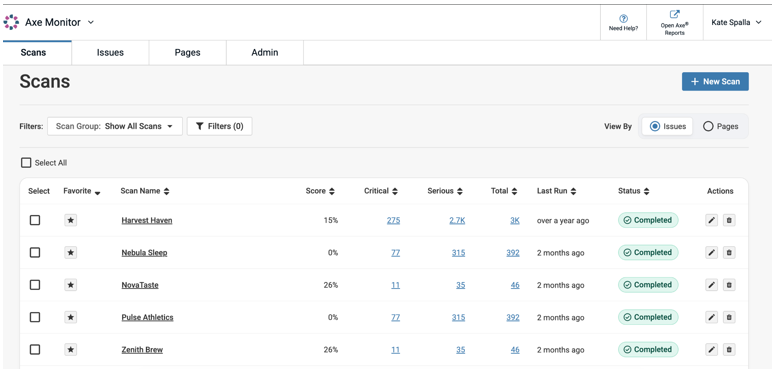
When you log into Axe Monitor, the Scan List provides an overview of all the scans you can access in the system.
Scans marked as Favorites are sorted by default. Each scan has a scan name, score, critical issues, serious issues, total issues, last run time, and scan run status. If you have permission to edit or delete the scan, those actions show in the last column.
The Total column represents the sum of scores of the Critical, Serious columns, moderate, and minor issues.
The issue counts on the scan list are linked, and provide direct access to filters. For example, a count of “100” in the Critical column will lead you to the detailed list of 100 Critical issues found for that scan.
In progress scan runs
If you currently have any scans running in Axe Monitor, "In-progress scan runs" will additionally show the scans in “Running” status. Select the arrow to show all scans currently running, their duration, pages scanned in the last hour, total pages scanned, and actions to cancel, edit, or delete (available for scan admins).
If you have scans that have been running longer than expected, due to a problem with Axe Monitor, a message will display – “Scanning services are unavailable. Contact Helpdesk.” This message shows in all cases where there is an issue with Axe Monitor. If this message is not present and scans are running slowly, the delay may be caused by your network.
Uncheck "Enable live table updates" to stop live animation on the duration and page counts. Refresh the page for updated information.
Key Actions
- Click the + New Scan button to create a scan.
- View By: Choose “Issues” or “Pages” to adjust the issue counts in the table. The “Issues” option will show the Critical, Serious and Total issues across the entire scan. The “Pages” option will show the number of pages with Critical, Serious, and overall issues.
- Following the table, you may choose to show either 10, 25, 50, or 100 records at a time. You may also navigate through additional records using the arrow buttons.
Filters
By default, the Scan List is filtered to show scans from all groups you have access to. Select the drop-down on active filters, or click the Filters to apply more filters.
On the Filters modal:
- Sort order: set to Descending by default. Select the radio button for Ascending to modify the sort order.
- Scan Name: Enter a partial or full scan name to review only the matching scan.
- Sort by: Choose a column title from the dropdown.
- Scan Group: Select a scan group from the dropdown. Select the + icon to filter to the group. Add additional groups if desired. For two or more groups, use the checkbox to specify “Only show a scan if it belongs to all of the selected groups”
- Scanned After: Enter a date in MM-DD-YYYY format to only review recent scans.
- View Only My Issues: Filter scans and their issue counts to show only issues assigned to you.
- Include Needs Review: control whether you want “needs review” issues to show in the issue counts.
- Click the Save button to set your filters or Cancel to exit.
Bulk Actions
-
Select a checkbox for a single scan, or the “Select All” checkbox to display bulk actions.
-
Choose an option from the Bulk Actions drop-down.
- Favorite
- Unfavorite
- Delete: A modal appears to confirm the action. Deleted scans cannot be recovered.
- Apply Shared User Flow Script: Click the Select Shared Script button that appears. A modal will open. Choose a script from the drop-down.
- Apply Shared Session Script: Choose a script from the drop-down.
- Assign Preset: Choose a preset from the drop-down.
Start Prioritizing Accessibility Issues
- To drill into scan results, select a scan name or the Critical issue count for that scan.
- To analyze results across several scans at once, select Axe Reports in the main navigation.