
Needs Review
The Needs Review feature allows you to import, track, and validate accessibility issues that a scanning tool flags for manual verification. These issues are not confirmed accessibility issues until a reviewer validates them. Previously, Axe Auditor excluded these issues, with no option to review, store, or report on them.
To use this feature, an administrator must enable the Needs Review option on the Admin Settings > Settings page.
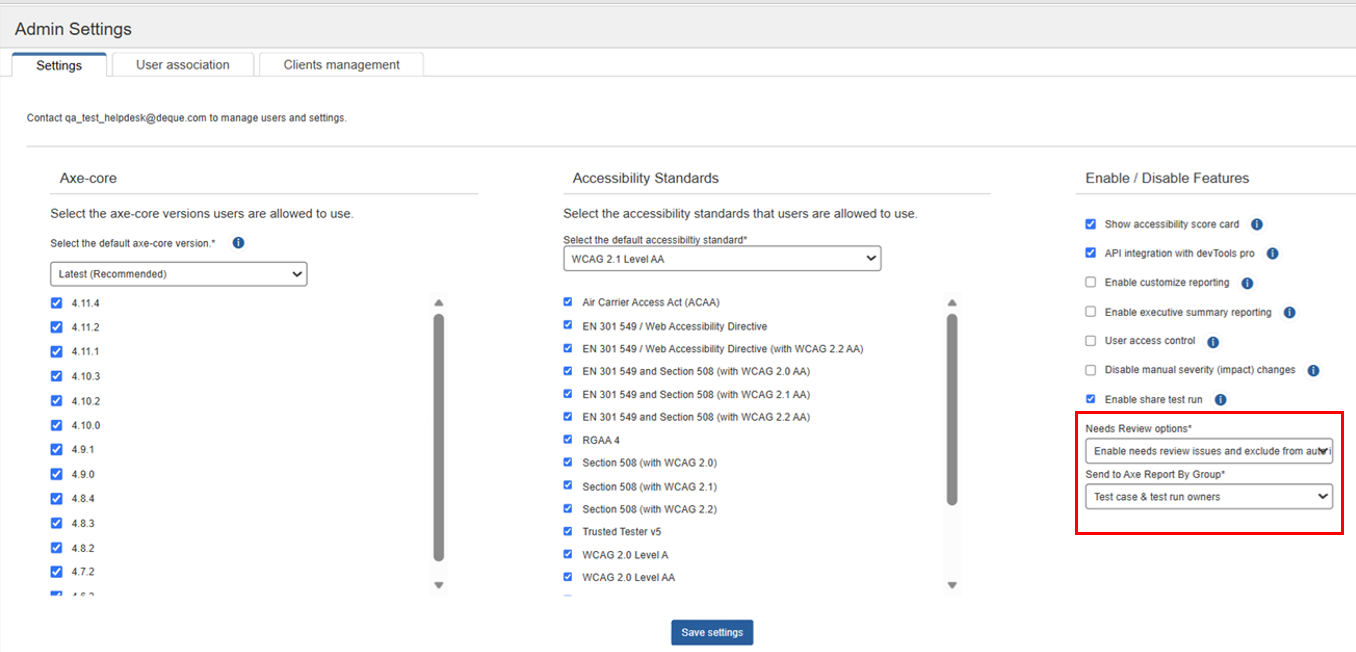
The Needs Review drop-down includes the following options:
- Enable Needs Review issues and include in auto total issue — Imports needs review issues and includes them in the automatic issue count.
- Enable Needs Review issues and exclude from auto total issue — Imports needs review issues but excludes them from the automatic issue count.
- Disable — Skips Needs Review issues during import.
By default, the Needs Review option is disabled.
Send Axe Reports by group
Axe Auditor sends the Axe Report to the group you select. You can choose one of the following options:
- Test case and test run owners
- Test case owners
- System administrators only
Include or Exclude Needs Review Issues
To include or exclude needs review issues:
-
On the Axe Auditor homepage, click Test cases. The My test cases page appears.

-
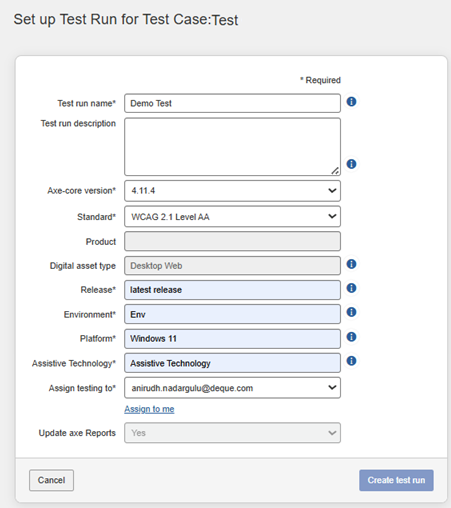
Select a test case, and then click Create test run under the Actions column. The Set up Test Run for Test Case page appears
-
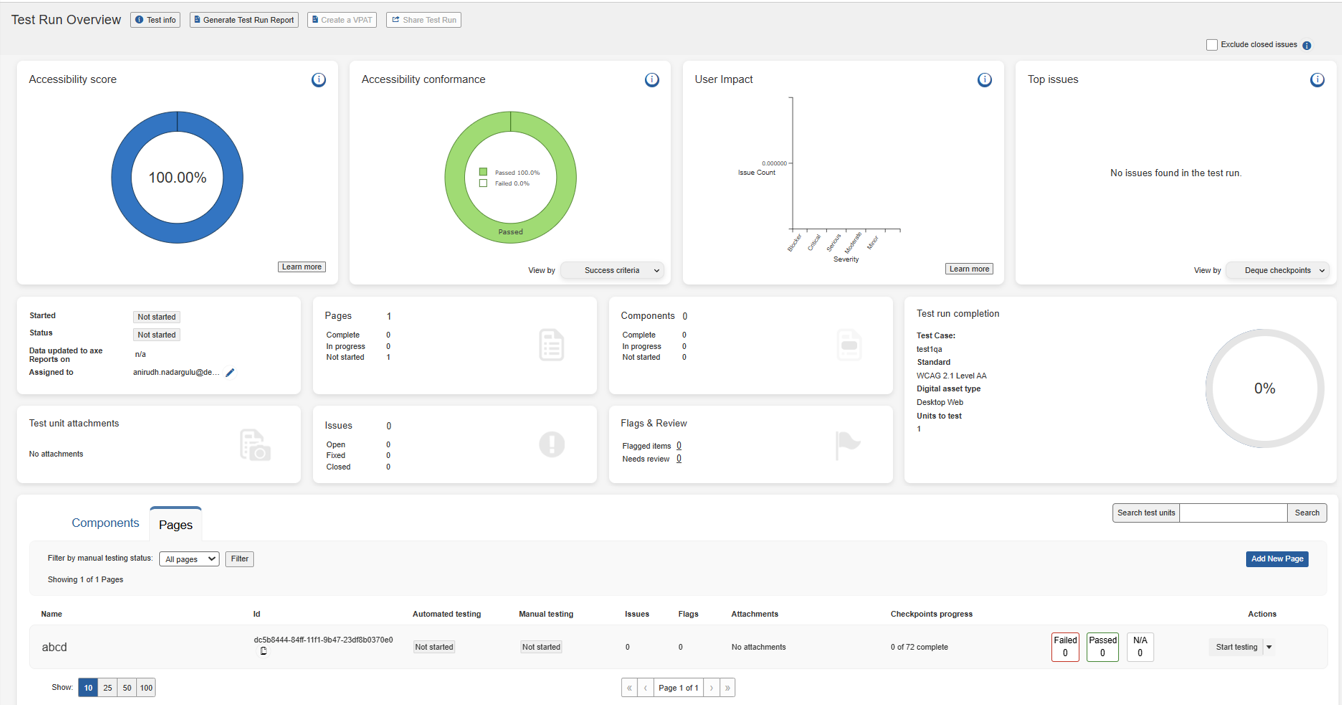
Enter the appropriate information in the required fields and click Create test run. Fields that are marked as (*) are mandatory. The Test Run Overview page appears.
-
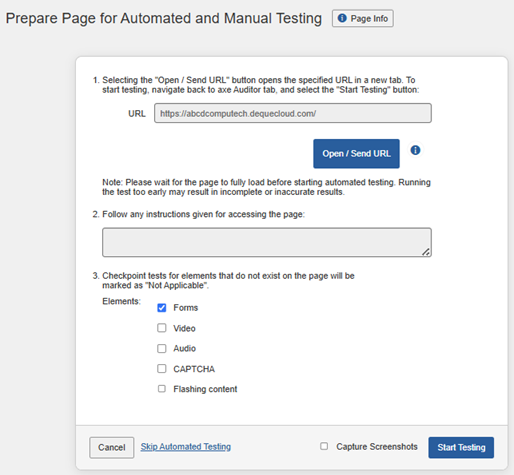
Click Start Testing. The Prepare Page for Automated and Manual Testing page appears.
-
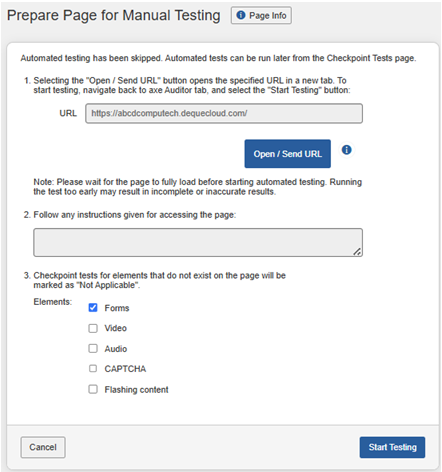
Click the Skip Automated Testing link to continue without automated testing, and then click Start Testing. The Prepare Page for Manual Testing page appears.
-
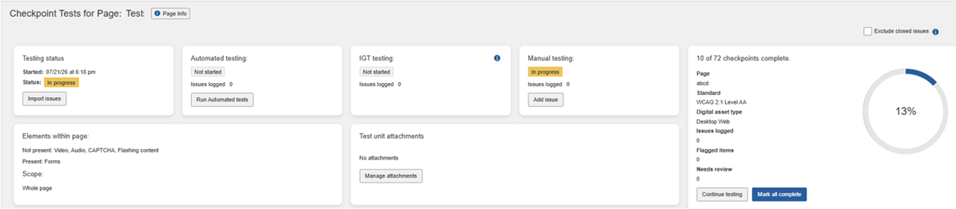
Click Start Testing. The Checkpoint Tests for Page appears.
-
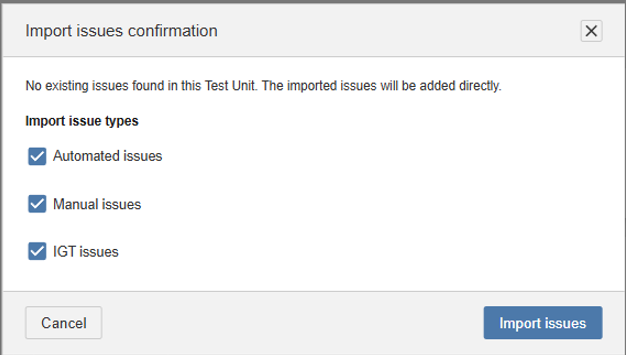
Click Import Issues from the Testing Status card. The Import Issues confirmation dialog appears.
-
Select the issue types to import, choose the issues file from your local system, and then click Import Issues. The issues are imported successfully.
-
Navigate to the Test Run Overview page. You can view the needs review count under the Flags & Review card.
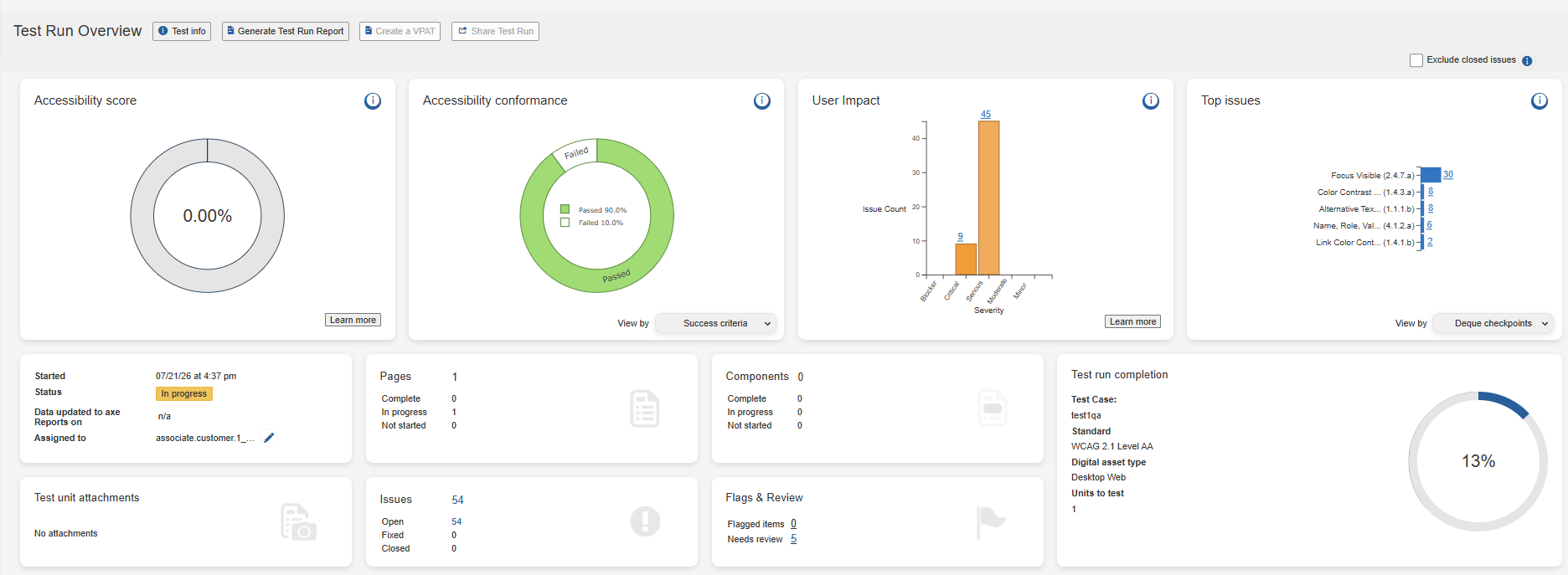
Note: If the user selects Enable Needs Review issues and exclude from auto total issue option, the needs review issues will not be included in the total issue count and reports on the Test Run Overview page.
-
To review and confirm the needs review issues, click the issue count link next to Needs Review field under the Flags & Review card. The imported issues page appears.
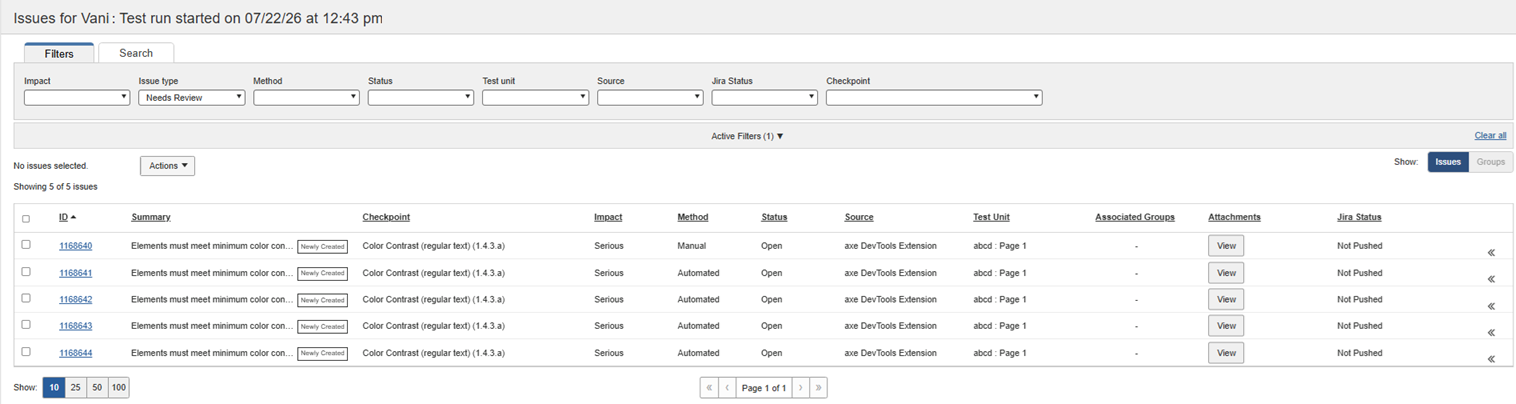
-
Select an issue and click the issue ID link. The View Issue page appears.
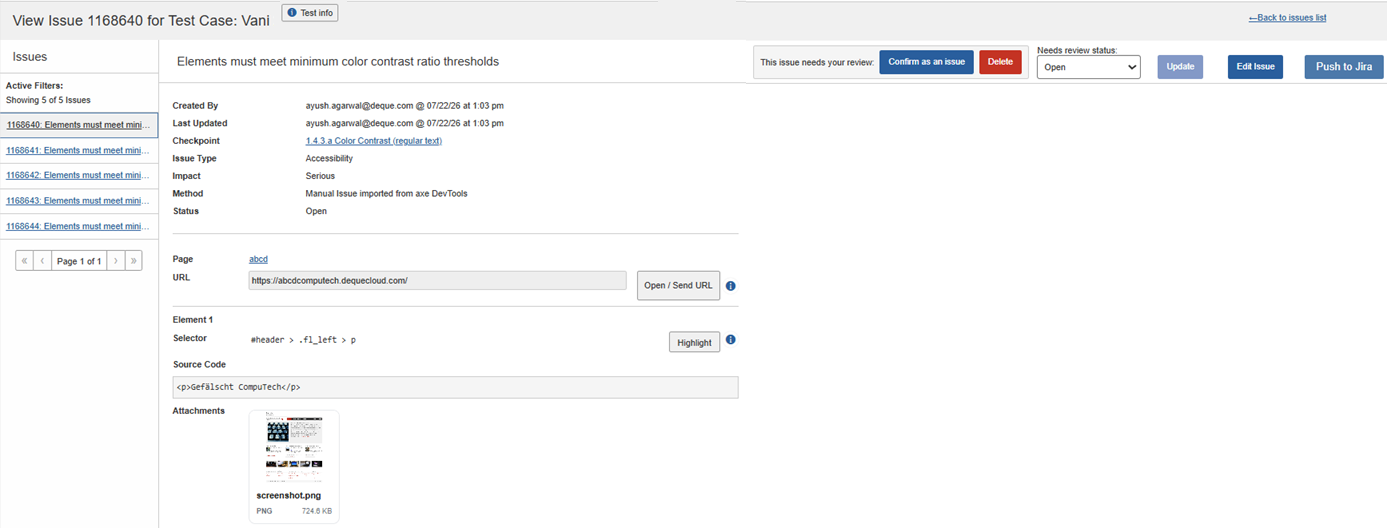
-
Review the issue details. If the issue is a valid accessibility issue, click Confirm as Issue. If not, click Delete to remove.