
Feedback
Axe Assistant allows you to share feedback on the responses you receive to your questions. When you enter a question in the chat field, Axe Assistant provides relevant answers, along with thumb icons below each response for feedback. This helps improve response quality and enables better user support.
To provide feedback, perform the following steps:
-
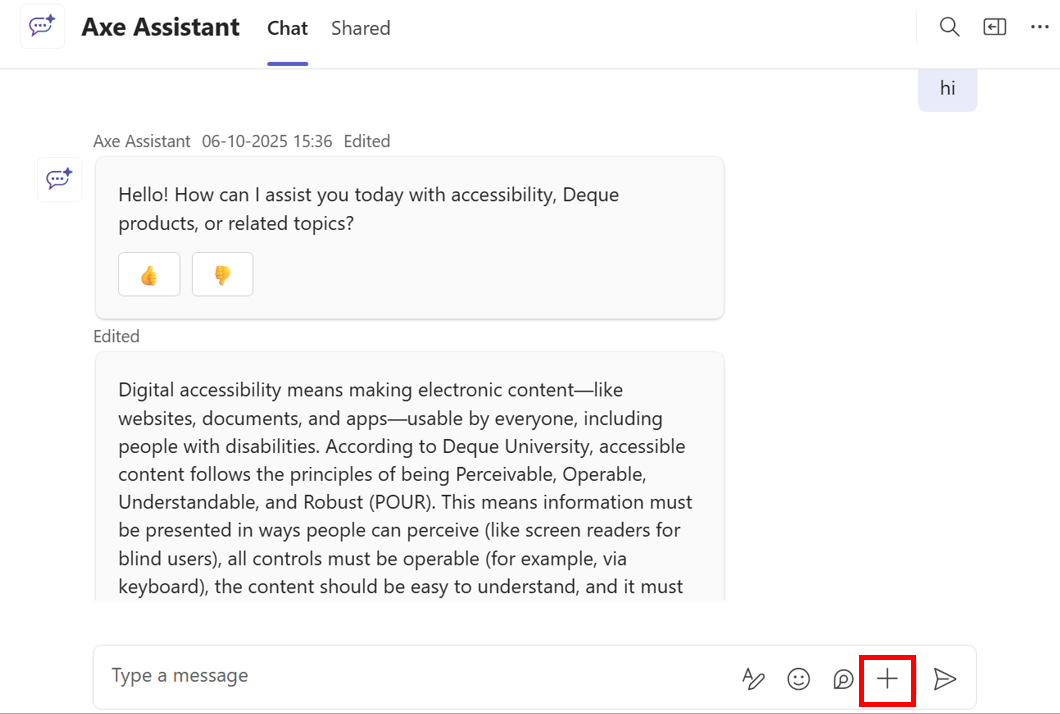
On the Axe Assistant homepage, click Chat. The Chat page is displayed.
-
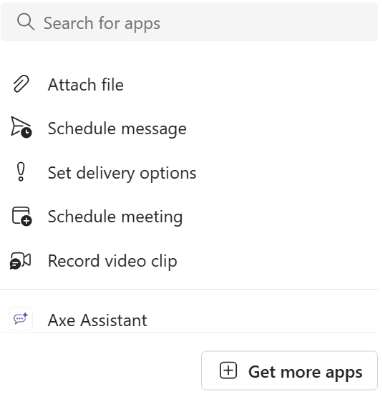
From the message description field, click the "+" icon. The Search for apps dialog is displayed.
-
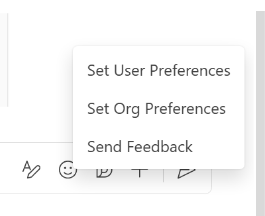
Click Axe Assistant. The Preferences and Feedback options pop-up is displayed.
-
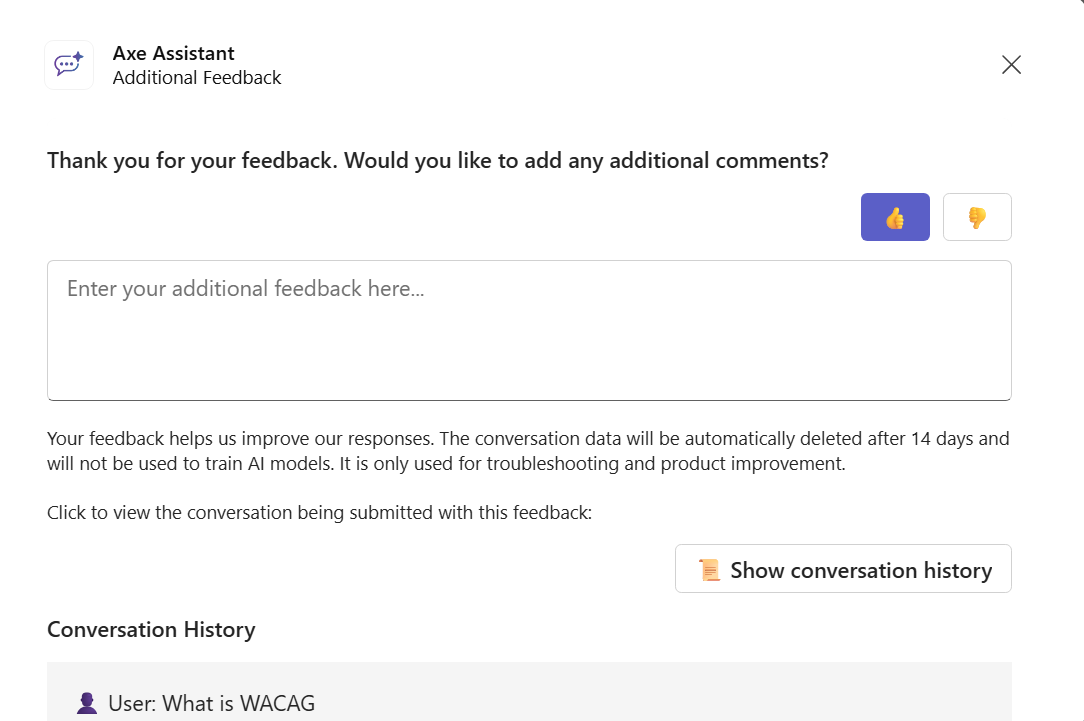
Click Send Feedback. The Axe Assistant Additional Feedback dialog is displayed.
-
To provide feedback, click the thumbs up or thumbs down icon. The Axe Assistant Additional Feedback dialog is displayed.
You can provide additional feedback by typing in the description field. You can also view the conversation history by clicking the Show conversation history option.
-
Click Submit to send your feedback.