
Preferences
Axe Assistant Preferences section allows users to customize how the generative Axe Assistant chatbot responds to their queries. By tailoring responses based on your role, tools, programming languages, and tone preferences, the chatbot delivers more relevant, personalized support. You can set up Axe Assistant preferences either for a user or an organization. These settings ensure that technical assistance is context-aware and aligns with your communication style and expertise level.
Note: The following procedures are provided for users convenience and are not mandatory.
Setting up Axe Assistant Preferences
This option allows you to set up the Axe Assistant preferences for a user or an organization.
Axe Assistant Preferences for a User
To set up the Axe Assistant preferences for a user, perform the following steps:
-
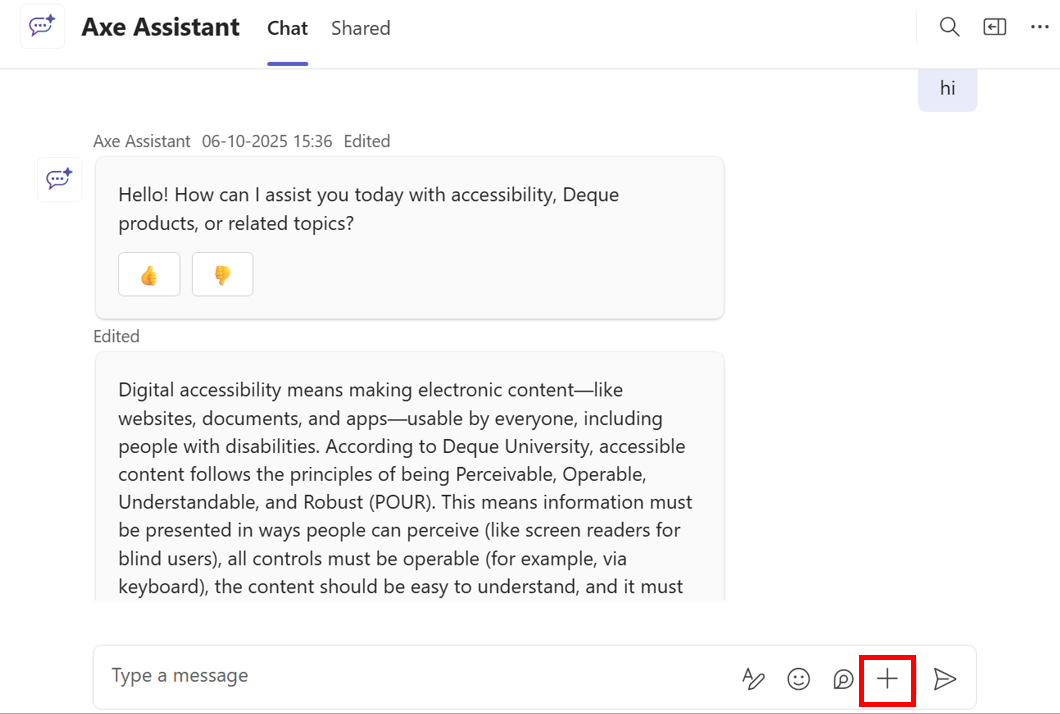
On the Axe Assistant homepage, click Chat. The Chat page is displayed.
-
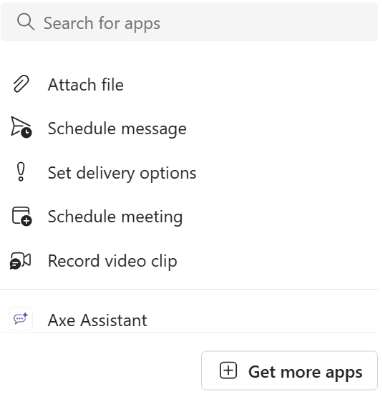
From the message description field, click the "+" icon. The Search for apps dialog is displayed.
-
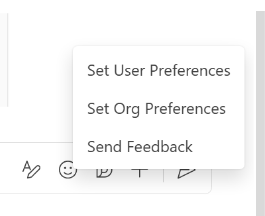
Click Axe Assistant. The Preferences and Feedback options pop-up is displayed.
-
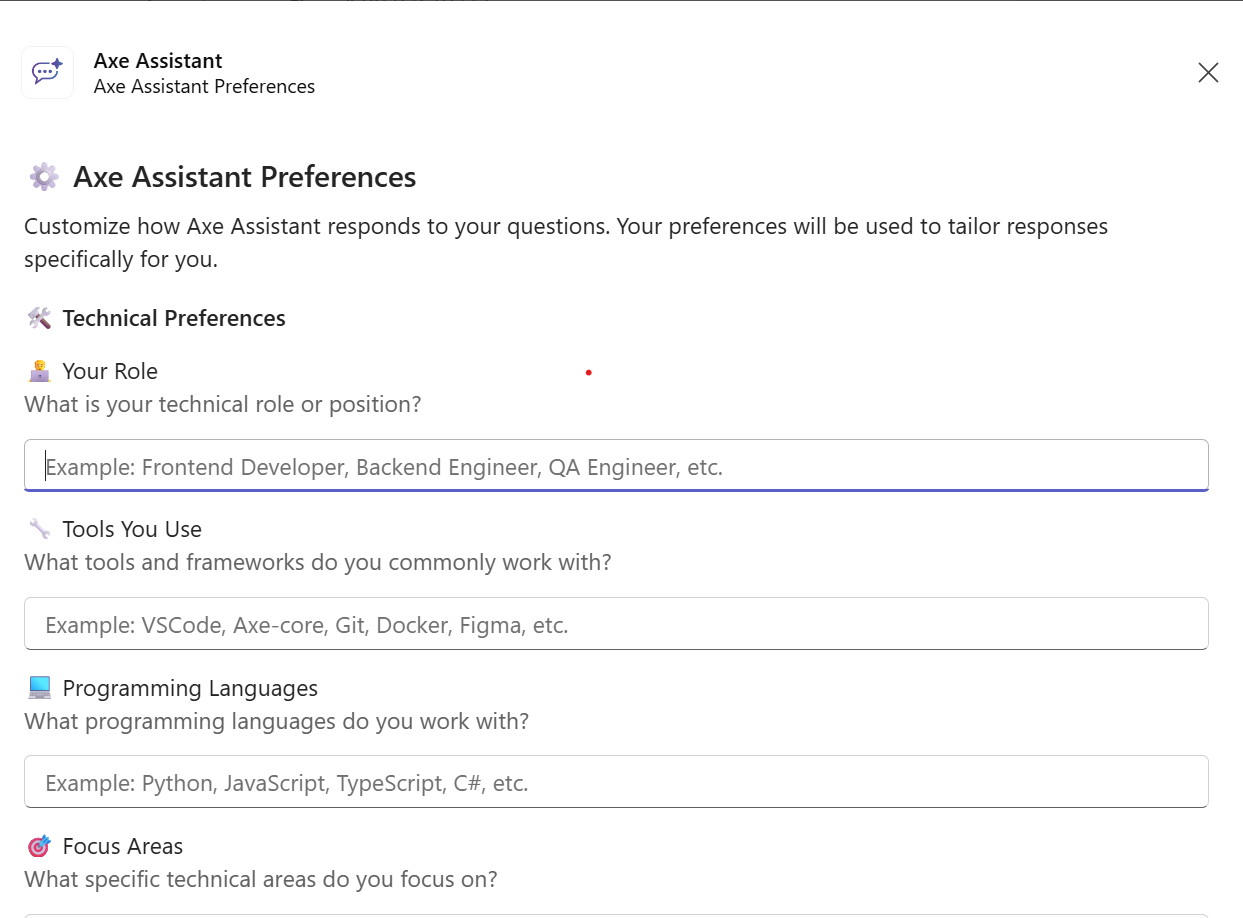
Click Set User Preferences. The Axe Assistant preference page for a user is displayed.
| Field | Description |
|---|---|
| Technical Preferences | |
| Your Role | Enter your professional title. For example, Frontend Developer, QA Engineer and so on |
| Tools You Use | Enter your professional tools you use. For example, Git, Docker, Visual Studio Code, and so on. |
| Programming Languages | Enter your professional tools you use. For example, Python, JavaScript and so on. |
| Focus Areas | Describe the specific technical areas you focus on. For example, Accessibility, React Components, and so on. |
| Response Style Preferences | |
| Desired Tone | Specify how axe Assistant should communicate to you. For example, Professional, Casual, and so on. |
| Accessibility Familiarity Level | Specify your experience level with accessibility related topics. For example, Beginner, Experienced, and so on. |
| Desired Output Length | Specify axe Assistant responses level of details to your questions. For example, Concise, Brief, and so on. |
-
Click Save Preferences. The entered data is saved in the axe Assistant chatbot. If you want to go back to default settings, click Reset to Default.
Note: Update preferences whenever your role, tools, or focus area change.
Axe Assistant Preferences for an Organization
To set up the Axe Assistant preferences for an organization, perform the following steps:
-
On the Axe Assistant homepage, click Chat. The Chat page is displayed.
-
From the message description field, click the "+" icon. The Search for apps dialog is displayed.
-
Click Axe Assistant. The Preferences and Feedback options pop-up is displayed.
-
Click Set Org Preferences. The Axe Assistant preference page for an organization is displayed.
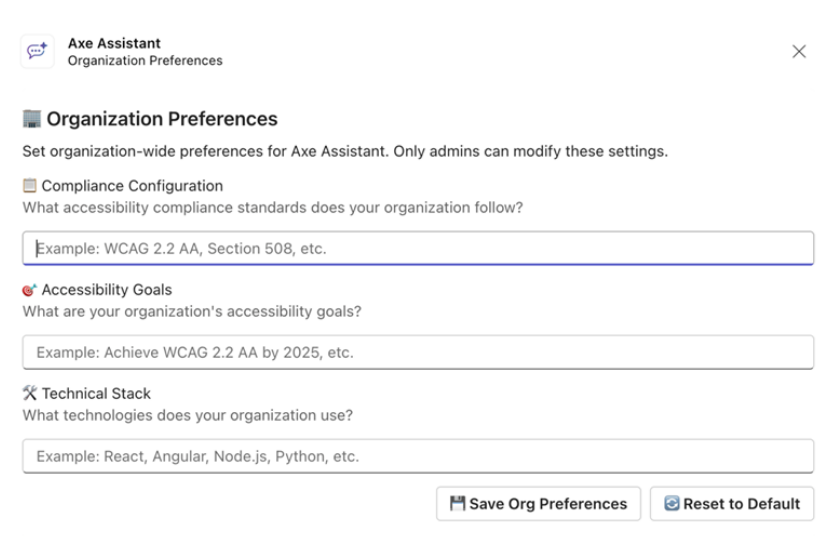
Note: Only authorized administrators can set organization preferences.
| Field | Description |
|---|---|
| Compliance Configuration | Enter the configuration information. For example, targets, standards, and so on. |
| Accessibility Goals | Enter the annual goals and the quarterly targets. |
| Technical Stack Summary | Enter your professional tools you use. For example, Jest, Cypress, CI/CD, and so on. |
- Click Save Org Preferences. The entered data is saved in the Axe Assistant chatbot. If you want to go back to default settings, click Reset to Default.