
Overview
Automated Intelligent Guided Testing (IGT) uses artificial intelligence to automate accessibility assessments, significantly reducing the time and effort required to complete comprehensive accessibility tests. Instead of manually answering questions and performing actions throughout the IGT workflow, AI analyzes your page and automatically provides answers based on what it observes. You then review AI's decisions, make any necessary corrections, and complete your test with confidence.
This human-centric approach to AI-powered testing ensures you maintain control over your results while benefiting from automation. By reviewing AI's reasoning for each decision, you gain insights into the accessibility characteristics of your page and can verify the accuracy of the findings.
Key Benefits
- Save time: AI automatically completes IGT steps that would otherwise require manual input
- Increase confidence: Review AI's reasoning to understand and validate each decision
- Maintain control: Correct any AI assessments before finalizing your results
How Automated IGTs Work
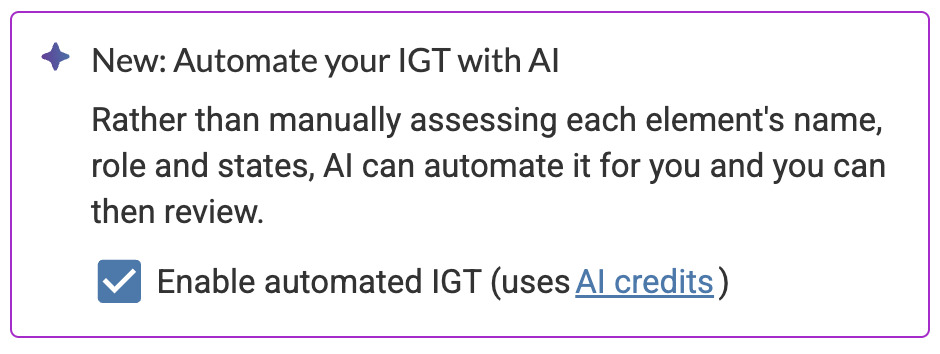
- Start an IGT: Enable automated IGT mode by checking the "Enable automated IGT" checkbox
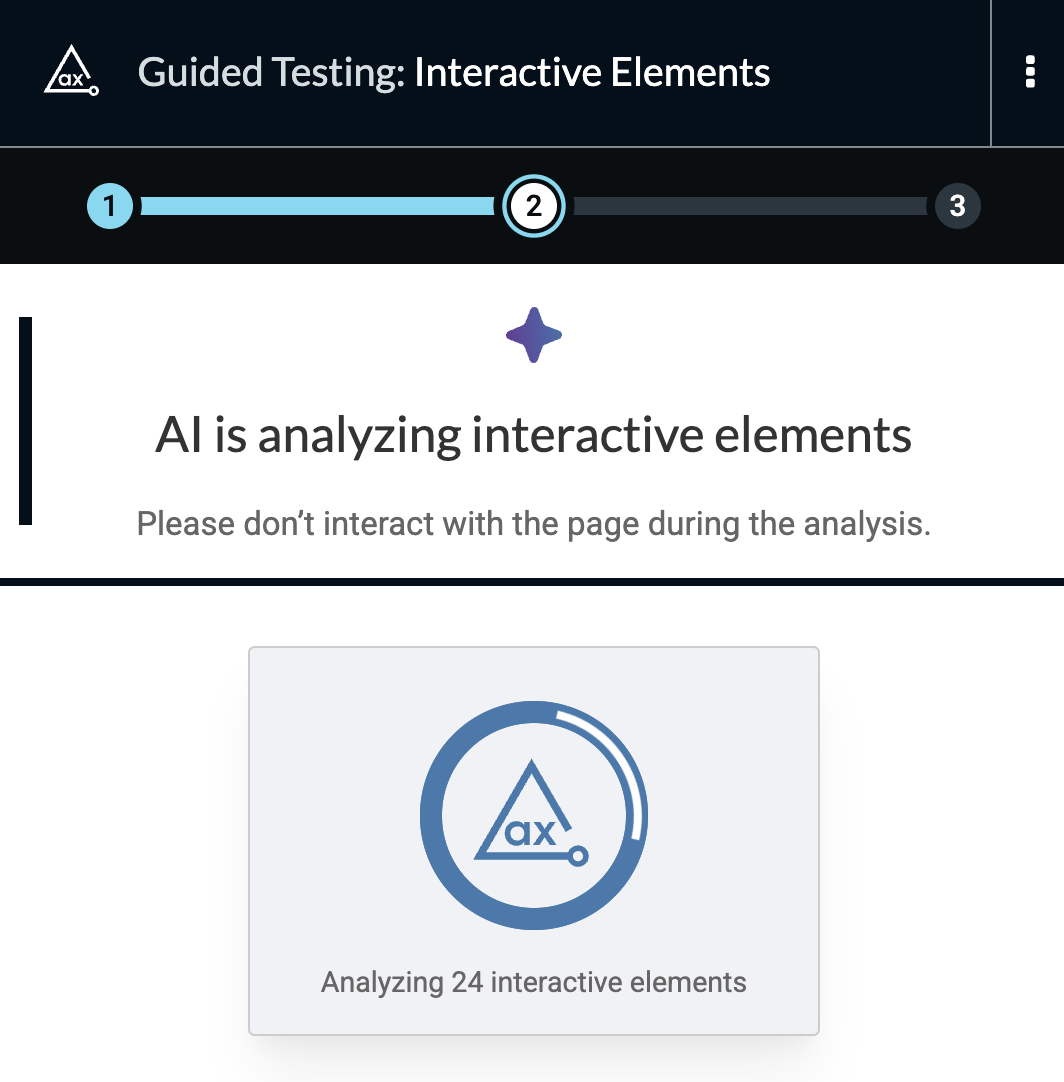
- AI analyzes your page: AI examines the page elements, taking screenshots and gathering context to make informed decisions
- Review results: AI presents its findings organized by element, showing pass/fail status and reasoning for each assessment
- Make corrections: Review and correct any AI decisions that need adjustment to ensure accuracy
- Complete your test: Finalize the IGT with verified results that reflect both AI automation and your expert review
Some IGTs include an additional step before AI analysis begins, where you select which elements or items you want to test. This lets you scope your test to focus on what matters most. See the documentation for each individual IGT for details on how automated mode works for that specific test.
AI Credits
Automated IGT runs consume AI credits from your enterprise's monthly allocation. Traditional IGT workflows and existing AI classification features (such as ML-suggested roles for interactive elements, keyboard tab stops, table headers, and form label/input pairing) remain available as part of your axe DevTools Pro subscription and do not consume AI credits.
For more information about AI credit management, usage tracking, and purchasing additional credits, see the AI Credits documentation.
Prerequisites
- axe DevTools Extension (Pro) or axe DevTools for Web subscription
- AI Features enabled in Settings (Settings > AI Features)
- Available AI credits in your enterprise allocation
Running an Automated IGT
Starting an Automated IGT
- Open axe DevTools Extension
- Select a saved test or create a new one
- Choose the IGT you'd like to run
- On the start screen, check the Enable automated IGT checkbox (will be disabled if no AI credits remain)
- Click Start to begin the automated analysis
AI will automatically analyze the page and complete the IGT steps. Depending on the complexity of your page, this may take several seconds to complete.
Reviewing AI Results
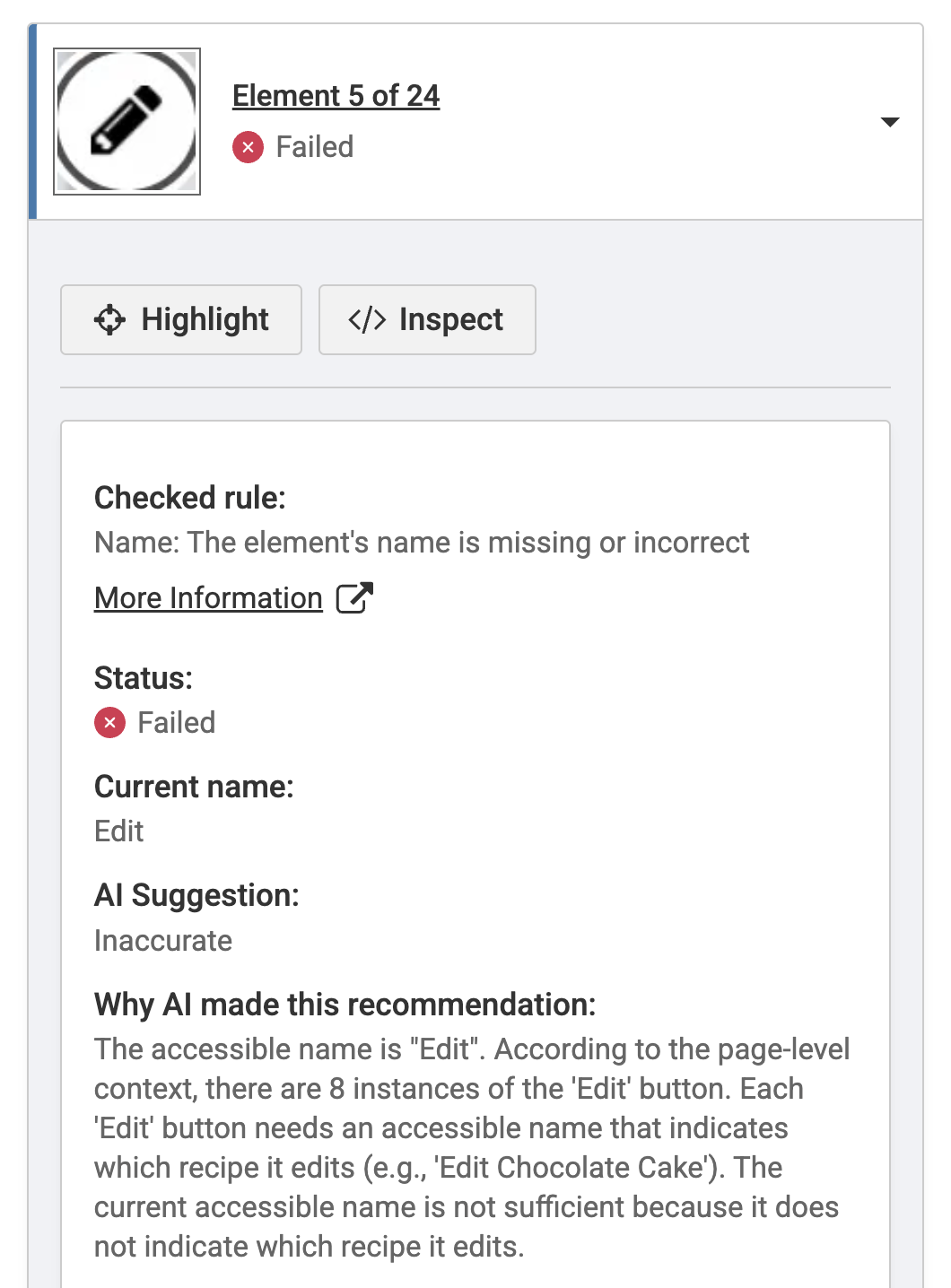
After AI completes its analysis, you'll see a review screen organized by element:
- Element list: Each tested element appears as an expandable item showing overall pass/fail status
- Individual checks: Within each element, individual checked rules (such as name, role, or state) show their own pass/fail status
- AI reasoning: Each check displays Why AI made this recommendation, helping you understand the reasoning behind the assessment
- Pass/Fail indicators:
- Element fails if one or more checks fail
- Element passes if all checks pass
Making Corrections
How you correct AI decisions depends on the IGT:
Interactive Elements IGT — Click Edit result for the check you want to modify, update the answer or selection, and results update immediately.
All other IGTs — Each rule check shows a correction button based on its current result:
- Mark as passed: Appears on failed rule checks — click to change the result to passed
- Mark as failed: Appears on passed rule checks — click to change the result to failed
Results update immediately to reflect your change.
Table IGT — In addition to marking checks as passed or failed, you can change AI's data or layout table classification. See Table IGT for details.
Your corrections ensure the final results accurately represent the accessibility state of your page.
Completing the Test
Once you've reviewed AI's assessments (making any necessary edits):
- Click Finish to complete the IGT
- View your comprehensive test results in the issues view
- Export results or share reports as needed
Supported IGTs
Each IGT that supports automated mode documents the specifics of its own automated flow — including any setup or scoping steps and exactly what AI assesses — in the Running in Automated Mode section of its page:
- Interactive Elements IGT — AI assesses the accessible name, role, and state of the interactive elements you select.
- Keyboard IGT — after auto-tabbing, AI evaluates each tab stop for focus indicator, role, and visibility, and detects missing tab stops and keyboard traps.
- Modal Dialog IGT — AI determines whether the modal should be dismissible, attempts to dismiss it, and verifies that focus is restored to a logical element.
- Images IGT — AI classifies the images you select as decorative or informative and assesses whether informative images have accurate accessible names.
- Structure IGT — AI assesses headings, lists, languages, page and frame titles, and
role="application"usage. Media elements are not assessed in automated mode. - Table IGT — AI classifies the table you select as a data or layout table and, for data tables, identifies each cell's headers to find missing or incorrect header markup.
Settings
Automated IGTs respect your AI Features setting:
- Navigate to Settings > AI-Powered Features
- Ensure AI-Powered Features is enabled
- When disabled, AI-Assisted mode will not be available for IGTs
Existing AI classification features (ML-suggested roles, keyboard tab stops, table headers, and form label/input pairing) continue to function according to your AI Features setting and do not consume AI credits.
Best Practices
- Review carefully: While AI is highly accurate, always review results before finalizing, especially for complex or custom components
- Understand reasoning: Read AI's explanations to gain insights into accessibility characteristics and validation logic
- Establish baselines: Use automated mode for initial comprehensive tests, then leverage Auto Replay for regression testing
- Monitor credits: Keep track of your enterprise's AI credit usage to ensure availability for critical testing periods
- Provide corrections: When AI makes errors, correct them to ensure accurate results—this helps maintain the integrity of your accessibility testing program
Troubleshooting
Automated option is not available
- Verify AI-Powered Features is enabled in Settings
- Confirm your enterprise has available AI credits
- Check that you have an active axe DevTools Extension (Pro) or axe DevTools for Web subscription
AI analysis is taking longer than expected
- Complex pages with many elements require more processing time
- Network conditions may affect AI analysis performance
- Consider testing fewer elements when possible
Credits depleted during IGT
If your enterprise's AI credits are exhausted during an AI-assisted IGT run, the analysis will complete. You will not be charged credits for any overages incurred.