
Using the CLI in WSL (Windows Subsystem for Linux)
Run the Axe DevTools CLI Linux executable inside WSL on Windows, including with a visible browser window.
WSL (Windows Subsystem for Linux) lets you run a Linux environment, including axe-linux, directly on a Windows machine. This is useful if your test setup (for example, Perl scripts or other Linux-only tooling) already runs inside WSL and you want to run Axe DevTools CLI alongside it, without setting up a separate Linux environment.
This is a proof-of-concept workflow, not an officially supported configuration. It has been verified to work, but Deque doesn't guarantee it across WSL versions, Linux distributions, or Windows updates. Evaluate your own security requirements before using this in a client or production environment.
Prerequisites
- Windows with WSL enabled, running an Ubuntu distribution. Other Linux distributions may work but haven't been verified.
- Windows Terminal (or another terminal app) for accessing your WSL Ubuntu environment.
- WSL support for GUI applications, if you want to run the browser in non-headless mode. This has been built into WSL since 2021, so a current version of Windows 10 or Windows 11 is sufficient.
Install Google Chrome and ChromeDriver in WSL
Inside your WSL Ubuntu terminal, update packages, then install Google Chrome:
sudo apt update && sudo apt -y upgrade

wget https://dl.google.com/linux/direct/google-chrome-stable_current_amd64.deb

sudo apt -y install ./google-chrome-stable_current_amd64.deb
Check the installed version:
google-chrome --versionDownload the matching ChromeDriver version from the Chrome for Testing availability dashboard. For example:
wget https://storage.googleapis.com/chrome-for-testing-public/129.0.6668.58/linux64/chromedriver-linux64.zip

unzip chromedriver-linux64.zip

sudo cp chromedriver-linux64/chromedriver /usr/local/bin

sudo chmod 775 /usr/local/bin/chromedriver
Check the ChromeDriver version:
chromedriver --versionInstall Axe DevTools CLI
Download axe-linux and set it up as described in Install the Executable. Inside your WSL Ubuntu terminal:
chmod +x axe-linux

axe-linux --version
Run an analysis
Headless mode
Configure the CLI, choosing chrome as the browser and answering Yes when prompted to launch the browser in headless mode:
axe-linux config-seleniumThen run an analysis:
axe-linux https://www.deque.comSee Configure for what each config-selenium prompt controls.
Non-headless mode
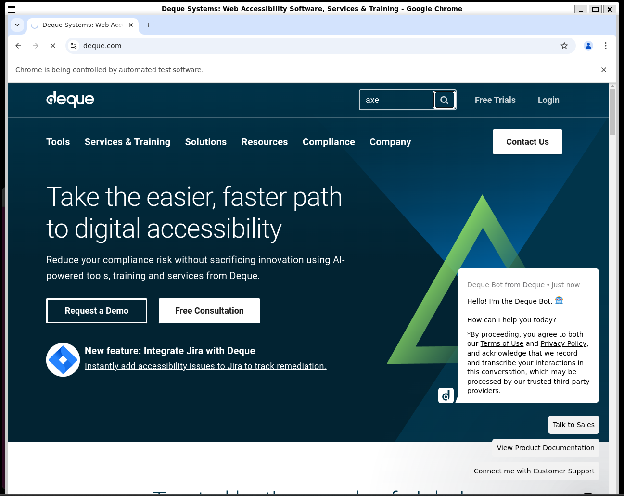
Run axe-linux config-selenium again and answer No when prompted to launch the browser in headless mode, then run the same analysis:
axe-linux https://www.deque.comWith headless mode off, WSL's GUI support opens a visible Chrome window as axe-linux runs:
Running a spec file
You can also run a spec file the same way you would outside WSL:
axe-linux spec deque-workflow.yaml