
This page covers known problems with the axe DevTools Extension and how to fix them. If your problem isn't listed here, contact helpdesk@deque.com.
- Automated scan or Intelligent Guided Tests won't start
- Endless loading, results won't save, or IGTs fail
Automated scan or Intelligent Guided Tests won't start
An automated scan or Intelligent Guided Test (IGT) doesn't start, and trying again gives the same result. When this occurs, an error banner appears at the top of the extension: "We couldn’t analyze the page to start the guided test. Please try again."
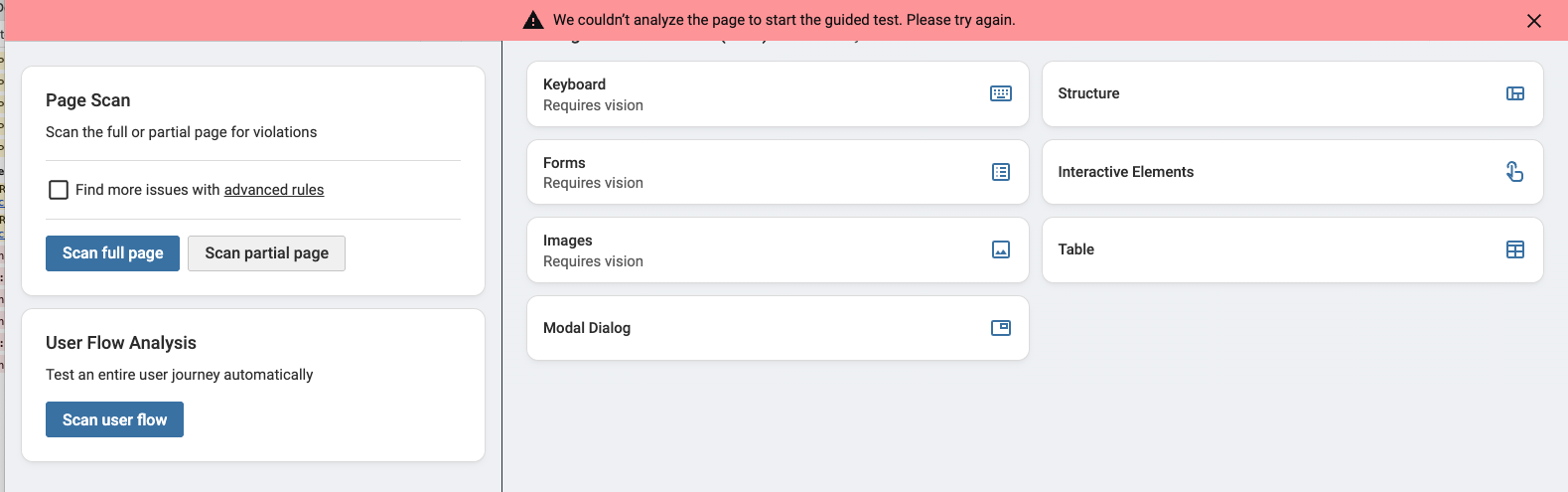
You might also notice that highlighting issues or selecting elements on the page doesn't work.
Cause
A content or ad blocker, such as uBlock Origin Lite, is blocking a script that the axe DevTools Extension loads into the page you're testing. A blocker can start doing this after it updates its filter lists, even if the extension worked with it before. Reloading the page or the extension doesn't help, because the blocker blocks the script again each time.
To confirm this is the cause, open the browser's developer tools console for the page you're testing. If a blocker is the cause, you'll see an error like this:
TypeError: Failed to fetch dynamically imported module: chrome-extension://lhdoppojpmngadmnindnejefpokejbdd/highlighter.jsIf you don't see this error, reload the page and try again. If the error keeps appearing, contact helpdesk@deque.com.
Fix: allow axe DevTools in your blocker
Add an exception to your blocker for the axe DevTools Extension's own files, and then reload the page you're testing. In uBlock Origin Lite:
-
Open the uBlock Origin Lite dashboard.
-
Go to Custom filters.
-
Add the following filter:
@@|chrome-extension://lhdoppojpmngadmnindnejefpokejbdd/ -
Save the filter.
-
Reload the page you're testing and try again.
For other blockers, add chrome-extension://lhdoppojpmngadmnindnejefpokejbdd/ to the blocker's allowlist or custom filters. See your blocker's documentation for where to add it.
lhdoppojpmngadmnindnejefpokejbdd is the ID of the axe DevTools Extension from the Chrome Web Store. If your organization installs the extension another way, its ID might be different. Use the ID from the chrome-extension:// address in the console error instead.
Allowing the axe DevTools Extension's files doesn't turn off your blocker for the sites you visit. The exception only applies to scripts that come from the extension itself.
Endless loading, results won't save, or IGTs fail
The axe DevTools Extension shows a loading indicator that never finishes, your results don't save, or Intelligent Guided Tests don't run or don't finish.
Cause
Another browser extension is interfering with the axe DevTools Extension. Extensions that change or add content to the pages you visit can interfere with how axe DevTools reads and interacts with the page. Extensions known to cause these problems include:
- Grammarly
- Jam
- ZoomInfo
Other extensions can cause the same problems.
Fix: disable the conflicting extension
- Go to
chrome://extensionsin Chrome oredge://extensionsin Edge. - Turn off the conflicting extension.
- Reload the page you're testing and try again.
If you don't know which extension is causing the problem, turn off all extensions except axe DevTools. If that fixes the problem, turn your extensions back on one at a time until the problem returns.