
Active View Name


What We Check For
An interactive element should have an accessible name available for assistive technologies such as TalkBack and Voice Access.
Failing Example ❌
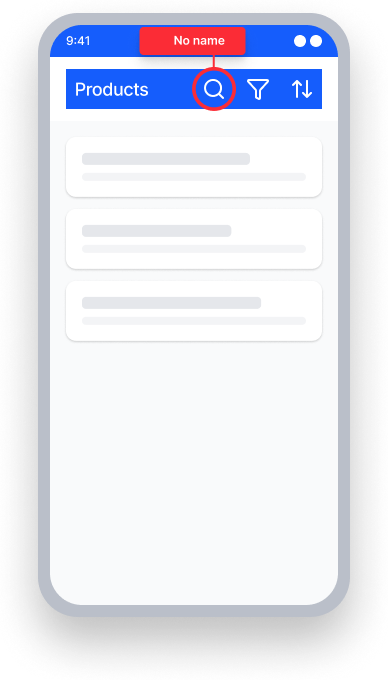
No name set on the interactive element
TalkBack reads "Button"
Voice Access — user speaks "Search"
Element does not respond since it has no name
Passing Example ✅
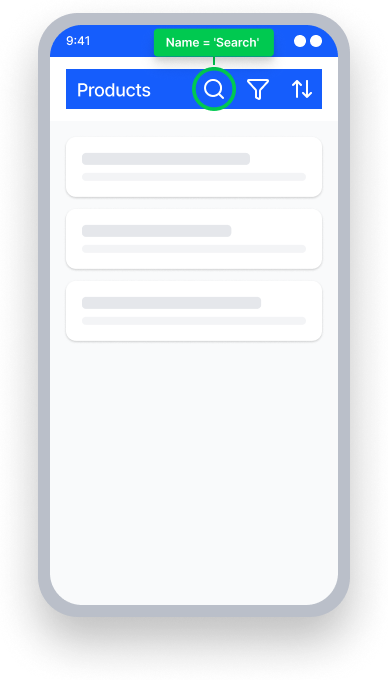
`contentDescription="Search"`
TalkBack reads "Search, button"
Voice Access — user speaks "Search"
Element activates because its name matches
At a Glance
- This rule has a critical impact for users
- Every interactive element needs a name: buttons, links, custom controls, etc. require an accessible name that TalkBack can announce
- If an interactive element has no visible text, provide one explicitly using
contentDescriptionoraccessibilityLabelproperties - Don't leave TalkBack with nothing to say: an element that announces only its role or value — with no name — gives users no context for what it does
Impact to Users
People using TalkBack are most impacted. An interactive element without a name will not relay the full context or purpose to the person interacting with it.
When an interactive element — such as a button, image button, or custom control — does not have an accessible name, TalkBack has nothing to announce when this element is focused. For example, you might have a button with an image of an underlined arrow indicating the user can download. Without an accessible name, TalkBack will only announce "Button, double-tap to activate."
This rule also has an impact for people who are using Voice Access. Voice Access users who try to activate the element by speaking its visible label will find that it doesn’t respond.
Confirm Active View Name Issue
- Turn on TalkBack
- Focus the interactive element
- One of the following will happen:
- Inaccessible: It will not announce its name, only its role and value if present.
- Accessible: It will announce its name in TalkBack.
Are you getting an unexpected failure? If you hear TalkBack announce content after focusing on an element but this rule is still failing, make sure that you have provided the element with a name. When an element lacks a defined name, its value will often be announced by the screen reader. However, the value is not a substitute for the missing accessible name.
Fix Issues
To resolve Active View Name issues, add a text label or content description to each interactive element so TalkBack has a meaningful name to announce.
Ensure the name you select:
- Contains the visible label of the element.
- Describes the action, not the appearance. For example, an icon of a magnifying glass should be labeled “Search,” not “magnifying glass icon.”
If an element’s purpose changes based on state (e.g. a Play/Pause button), update the name whenever the state changes.
XML
Utilize an element's text property or content description to ensure TalkBack has accurate information to share.
Button button = .......
button.setText("Button's Name");

ImageButton imageButton = .......
imageButton.setContentDescription("Button's Name");
Compose
Pair image buttons with a content description or text to indicate the element's purpose.
@Composable
fun EmailIconButton() {
    IconButton(
        onClick = { … },
    ) {
        Icon(
            painter = painterResource(id = R.drawable.email_icon),
            contentDescription = “Send an Email”
        )
    }
}
Non-image buttons should provide text for TalkBack.
@Composable
fun EmailButton() {
    Button(
        modifier = Modifier.semantics { this.contentDescription = “Send an Email” }
        onClick = { … },
    ) {
        Text(
            text = “Email”
        )
    }
}
React Native
To fix an issue found by this rule, add an accessibilityLabel to the interactive element.
<TextInput
  ...
  accessibilityLabel="First Name"
/>
When elements are grouped together within a containing View, add the accessible and the accessibilityLabel properties to it:
<View
   importantForAccessibility='no-hide-descendants'
   accessible={true}
   accessibilityElementsHidden={false}
   accessibilityLabel={"Dark Mode"}
   accessibilityValue={{ text: "" + isEnabled }}
   accessibilityRole='switch'
   onPress={() => {
      setIsEnabled(!isEnabled)
    }}
 >
    <Switch
      trackColor={{ false: 'lightgray', true: 'dimgray' }}
      ios_backgroundColor={'lightgray'}
      thumbColor={'white'}
      onValueChange={ () => {
         setIsEnabled(!isEnabled)
      }}
      value={isEnabled}
      accessibilityElementsHidden={true}
     />
</View>
Flutter
Use the tooltip property on IconButton to provide an accessible name. This sets the name announced by TalkBack and also shows a visual tooltip on long-press.
  IconButton(
    icon: const Icon(Icons.search),
    tooltip: 'Search',
    onPressed: () {},
  )
For interactive elements with icon-only children, set semanticLabel on the Icon directly:
  ElevatedButton(
    onPressed: () {},
    child: const Icon(Icons.add, semanticLabel: 'Add item'),
  )
When grouping a visible label with an interactive element, wrap them in MergeSemantics so TalkBack combines them into a single focusable element:
  MergeSemantics(
    child: Row(
      children: [
        const Text("Dark mode"),
        Switch(
          value: _darkMode,
          onChanged: (value) => setState(() => _darkMode = value),
        ),
      ],
    ),
  )
Can I Ignore This Rule?
This rule has a critical impact for users and should not be ignored. An unnamed interactive element is one of the most fundamental accessibility failures. TalkBack and Voice Access users are effectively locked out of using an element without an accessible name. Take steps to remediate all instances of this issue before addressing lower-priority issues.
Frequently Asked Questions
When using TalkBack, I hear content read aloud after focusing on the element. Why does this rule still fail? If an element lacks a defined name, the screen reader often will announce its value. However, the value is not a substitute for the missing accessible name.
Resources
Deque University Course Pages
-
See Native Mobile Android under 4.1.2a Name, Role,Value (A)
Note: Full access to Deque University resources requires a subscription.
Other Resources
- Web Content Accessibility Guidelines (WCAG) 2.1
- Understanding SC 4.1.2, Name, Role, Value (Level A)