
Edit Text Name
Make sure text input fields are labelled for assistive technologies


What We Check For
Text input elements must have an accessible name available for assistive technologies such as TalkBack and Voice Access.
Failing Example ❌
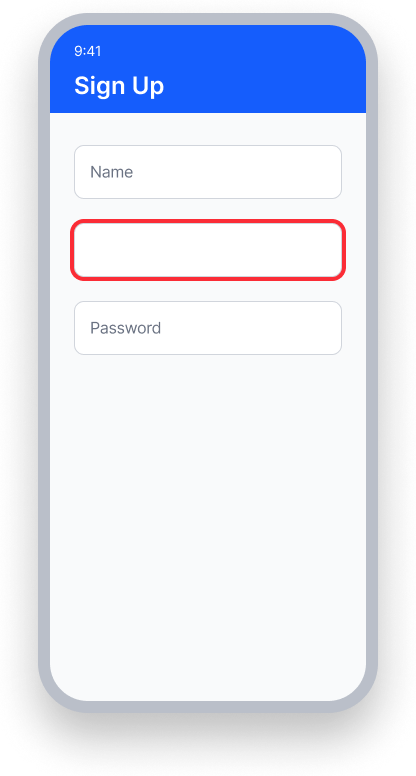
Text input has no accessible name.
TalkBack reads "Edit text."
Voice Access — user has no label to speak to activate the field.
Passing Example ✅
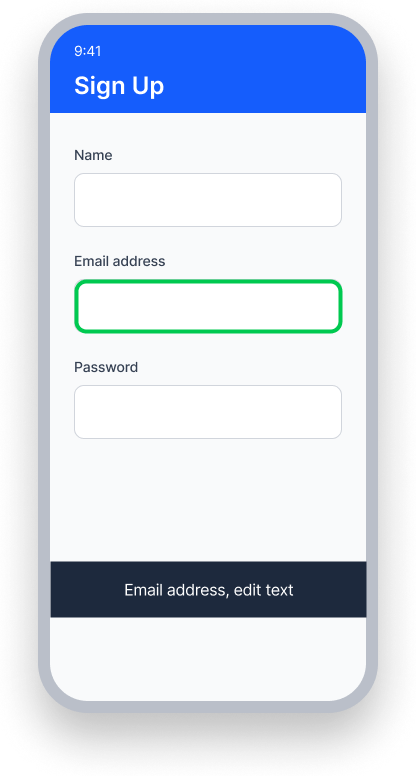
Text input is associated with a visible label via labelFor.
TalkBack reads "Email address, Edit text."
Voice Access — user speaks "Email address" to activate the field.
At a Glance
- This rule has a serious impact for users
- Every text input field must have a label that assistive technology can announce
- Placeholder text alone is not a substitute for a label
- Icon-only inputs must have a content description
- Unlabeled fields leave screen reader users without context for what to type
Impact to Users
People who are blind and use TalkBack to navigate your app are directly impacted by issues found by this rule. When a text input has no accessible name, TalkBack announces only "Edit text" — giving the user no information about what they should type. This is especially disorienting in forms with multiple fields.
Use visible, persistent labels for all form fields. Placeholder text alone is not a substitute for a label because it disappears when the user starts typing.
EditText and TextField elements should provide label information where the Android OS expects it so assistive technologies can communicate the purpose of the input element predictably.
Confirm Edit Text Name Issue
- Turn on TalkBack
- Focus on the text input element
- One of the following will happen:
- Inaccessible: TalkBack announces only "Edit text" with no label, or announces information in an unexpected order
- Accessible (default value, field is empty): TalkBack announces the field's label followed by "Edit text" (e.g. "Username, Edit text")
- Accessible (user has entered a value in the field): TalkBack announces the value entered by the user + "Edit Text for" + the associated label's
Text(e.g. "'help@deque.com', Edit text for 'Email address'")
Fix Issues
To resolve Edit Text Name issues, associate a visible label with the input field. Provide a content description when no visible label is present, or when using icons.
XML
Associate a visible TextView label with the EditText using setLabelFor.
EditText editText = .......; // Role: EditText
TextView label = .......; // Role: Label
label.setLabelFor(editText.getId()); // Associate the label with the field
Compose
Use the built-in label parameter on OutlinedTextField or TextField to provide an accessible name. Supply a content description for icon-only inputs.
@Composable
private fun LabeledTextField(modifier: Modifier = Modifier) {
    val textInput = remember { mutableStateOf("") }
    OutlinedTextField(
        modifier = modifier,
        value = textInput.value,
        onValueChange = { textInput.value = it },
        visualTransformation = VisualTransformation.None,
        label = { Text(stringResource(R.string.address_label)) }
    )
}

@Composable
private fun IconsWithDescriptionTextField(modifier: Modifier = Modifier) {
    val textInput = remember { mutableStateOf("") }
    OutlinedTextField(
        modifier = modifier,
        value = textInput.value,
        onValueChange = { textInput.value = it },
        label = {
            Icon(
                painter = painterResource(id = R.drawable.ic_location),
                contentDescription = stringResource(id = R.string.address_content_description)
            )
        }
    )
}
React Native
Associate the text element with its corresponding text field using the aria-labelledby property, referencing the nativeID of the label.
<Text
  style={{height: 70, width: 150, fontSize: 20, marginTop: 10}}
  aria-label="Username"
  nativeID="labelUsername">
  Username
</Text>

<TextInput
  style={{height: 50, width: 200, backgroundColor: 'azure', fontSize: 20}}
  aria-label="input"
  aria-labelledby="labelUsername"
  placeholder='John'
 />
Can I Ignore This Rule?
Edit Text Name has a Serious impact for users, and we recommend remediating this issue in almost all cases. An unlabeled text field is unusable for screen reader users. In rare situations — such as a search field whose purpose is unmistakably clear from surrounding context — you might consider suppressing the rule, but this should be an exception, not the norm. Learn more about ignoring rules.
Resources
Deque University Course Pages
Note: Full access to Deque University resources requires a subscription.
Other Resources
- Web Content Accessibility Guidelines (WCAG) 2.0, W3C Recommendation
- WCAG 2.0 Understanding Docs