
Meaningful Accessible Name
Make sure accessible names are not redundant


What We Check For
An element's accessible name should not include its accessibility trait. VoiceOver announces the trait automatically, so including it in the name causes it to be read aloud twice.
This rule enforces a best practice set by Apple's Human Interface Guidelines. You can turn off this rule from the Mobile Dashboard or by ignoring the rule in tests written for iOS.
Failing Example ❌
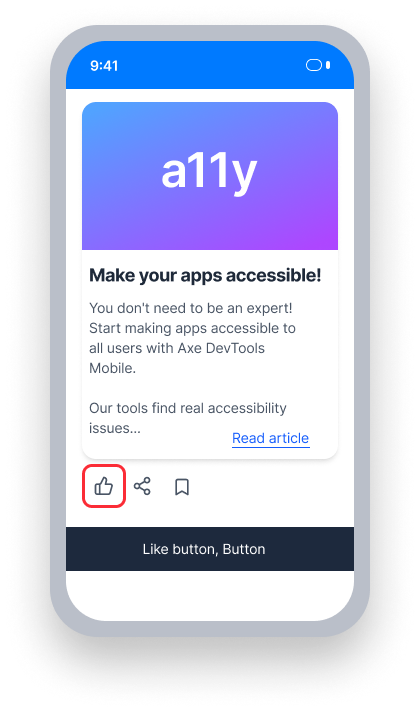
VoiceOver announces: "Like button, button"
The word "button" is included in the accessible name and announced again as the trait, creating a redundant announcement that can confuse screen reader users
Passing Example ✅
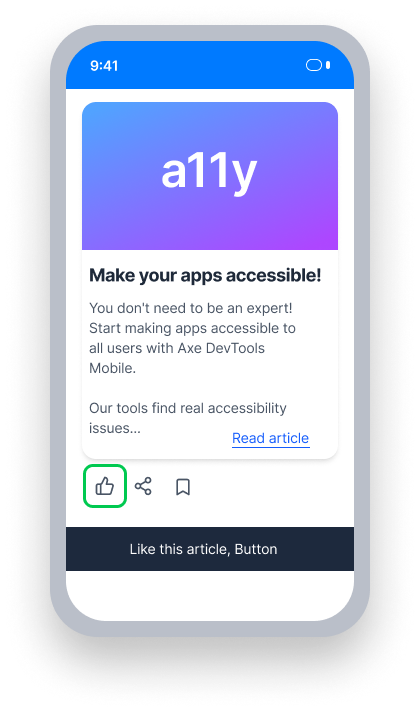
VoiceOver announces: "Like this article, Button"
The accessible name - "Like this article" - does not include the element's trait
VoiceOver appends the trait automatically, so users hear each piece of information exactly once
At a Glance
- This rule has a minor impact for users
- An element's accessible name should not repeat its accessibility trait - VoiceOver announces the trait automatically
- For example, a button with the name "Next button" causes VoiceOver to make the redundant announcement: "Next button, button"
Impact to Users
VoiceOver users are most impacted. When an accessible name includes the element's trait, VoiceOver announces the trait twice - for example, "Next button, button" instead of "Next, button." This is redundant and can be confusing or distracting for screen reader users.
Confirm Meaningful Accessible Name Issue
- Turn on VoiceOver
- Focus on the element
- One of the following will happen:
- Inaccessible: VoiceOver announces the element's accessibility trait twice - as part of the accessible name, and then again as the trait (e.g., "Next button, button")
- Accessible: VoiceOver announces the accessible name, followed by the trait (e.g., "Next, button")
Fix Issues
To resolve a Meaningful Accessible Name issue, ensure the accessible name does not contain the element's accessibility trait. VoiceOver appends the trait automatically, so including it in the name results in a redundant announcement.
UIKit
To fix in Storyboard:
- Select the element with a
MeaningfulAccessibleNameissue. - Ensure that the Inspectors Panel is visible.
- Select the Identity Inspector.
- Under Accessibility, enter a label that matches the visible text and does not include the element's accessibility trait.
To fix in code, make sure the value of the accessibility label matches or contains all of the visible text on the element, and doesn't include its accessibility trait:
button.title = "Next"
button.accessibilityTraits = .button
SwiftUI
Set an accessibility label that contains the visible text and does not include the element's accessibility trait:
Button(action: {
    openMenu()
}) {
    Text("Next")
}.accessibility(label: Text("Next"))
React Native
Ensure that the element's accessibilityLabel does not contain the element's accessibilityRole value:
<Button title='Order now' accessibilityLabel='order now' accessibilityRole='button'/>Flutter
Accessible names must describe the element's purpose. Avoid generic names like "button" or "image", and don't include the role in the name. The screen reader announces the role separately.
  // Failing — name includes the role, screen reader says "Search button, button"
  IconButton(
    icon: const Icon(Icons.search),
    tooltip: 'Search button',
    onPressed: () {},
  )

  // Passing — name describes the action, screen reader says "Search, button"
  IconButton(
    icon: const Icon(Icons.search),
    tooltip: 'Search',
    onPressed: () {},
  )
Can I Ignore This Rule?
Meaningful Accessible Name has a Minor impact for users and enforces an Apple best practice rather than a hard WCAG requirement. You can turn off this rule entirely from the Mobile Dashboard, or ignore individual findings in your iOS tests. Learn more about ignoring rules.
Resources
Other Resources
- Apple Human Interface Guidelines