
Colliding Views
Ensure on-screen UI elements don't visually overlap each other


Learn how we're using artificial intelligence for this rule!
What We Check For
A view is any visible UI element on screen, such as a text label, image, or button. Views containing information should not intersect with another view, either partially or entirely. Overlapping views can make content unreadable or completely hidden, especially when Dynamic Type increases text size.
This rule enforces a best practice set by Apple's Human Interface Guidelines. You can turn off this rule from the Mobile Dashboard or by ignoring the rule in tests written for iOS.
Failing Example ❌
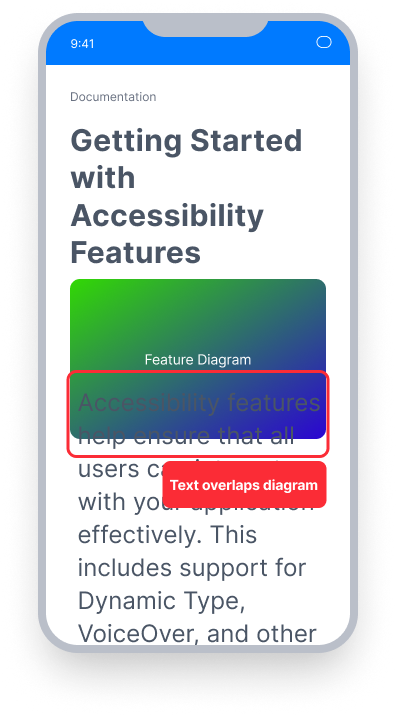
Enlarged text overlaps another element on screen
The text overlapping the image becomes partially or completely unreadable
This can occur at default text sizes, or appear only after a user increases their Dynamic Type size in Settings
Passing Example ✅
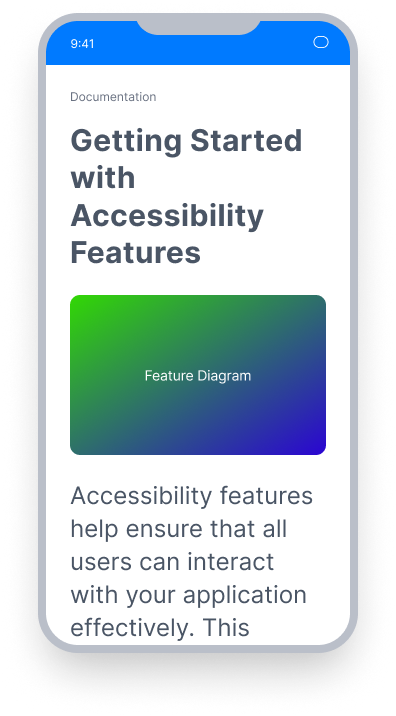
All on screen elements are spaced so their bounds do not intersect
The text is readable both at default and larger Dynamic Type sizes
Proper layout constraints ensure elements maintain adequate spacing even as text scales up
At a Glance
- This rule has a minor impact for users
- Views (visible UI elements like text labels and images) should not overlap each other
- Dynamic Type can increase text size at runtime, causing previously separate elements to collide
Impact to Users
Sighted users are most impacted, particularly those who use larger Dynamic Type settings. When informative views overlap, content may become partially or completely unreadable. Users relying on larger text sizes are more likely to encounter this issue, even if the layout appears correct at default sizes.
Confirm Colliding Views Issue
- Look at the bounds of each informative view on screen.
- One of the following will apply:
- Inaccessible: A view's bounds intersect with another view.
- Accessible: No informative views have overlapping bounds.
- If the screen contains text elements, increase the Dynamic Type size in Settings and repeat the check to confirm views do not begin to overlap at larger sizes.
Fix Issues
Colliding views are most commonly caused by missing or insufficient layout constraints that do not account for Dynamic Type. The exact fix will vary by layout, but the goal is to ensure informative elements always have enough space between them.
UIKit
Ensure constraints between neighboring informative elements provide adequate spacing. If no constraint exists between two elements that sit close together, add one so they cannot overlap when Dynamic Type increases their size.
SwiftUI
Ensure each view has layout modifiers that prevent its bounds from overlapping with neighboring views. Use HStack and VStack as parent containers to let the layout system manage spacing automatically. Avoid using ZStack as a parent for views that contain text, as it layers elements on top of each other.
React Native
Ensure that views containing text or other scalable content do not have a maxHeight set, which can cause content to be clipped or pushed into adjacent elements as text size increases. When using flex layout, consider adding a value for the gap property to maintain consistent spacing between elements.
Can I Ignore This Rule?
Colliding Views has a Minor impact for users and enforces an Apple best practice rather than a hard WCAG requirement. You can turn off this rule entirely from the Mobile Dashboard, or ignore individual findings in your iOS tests. Learn more about ignoring rules.
Resources
- Apple Human Interface Guidelines