
ImageView Name
Ensure screen reader users get information from images


What We Check For
Focusable image elements must have an accessible name so that VoiceOver can announce meaningful information about the image. Images that convey information need an accessibility label; purely decorative images should not receive focus at all.
At a Glance
- This rule has a critical impact for users
- Informative images must have an
accessibilityLabelthat accurately describes what the image conveys - Decorative images should not receive focus — hide them from assistive technology
- Avoid vague descriptions like "image" or "icon" — describe the meaning or purpose of the image
- VoiceOver reads the
accessibilityLabelaloud; if it's missing, the image is silent to screen reader users
Failing Example ❌
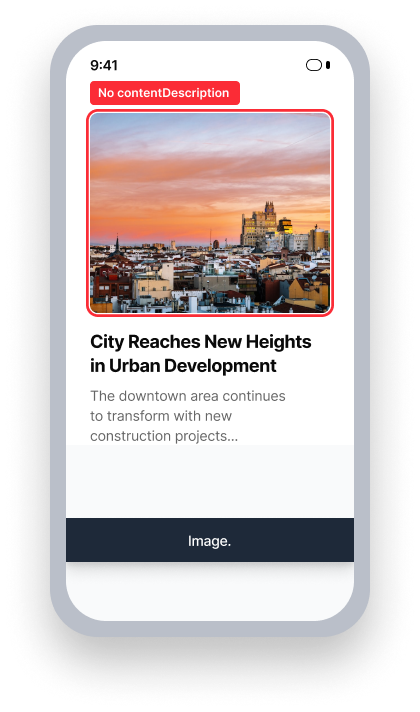
name = {none}
VoiceOver announces only the role
"Image"
User does not receive the information conveyed by the image
Passing Example ✅
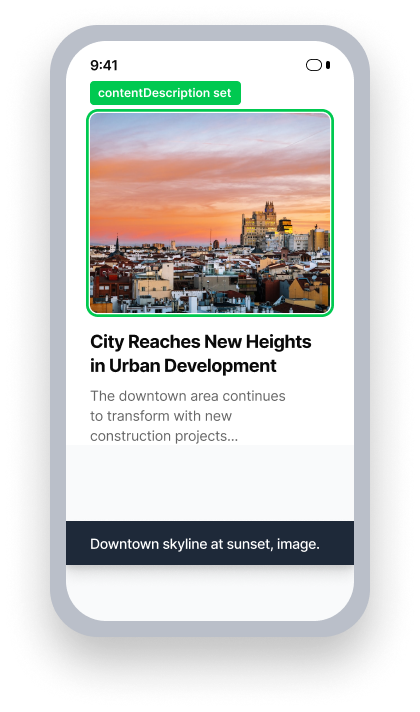
name = "Downtown skyline at sunset"
VoiceOver announces the name and role
User is informed about the content of the image
Impact to Users
People using VoiceOver are most affected by issues found by this rule. When an image conveys information visually but has no accessible name, VoiceOver will announce nothing. Users who rely on screen readers will miss that information entirely.
Decorative images that incorrectly receive focus can create a disruptive experience, creating noise during navigation without communicating anything meaningful.
Informative images should use accessibilityLabel to provide any necessary context and details through VoiceOver.
Confirm ImageView Name Issue
- Turn on VoiceOver
- Swipe right to navigate to the image, or drag your finger across the screen to explore by touch
- One of the following will happen:
- For informative images:
- Inaccessible: The element receives focus but VoiceOver announces nothing meaningful, or announces only a file name
- Accessible: Receives focus and announces a meaningful description
- For decorative images:
- Inaccessible: The image receives focus individually and VoiceOver announces nothing useful
- Accessible: Does not receive focus individually (within a group is accepted)
- For informative images:
Fix Issues
To resolve ImageView Name issues, provide an accessibilityLabel for images that convey information, and remove focus from purely decorative images. The description should convey the same information a sighted user gets from the image. As a best practice, describe the image's meaning in context, not only its visual appearance.
UIKit
An issue found by this rule is caused by not using accessibilityLabel, or by inaccurately marking an image as an accessibility element.
In storyboard:
- Navigate to the image
- Confirm that the Inspectors Panel is visible
- Select the Identity Inspector
- If the image conveys information the user needs, under "Accessibility", write the information in the "Label" text field
- If the image does not convey information the user needs, under "Accessibility", unselect the "Enabled" checkbox
In code:
If the image conveys information the user needs, give it a descriptive accessibilityLabel to relay that information.
image.accessibilityLabel = "Promotional banner: Ask your travel agent about our latest deals!"For decorative images that don't convey meaning, mark isAccessibilityElement as 'false' so that it will not be focusable.
image.isAccessibilityElement = falseIn UIKit apps, an image without an accessibilityLabel is not focusable with assistive technology by default.
The properties we use to check focusability from Apple may be inaccurate when an accessibilityIdentifier is set on the image. Due to this unexpected behavior, results for ImageView Name issues in UIKit apps will report as "Needs Review." A bug report has been filed with Apple.
SwiftUI
If an image conveys information the user needs, set .accessibility(label: Text("<meaningful description>")) on the image. Alternatively, use the Image initializer, which includes the label parameter.
Image("format_info", label: Text("Promotional banner: Ask your travel agent about our latest deals!"))If the image does not convey information the user needs - when it's decorative, or a background, for example - hide it from assistive technology.
Image("background_blue")
    .accessibility(hidden: true)
React Native
React Native does not add the accessibility role automatically to many elements. Be sure to add accessibilityRole="image" to all images you want to be available to assistive technology. The Axe Accessibility Linter VSCode Extension and Axe DevTools Linter now include React Native support, which can help you catch accessibility issues like these prior to UI testing.
If an image conveys information the user needs, mark it as accessible={true} and provide a descriptive value for the accessibilityLabel.
<Image
    ...
    accessible={true}
    accessibilityRole="image"
    accessibilityLabel="Promotional banner: Ask your travel agent about our latest deals!"
/>
Mark decorative images that don't convey meaning as accessible={false} so that it will not be focusable.
<Image
    ...
    accessible={false}
/>
.NET MAUI
Images that have not been given a content description in .NET MAUI are automatically marked as not important for accessibility. This means that any image not intentionally given a description passes in axe DevTools Mobile as a decorative image, when it may not have been intended to be a decorative image. Ensure all images that convey information or context are provided an appropriate description.
If the image provides the user with information, set a descriptive SemanticProperties.Description to communicate that information.
<Image
    ...
    SemanticProperties.Description="Promotional banner: Ask your travel agent about our latest deals!"
/>
Alternatively, provide a visible Label element below the Image element to relay that information.
<StackLayout
    HorizontalOptions="FillAndExpand"
    VerticalOptions="StartAndExpand">
    <Image
        BindingContext="{x:Reference imageLabel}"
        SemanticProperties.Description="{Binding Path=Text}"
        ...
    />

    <Label
         x:Name="imageLabel"
         Text="Promotional banner: Ask your travel agent about our latest deals!"
         ...
    />
</StackLayout>
Flutter
Wrap meaningful images in a Semantics element with image: true and a descriptive label so the screen reader can announce what the image conveys.
  // Failing — image has no accessible name
  Semantics(
    image: true,
    child: Image.asset('assets/company_logo.png'),
  )

  // Passing — descriptive label provided
  Semantics(
    label: 'Deque company logo',
    image: true,
    child: Image.asset('assets/company_logo.png'),
  )
For decorative images that don't convey meaning, exclude them from the accessibility tree entirely so screen readers skip them:
ExcludeSemantics(
    child: Image.asset('assets/decorative_divider.png'),
)
Can I Ignore This Rule?
ImageView Name has a Critical impact for users, and we strongly recommend remediating all issues found. An informative image without an accessible name is entirely invisible to VoiceOver users, and they receive no information about what the image communicates. Ignore this rule only when you have verified that the image is truly decorative and receives no independent focus. Learn more about ignoring rules.
Resources
Deque University Course Pages
Note: Full access to Deque University resources requires a subscription.
Other Resources
- Web Content Accessibility Guidelines (WCAG) 2.0, W3C Recommendation
- WCAG 2.0 Understanding Docs