
Conflicting Traits
Don't assign contradictory accessibility traits to the same element


What We Check For
Every view - an interactive element such as a button, label, or custom control - can be assigned accessibility traits. This metadata tells VoiceOver what kind of element it is and how to interact with it. This rule checks that no view is assigned traits that contradict each other or interfere with VoiceOver navigation.
This rule enforces a best practice defined under Apple's UIKit Accessibility Traits. You can turn off this rule from the Mobile Dashboard or by ignoring the rule in tests written for iOS.
Failing Example ❌
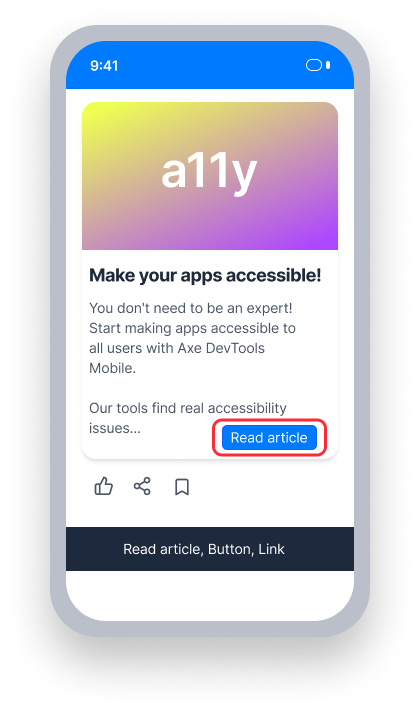
A button is assigned both the button and link traits
VoiceOver announces two conflicting roles simultaneously:
"Read article, Button, Link"
This is confusing and misleading — a single element should never have two contradictory roles
Passing Example ✅
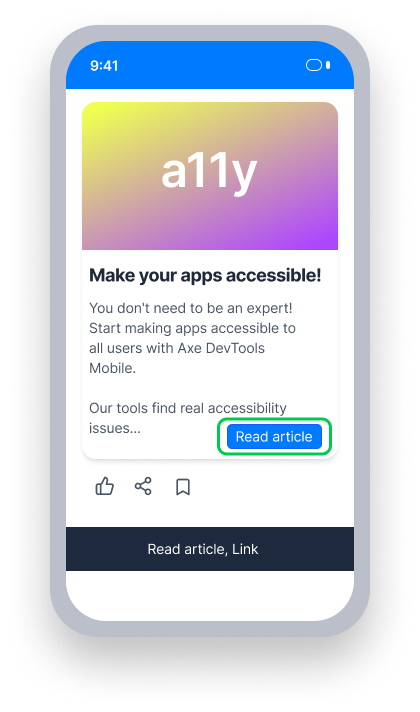
The element is assigned only the link trait
VoiceOver announces a single, clear role:
"Read article, Link"
Navigation gestures work as expected for the assigned role
At a Glance
- This rule has a critical impact for users
- Accessibility traits tell VoiceOver what an element is and how to interact with it - conflicting traits produce confusing or broken behavior
- Common conflicts: role traits like "button" + "link", or navigation traits like "header" + "adjustable"
Impact to Users
People using VoiceOver and Switch Control are most impacted. When an element has conflicting traits, VoiceOver may announce two roles simultaneously (e.g., "Button, Link"), which is confusing and misleading. Certain trait combinations - such as "header" and "adjustable" - can also break VoiceOver navigation gestures, making parts of the screen unreachable.
Confirm Conflicting Traits Issue
- Turn on VoiceOver
- Focus on the element
- One of the following will happen:
- Inaccessible: VoiceOver announces two conflicting roles (such as "Button" and "Link")
- Inaccessible: A VoiceOver navigation gesture stops working (e.g., using both "header" and "adjustable" together)
- Accessible: All roles are distinct and navigation gestures work as intended
Fix Issues
To resolve a Conflicting Traits issue, ensure each element has only one role trait, and that all assigned traits are compatible with each other.
UIKit
To fix in Storyboard:
- Select the element with conflicting accessibility traits.
- Ensure that the Inspector Panel is visible.
- Select the Identity Inspector.
- Under Accessibility, find the Traits category and uncheck the conflicting trait.
To fix in code, remove the conflicting trait. For example, if a button is incorrectly assigned both .button and .link:
button.accessibilityTraits = [.button, .link]Keep only the trait that reflects the element's actual behavior. If the element behaves as a link, remove the button trait:
button.accessibilityTraits = .linkSwiftUI
Use .accessibility(addTraits:) and .accessibility(removeTraits:) together to ensure the element has only the traits that accurately reflect its behavior. For example, if a button mimics a link, remove the default button trait and add the link trait:
var body: some View {
    Button(action: { openLink() },
           label: {
        Text("Visit the website").padding()
    })
    .accessibility(addTraits: .isLink)
    .accessibility(removeTraits: .isButton)
}
React Native
This rule is unlikely to trigger on React Native elements, because accessibilityRole only accepts one value. Use the accessibilityRole value that most accurately describes the element's expected behavior:
<Button
  title={'Learn more about axeDevTools'}
  accessible={true}
  accessibilityRole='link'
  onPress={goToLink}
/>
Can I Ignore This Rule?
Conflicting Traits has a Critical impact for users, and we recommend taking steps to remediate this issue. Even though this rule enforces an Apple best practice, it is very impactful. If a control has conflicting traits, VoiceOver users may not be able to interact with it at all. Still, it is possible to turn this rule off from the Mobile Dashboard or ignore individual findings in your iOS tests. Learn more about ignoring rules.
Resources
- Apple Developer Documentation