
Associated Text
Connect visible labels to interactive elements for assistive technology



What We Check For
An interactive element should get its accessible name from a nearby label available for assistive technologies such as VoiceOver and Voice Control.
Two Impacts? If visible text is neither focusable nor available to the control via its name or focusable parent's name, it is completely unavailable to assistive technology and this rule is considered to have a CRITICAL impact.
Failing Example ❌
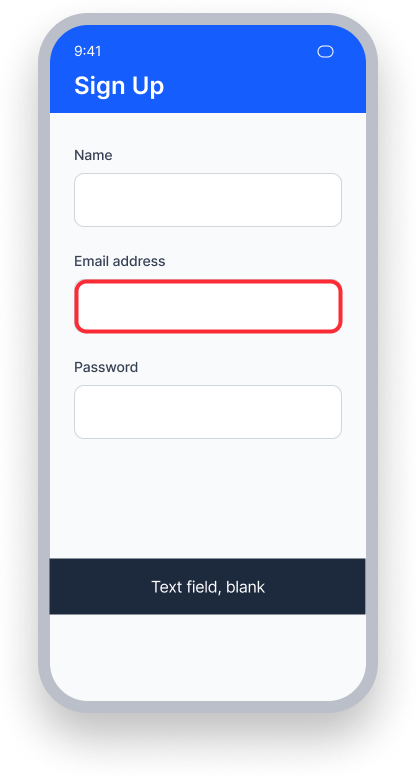
The "Email address" field is focused, but the text that is available visually is not announced by VoiceOver
VoiceOver announces "Text field, blank" - only the role and value, with no name
Users cannot tell what information the field expects
Passing Example ✅
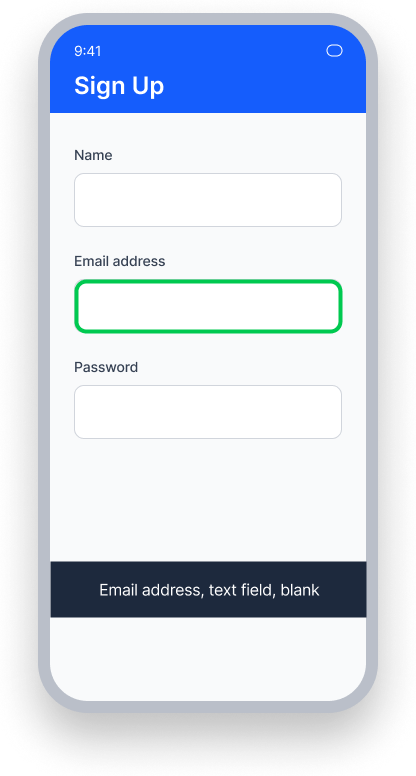
The visible "Email address" label matches what is announced by VoiceOver
VoiceOver announces "Email address, text field, blank" - name, role, and value all present
Users know exactly what information the field expects
At a Glance
- This rule has a Serious to Critical impact, depending on whether the visible label is focusable
- Interactive elements must derive their accessible name from the visible label that describes them
- VoiceOver only announces an element's role and value if its accessible name is missing
Impact to Users
People using VoiceOver are most impacted. An interactive element that is visually tied to a descriptive label must also convey that relationship through text for assistive technology.
When a slider, toggle, or other control has a nearby visible label but no accessible name set to match that label, VoiceOver users hear only the element's role and value, not its purpose. Voice Control users may also be affected when the spoken label does not match the control's accessible name.
Confirm Associated Text Issue
- Turn on VoiceOver
- Focus on the interactive element
- One of the following will happen:
- Inaccessible: VoiceOver will not announce the associated label as the element's name - only its role and value if present
- Accessible: VoiceOver will announce the associated label as the element's name
Fix Issues
To resolve an Associated Text issue, assign the visible label's text as the interactive element's accessible name. This ensures VoiceOver announces the correct name and aligns the assistive technology experience with what sighted users can perceive. Hide the standalone label element from the accessibility tree to prevent it from being announced twice.
UIKit
Set the accessibilityLabel on the interactive element to match the nearby label's text, then hide the label from the accessibility tree:
toggle.accessibilityLabel = label.text
label.isAccessibilityElement = false
SwiftUI
Use the .accessibilityLabel() modifier on the interactive element, passing the text of the visible label as the accessible name:
@State private var payment: CGFloat = 0
private let sliderLabel = "Payment"
var body: some View {
    VStack {
        Text("\(Int(payment)) \(sliderLabel)")
        Slider(value: $payment, in: 0...20).accessibilityLabel(sliderLabel)
    }
}
React Native
Ensure visible text that accompanies an interactive element is included in the accessibilityLabel prop of the control:
<Text style={{ color: 'black', fontSize: 22 }}> Light Level </Text>
<Slider accessibilityLabel='Light Level'/>
When visible text and an interactive element are grouped within a focusable containing View, ensure the visible text is included in the accessibilityLabel prop of the containing View:
<View
  accessible={true}
  accessibilityElementsHidden={false}
  accessibilityLabel='Light Level'
>
  <Text
    style={{ color: 'black', fontSize: 22 }}
    accessible={false}
  >
    Light Level
  </Text>
  <Slider accessible={false}/>
</View>
Flutter
Wrap the visible label and the interactive element in a MergeSemantics widget so they both are exposed to assistive technology as a single focusable node. VoiceOver will announce the visible label as part of the element's accessible name:
  MergeSemantics(
    child: Row(
      children: [
        const Text('The Lights'),
        Switch(
          value: _value,
          onChanged: (v) => setState(() => _value = v),
        ),
      ],
    ),
  )
Can I Ignore This Rule?
Associated Text has a Serious to Critical impact for users, and we strongly recommend fixing this issue. Because VoiceOver users rely entirely on the accessible name to understand what an interactive element does, a missing association makes these elements functionally unusable for assistive technology. Learn more about ignoring rules.
Resources
Deque University Course Pages
Note: Full access to Deque University resources requires a subscription.
Other Resources
- Web Content Accessibility Guidelines (WCAG) 2.0, W3C Recommendation
- WCAG 2.0 Understanding Docs