
Screen Title


What We Check For
Every screen within an application should provide a unique, descriptive title to be announced by assistive technology.
Failing Example ❌
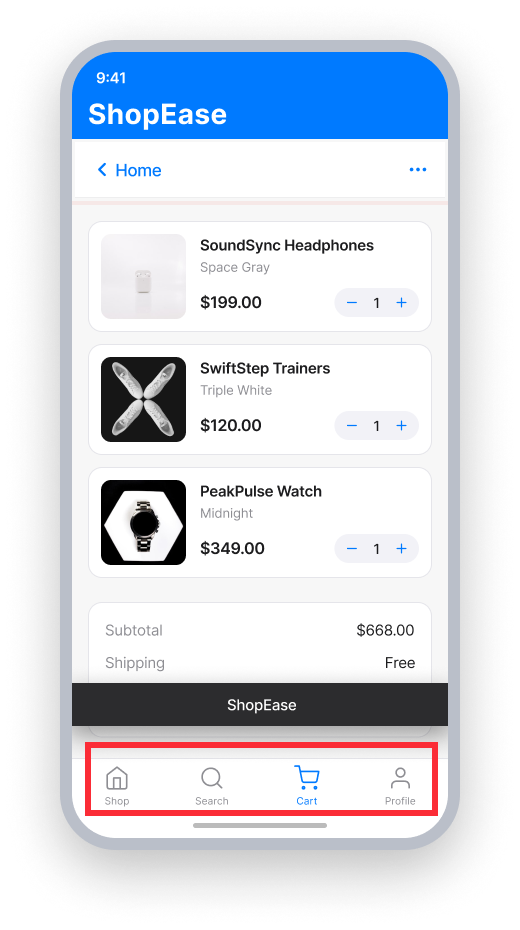
screen title = {app name only}
TalkBack announces only the app name when the screen opens
"ShopEase"
Passing Example ✅
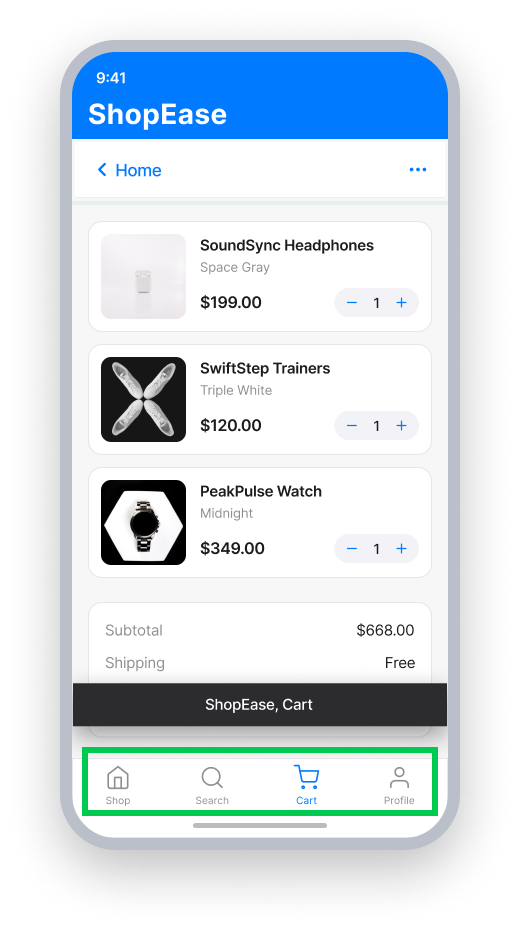
screen title = "ShopEase, Cart"
TalkBack announces the descriptive screen title when the screen opens
"ShopEase, Cart"
At a Glance
- This rule has a moderate impact for users
- Every screen needs a unique, descriptive title — not just the application name
- Native Android: use
Activity.setTitle()to set the screen title - React Native: add
options={{title: 'Screen Title'}}to eachStack.Screen
Impact to Users
Screen titles allow users with visual, cognitive, and motor disabilities and limited short-term memory to determine where they are in the application, identify content on a screen by its title, and navigate between screens when a user's mode of operation depends on audio.
When a screen has no title, TalkBack announces only the application name on every screen. This makes it impossible for assistive technology users to distinguish one screen from another without exploring the full content.
Confirm Screen Title Issue
- Turn on TalkBack
- Open the application and navigate to the screen
- One of the following will happen:
- Inaccessible: TalkBack announces only the application name
- Accessible: TalkBack announces the screen's specific title instead of the application name
Fix Issues
To resolve Screen Title issues, set a unique, descriptive title on each screen so assistive technology can announce it when the screen opens. This helps users orient themselves without needing to explore the full content of every screen.
Native Android
Set the screen's title within the Activity. The title should describe the purpose or content of the screen.
Activity.this.setTitle("Settings");React Native
To resolve Screen Title issues, try the following approaches:
- Set the screen title in React Navigation's screen options. When using React Navigation, setting the title in the screen's
optionsprop updates the native header. On Android, this maps to the Activity/Fragment title and triggers a TYPE_WINDOW_STATE_CHANGED accessibility event that TalkBack announces automatically. This can be set statically or dynamically based on route parameters. - Use
navigation.setOptions()from within the screen if the title needs to be set or updated after the screen mounts. CallingsetOptionswith a title value inside the screen component also updates the native header title and triggers a TalkBack announcement. - Use
AccessibilityInfo.announceForAccessibility()if the previous approaches don't trigger TalkBack's announcement. CombiningannounceForAccessibilitywith React Navigation'suseFocusEffecthook ensures the announcement fires each time the user navigates to that screen. - As a last resort, set the native Activity title by way of a native module. If React Navigation's header isn't triggering the announcement, you can bridge to the native Android layer and call
activity.setTitle()directly, which fires the TYPE_WINDOW_STATE_CHANGED event that TalkBack listens for.
Custom Navigation Bars
For a truly accessible experience in applications built with React Native, the navigation header must use <Stack.Navigator> with a title option. A custom navigation bar has no way of being programmatically coded to indicate it is a proper navigation element and not just a regular view. This alters how assistive technology announces and interacts with the element. Note that setting a header attribute, as often recommended, does not satisfy the criteria for Screen Title.
<Stack.Navigator>
      <Stack.Screen
          name="CartScreen"
          component={CartScreen}
          options={{title: 'Cart'}}
      />
</Stack.Navigator>
Can I Ignore This Rule?
Screen Title has a Moderate impact for users, and we recommend setting a descriptive title on every screen. While it does not block access to content, it significantly degrades navigation for screen reader users. In rare cases - such as a single-screen app where the application name itself clearly identifies the screen - you may consider ignoring the rule. Learn more about ignoring rules.
Frequently Asked Questions
Are there any known limitations with this rule?
Yes. Flutter apps universally fail the Screen Title rule because Flutter exposes AppBar.title as a heading element in the semantics tree rather than mapping it to the native screen title, Activity.setTitle. This results in unactionable failures for developers.
Screen readers never announce the title automatically on navigation; users must manually focus the AppBar to hear it. This affects all Flutter apps and causes Screen Title (WCAG 2.4.2) failures regardless of whether a descriptive AppBar.title is present.
Resources
Deque University Course Pages
- Semantic Structure and Navigation (WCAG 2.1) - Video Tutorial
- Success Criterion 2.4.2 - Page Titled
- Requirements - 2.4.2.a Titles on Pages
Note: Full access to Deque University resources requires a subscription.
Other Resources
- Web Content Accessibility Guidelines (WCAG) 2.0, W3C Recommendation
- WCAG 2.0 Understanding Docs