
Inaccessible Action
Ensure interactive elements can be activated with TalkBack


What We Check For
An interactive element should be activatable by assistive technology. This rule checks that the action associated with an interactive element can be focused and triggered using TalkBack or Switch Access.
Failing Example ❌
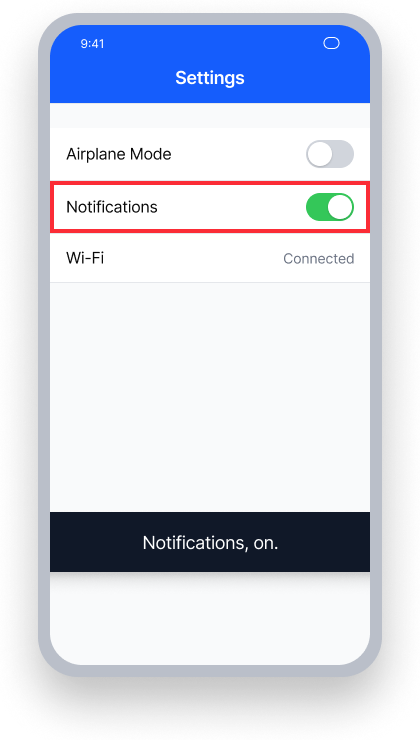
TalkBack can focus the 'Notifications' toggle but cannot activate it
TalkBack announces "Notifications, on." - no role or activation hint is provided
Double-tapping does nothing; users have no way to toggle the setting
Passing Example ✅
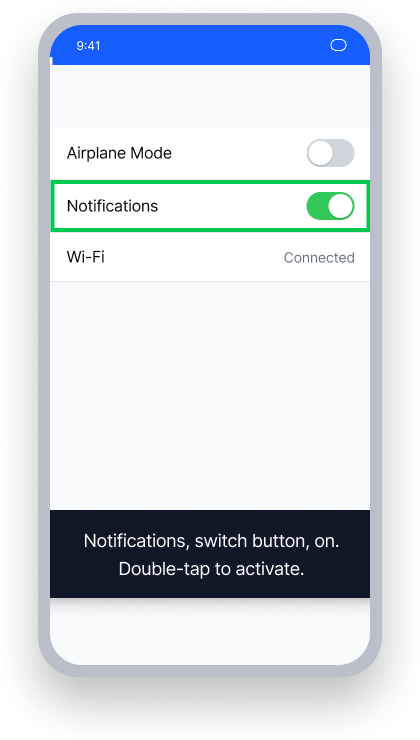
TalkBack can focus and activate the 'Notifications' toggle
TalkBack announces "Notifications, switch button, on. Double-tap to activate."
The role and activation hint are present; users know exactly how to interact with the control
At a Glance
- This rule has a critical impact for users
- This rule flags interactive elements that assistive technology cannot focus on or activate
- Interactive elements are not available to TalkBack when marked as not important for accessibility
- A clickable parent with child elements that have text are inaccessible when hidden from assistive technology
Impact to Users
Assistive technology users are most impacted. When TalkBack can focus on an interactive element but cannot activate it, users may be unable to complete critical actions — such as submitting a form, toggling a setting, or navigating to another screen. This creates a complete barrier for people who rely solely on assistive technology to interact with the app.
The version of Android, device, and manufacturer may play a part in issue detection.
Confirm Inaccessible Action Issue
- Turn on TalkBack or Switch Access
- Attempt to focus on and interact with the element
- One of the following will happen:
- Inaccessible: The element cannot be focused or its action cannot be triggered
- Accessible: The element is focused and its action can be triggered
Fix Issues
To resolve an Inaccessible Action issue, ensure the interactive element is not explicitly hidden from assistive technology. Views that people can access without assistive technology should be equally available to those using it.
XML
Do not set the importantForAccessibility property to "no" on tappable views. If this attribute is present, remove it or set it to "yes" or "auto".
Compose
Do not mark tappable Compose views as invisibleToUser(). Remove this modifier to ensure the element is available to TalkBack and Switch Access.
Button(onClick = {  },
    modifier = Modifier.semantics {
        // Remove invisibleToUser() to make this element accessible
        invisibleToUser()
    }
) {
    Text("Click here")
}


FloatingActionButton(onClick = {  }) {
    Image(
        painter = painterResource(id = R.drawable.floating_button),
        contentDescription = "floating button",
        Modifier.semantics {
            // Remove invisibleToUser() to make this element accessible
            invisibleToUser()
        }
    )
}
React Native
This issue is uncommon for standard touchable or pressable controls in React Native, but may occur with custom interactive elements or when importantForAccessibility is explicitly set to 'no' or 'no-hide-descendants' on an interactive element.
Option 1: Allow the parent view to handle focus
Set the containing view's importantForAccessibility to 'yes' and assign the appropriate accessibilityRole and accessibilityLabel. Set importantForAccessibility to 'no-hide-descendants' on any decorative child elements so TalkBack does not focus them separately:
<View
  importantForAccessibility='yes'
  accessibilityRole='button'
  accessibilityLabel='Learn more about Deque'
  onTouchStart={openLink}
>
  <Image
    source={DequeLogo}
    importantForAccessibility='no-hide-descendants'
    style={{ width: 100, height: 100 }}
  />
</View>
Option 2: Allow the element itself to handle focus
Set importantForAccessibility='yes' and accessibilityRole directly on the control:
<Image
  source={DequeLogo}
  importantForAccessibility='yes'
  accessibilityRole='imagebutton'
  accessibilityLabel='Learn more about Deque'
  onTouchStart={openLink}
  style={{ width: 100, height: 100 }}
/>
Flutter
Flutter's Material widgets (ElevatedButton, IconButton, etc.) expose tap actions to the screen reader automatically. When building custom interactive elements with GestureDetector, wrap them in MergeSemantics with a Semantics widget to ensure the screen reader can discover and activate the element in a single focus stop.
MergeSemantics(
  child: Semantics(
    button: true,
    label: 'Archive item',
    child: GestureDetector(
      onTap: () {},
      child: Container(
        padding: const EdgeInsets.all(12.0),
        color: Colors.green.shade100,
        child: const Text('Archive item'),
      ),
    ),
  ),
)
Can I Ignore This Rule?
Inaccessible Action has a Critical impact for users, and we strongly recommend fixing these issues. When TalkBack can focus on an interactive element but cannot activate it, users who rely on assistive technology to interact with your app may be unable to complete critical actions. Ignore this rule only if you have confirmed the element is activatable by TalkBack. Learn more about ignoring rules.
Resources
Deque University Course Pages
Note: Full access to Deque University resources requires a subscription.
Other Resources
- Web Content Accessibility Guidelines (WCAG) 2.1, W3C Recommendation
- WCAG 2.1 Understanding Docs