
Edit Text Value
Make text field values available to screen readers


What We Check For
When a user types into a text field, the entered value must be programmatically exposed for assistive technologies like TalkBack and Voice Access.
Failing Example ❌
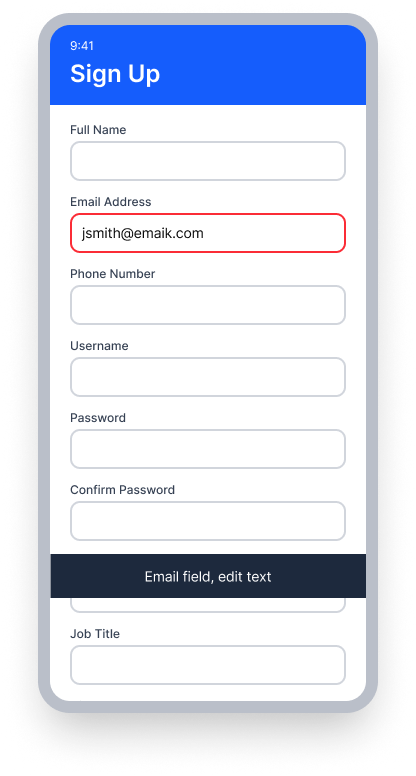
value = "Email field"
TalkBack announces the `contentDescription` instead of the typed text
"Email field, edit box"
User cannot confirm, review, or correct what they typed
Passing Example ✅
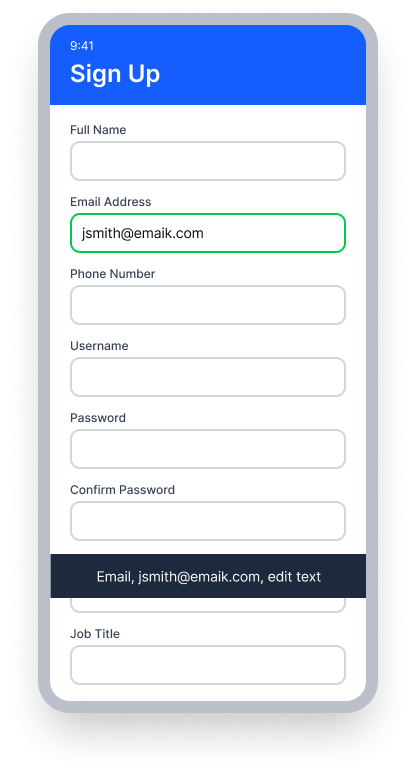
value = "jsmith@emaik.com" (the typed text)
TalkBack announces the label and typed value
"Email, jsmith@emaik.com, edit box"
User can confirm and correct what they typed
Do not set contentDescription on an EditText element. When present, TalkBack reads the content description instead of the typed value, preventing users from confirming, reviewing, or correcting their input. Use setLabelFor to associate a visible label with the field instead.
At a Glance
- This rule has a Critical impact for users
- Users need to hear what they have typed to confirm and correct their input
EditTextelements must expose their current value to assistive technologies — not just their label- Do not set a
contentDescriptionon anEditTextelement; this overrides the typed value and breaks TalkBack announcements - Associate a label with the field using
setLabelFor()so both the field name and value are available
Impact to Users
People who rely on TalkBack are most affected by this issue. When a text input does not expose its value, users cannot hear what they have typed. This makes it impossible to confirm, review, or correct form entries — such as usernames, passwords, or addresses — without sighted assistance.
EditText elements should consistently provide their current value. When the value is exposed correctly, assistive technologies can communicate input predictably.
Confirm Edit Text Value Issue
- Turn on TalkBack
- Focus on the text input element
- Type some text into the field
- One of the following will happen:
- Accessible: TalkBack announces the entered text along with the associated label
- Inaccessible: TalkBack announces a content description instead of the typed value, or does not announce the value at all
Fix Issues
The most common cause of failure for Edit Text Value is setting a contentDescription directly on an EditText, which overrides the value TalkBack would otherwise read. Remove any contentDescription from the input element itself, and instead associate a visible label so that both the field name and typed value are available to screen readers.
XML
Associate a TextView label with the EditText using setLabelFor(). Do not set a contentDescription on the EditText itself, as this will prevent TalkBack from reading the typed value.
EditText editText = .......; // Role: EditText
TextView label = .......; // Role: Label
label.setLabelFor(editText.getId()); // Associate the label with the field
Compose
Use the label parameter on OutlinedTextField to associate a visible label with the input. Do not set contentDescription on the TextField itself, as this overrides the typed value.
@Composable
fun ZipCodeInput() {
    OutlinedTextField(
        value = zipCode,
        onValueChange = { zipCode = it },
        label = { Text("Zip Code") }
    )
}
React Native
Avoid setting the accessibilityLabel property to the input's current value. Set it to describe the field instead, and use the placeholder property for example values. This ensures the field label and typed value remain separate and are both accessible.
<TextInput
   accessibilityLabel='Username'
   accessible={true}
   placeholder='John'
   style={{height: 45, width: 200, backgroundColor: 'azure', fontSize: 20, margin:20}}
 />
Can I Ignore This Rule?
Edit Text Value has a Critical impact for users, and we strongly recommend remediating all issues found by this rule. Users who rely on TalkBack cannot confirm or correct what they have typed if the value is not exposed - making form completion inaccessible. Learn more about ignoring rules.
Resources
Deque University Course Pages
Note: Full access to Deque University resources requires a subscription.
Other Resources
- Web Content Accessibility Guidelines (WCAG) 2.0, W3C Recommendation
- WCAG 2.0 Understanding Docs