
In ScrollView


What We Check For
Text should be contained within scrollable areas, to ensure that all content is visible - even when text is resized.
Note: This rule does not resize the text or check that it can scale. It checks to ensure that text will still be reachable by the user if it scales or gets longer due to localization.
Failing Example ❌
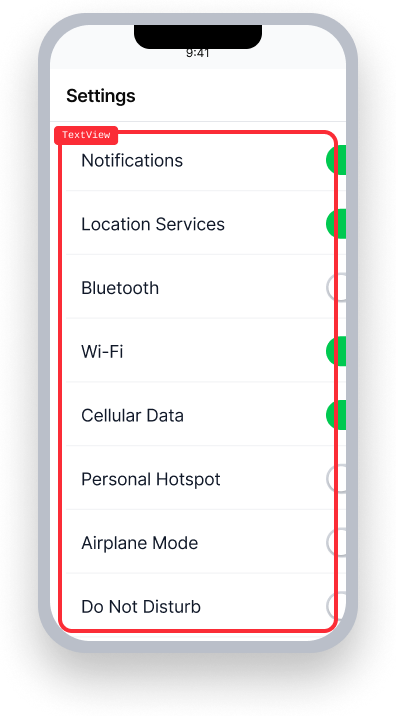
Containing element is a UIView.
Resized text is cut off and cannot be reached by scrolling.
Passing Example ✅
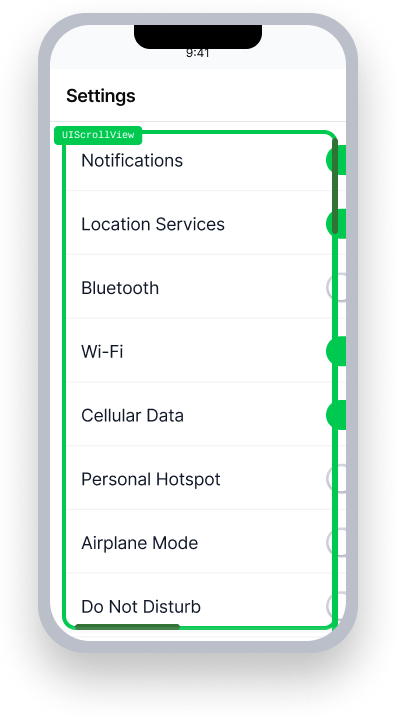
Containing element is a UIScrollView.
Resized text is cut off, but can be accessed by using the scroll bars.
At a Glance
- This rule has a serious impact for users
- When users enable larger text sizes, content can overflow or truncate and become inaccessible if they aren't able to scroll
- This rule flags text elements that aren't wrapped in
UIScrollView,ScrollView, or similar scrollable containers - Headers, body text, buttons with text labels, and form elements all need scroll support
Impact to Users
People who use Dynamic Type to scale text sizes on iOS are most impacted by violations of this rule. When Dynamic Type is on, text may move off-screen - or truncate - as size is increased, potentially making the information unavailable. Scrollable views are a great way to support various screen sizes, ensuring all content is accessible.
Confirm In ScrollView Issue
- If the content on the page takes up less than one screen, make all text larger with Dynamic Type:
- If using a simulator:
- Open Accessibility Inspector
- On the top-left corner of the inspector, change the device from your Mac to the iOS simulator
- Select the Settings button in the top-right corner of the inspector
- Under Font Size, move the slider to a larger setting
- If using an iOS 13.0+ device:
- Open up Settings
- Select Accessibility
- Select Display & Text Size
- Select Larger Text
- Move the slider at the bottom of the page to a larger setting
- If using a simulator:
- Attempt to scroll to the text element
- Inaccessible: Some of the text disappears off the screen and you can't scroll to reach it
- Accessible: All content remains accessible by scrolling, even at the largest text sizes
Fix Issues
To resolve In ScrollView issues, add UIScrollView or ScrollView as a parent container for text elements in your application.
UIKit
Add a UIScrollView as the parent container for all interactive and static elements on your screen.
class MyViewController: UIViewController {
    override func viewDidLoad() {
      super.viewDidLoad()

      let scrollView = UIScrollView()
      let contentView = UIView()

      view.addSubview(scrollView) /* Add the scroll view to the main view first */
      scrollView.addSubview(contentView)  /* Add any content to the scroll view */

      /* Add your text and buttons to contentView instead of view */
      let label = UILabel()
      label.text = "This content can overflow when resized, so put it inside of a scrollView!"
      label.numberOfLines = 0
      contentView.addSubview(label)

      /* Set up basic constraints */
      scrollView.setConstraintsFillParentView()
      contentView.setConstraintsFillParentView()
  }
}
SwiftUI
Add text within a ScrollView:
     var body: some View {
        ScrollView {
            VStack  {
                HStack {
                    Text("This text can grow, and users can scroll so they can still see all of it!")
                        .padding()
                }
            }
        }
    }
React Native
Nest text elements within a ScrollView element. The ScrollView element should be within a SafeAreaView to ensure the content stays within the window's bounds while scrolling.
<SafeAreaView style={{ flex: 1 }}>
   <ScrollView>
     <View>
       <Text> Make sure each screen has a ScrollView so users can access all of your content! </Text>
     </View>
   </ScrollView>
</SafeAreaView>
Flutter
Wrap screen content in a SingleChildScrollView so that text remains accessible when users increase their preferred font size.
Scaffold(
  body: SafeArea(
    child: SingleChildScrollView(
      child: Padding(
        padding: EdgeInsets.all(12.0),
        child: Column(
          children: [
            Text('This text can grow when users increase their font size, and they can scroll to see all of it!'),
          ],
        ),
      ),
    ),
  ),
)
Frequently Asked Questions
Are there any known limitations with this rule?\
Yes.
- This rule may report either "Fail" or "Needs Review" for sticky/floating elements.
- If text is part of a fixed element on the screen - one that stays in the same place even when the screen is scrolled, such as a
UINavigationBarorUITabBar- utilize aUILargeContentViewerelement instead of aScrollView. - Please note that our rule cannot detect if
UILargeContentVieweris implemented for these elements and will still flag In ScrollView failure even though you’ve implemented an accessible experience.
Can I Ignore This Rule?
This rule has a serious impact for users and you should fix all issues found by this rule with the exception of the known limitations listed above. In cases such as these, you may opt to ignore the rule. Learn more about ignoring rules.
Resources
Deque University Course Pages
-
Success Criterion 1.4.4 - Resize Text
Note: Full access to Deque University resources requires a subscription.
Other Resources
- Web Content Accessibility Guidelines 2.2, Understanding Docs
- UIScrollView Tutorial