
Supports Dynamic Type
Ensure text elements scale to the user's preferred font size


What We Check For
Text elements should have the required properties to support Dynamic Type and resize to the user's device-wide font size preference.
The Supports Dynamic Type rule now runs by default, and the optInToSupportsDynamicType property is deprecated. If you previously opted in to this rule, please remove the property from your code.
Failing Example ❌
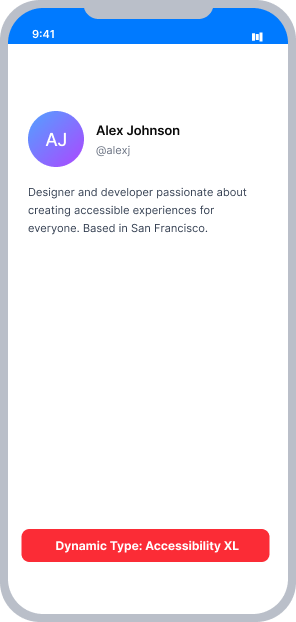
Text elements use fixed fonts that do not respond to the user's Dynamic Type setting
After increasing the Dynamic Type setting to the largest size, the text remains unchanged — it does not grow to reflect the user's preference
Passing Example ✅

Text elements use scalable fonts that respond to the user's Dynamic Type setting
After increasing the Dynamic Type setting to the largest size, the text scales up accordingly to match the user's device preference
At a Glance
- This rule has a Critical impact for users with low vision who rely on larger text
- Text elements must support Dynamic Type so they resize when the user changes their device font size
- This rule runs on Apple's XCUI Accessibility Audit API, which requires iOS 17.0 or later
- Supports Dynamic Type runs during targeted testing only and will not produce results with Auto Scan
Impact to Users
People with low vision are most affected by text that cannot resize. Dynamic Type is an iOS feature that allows users to set a preferred font size device-wide, and apps are expected to honor that preference. When text elements do not support Dynamic Type, users who need larger text must struggle to read content that does not scale regardless of their settings.
Confirm Supports Dynamic Type Issue
- Navigate to the screen containing text and observe the current font size and its layout
- Enlarge the font size by changing the Dynamic Type setting:
- If using a simulator:
- Open Accessibility Inspector
- On the top-left corner of the inspector, change the device from your Mac to the iOS simulator
- Select the Settings button in the top-right corner of the inspector
- Under Font Size, move the slider to a larger setting
- If using an iOS 13.0+ device:
- Open Settings
- Select Accessibility
- Select Display & Text Size
- Select Larger Text
- Move the slider at the bottom of the page to a larger setting
- If using a simulator:
- Navigate back to your app and observe the following on the same screen:
- Inaccessible: The text did not change size after updating the Dynamic Type setting
- Accessible: The text did change size
Fix Issues
To resolve a Supports Dynamic Type issue, configure text elements to use scalable fonts that respond to the user's Dynamic Type setting.
UIKit
Set adjustsFontForContentSizeCategory = true on any text element so it updates when the user changes their Dynamic Type setting. Use UIFont.preferredFont(forTextStyle:) for system fonts, or UIFontMetrics to scale a custom font relative to a text style:
// System font — scales automatically to the user's Dynamic Type setting
label.font = UIFont.preferredFont(forTextStyle: .body)
label.adjustsFontForContentSizeCategory = true

// Custom font — scaled relative to a text style using UIFontMetrics
let customFont = UIFont(name: "Georgia", size: 17)!
label.font = UIFontMetrics(forTextStyle: .body).scaledFont(for: customFont)
label.adjustsFontForContentSizeCategory = true
SwiftUI
In iOS 14 or above, you can support Dynamic Type in two ways:
- When using a custom font, set the
.fontproperty to.custom(_:size:relativeTo:)to ensure that fonts will relatively scale to the font style of the text element. - When using a default font by size, text will scale automatically. However, if no font style is set, text elements will not scale according to their style. For example, text that is functioning as a title will scale differently than text that is functioning as body text. For the best experience, specify the font style to match the element's expected behavior. By using a modifier such as
.font(.system(.largeTitle, design: .rounded)), you can expect the text to be the largest text on the page and serve as a proper title.
React Native
Set allowFontScaling={true} on every Text element to allow it to scale to the user's preferred device settings:
<Text style={{ color: 'black', fontSize: 18 }} allowFontScaling={true}> This text allows font scaling. </Text>Can I Ignore This Rule?
Supports Dynamic Type has a Critical impact for users with low vision, and we strongly recommend remediating all issues found. In rare cases it may be acceptable to ignore this rule - for example, if the text functions as a logo or brand wordmark, where the presentation itself is essential and not expected to resize. Learn more about ignoring rules.
Resources
Deque University Course Pages
Note: Full access to Deque University resources requires a subscription.
Other Resources
- Web Content Accessibility Guidelines (WCAG) 2.1, W3C Recommendation
- Apple Developer Documentation