
Send Scan Results to Axe Developer Hub
Start sending your test results to Axe Developer Hub - a central location for viewing and managing accessibility issues, where scans are automatically grouped by test run. You can use Developer Hub with all of Deque's accessibility toolkits, so you can find results for web tests and mobile tests all in one place.
Switch to Axe Developer Hub
If you have been using the Axe DevTools Mobile Dashboard, you can still view and manage results there. In the future, the Dashboard will be replaced altogether by Axe Developer Hub. During the transition, you can find results for automated test runs in both places. Mobile Analyzer scan results are now found in Axe Developer Hub
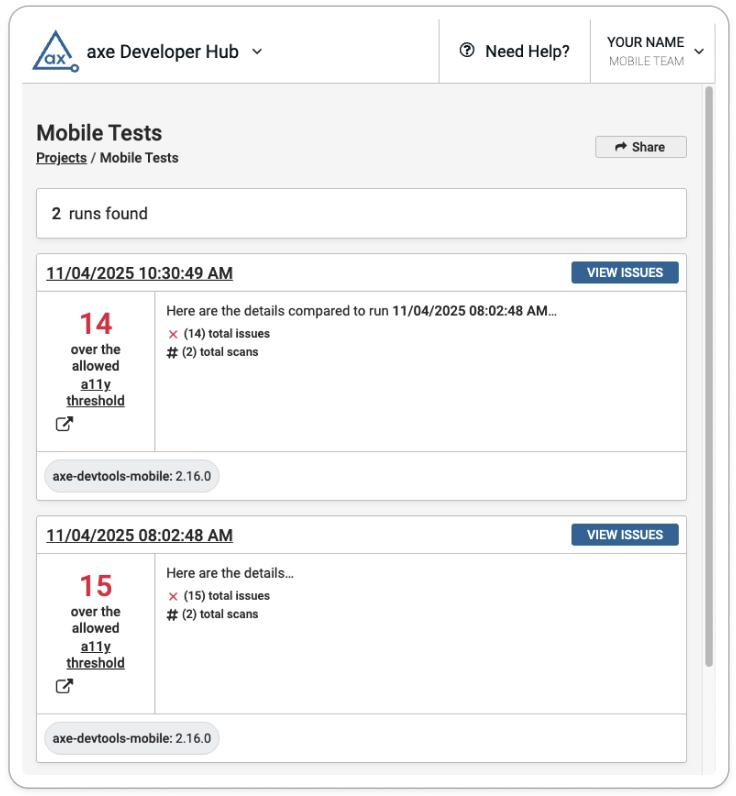
To learn more about our transition from the mobile dashboard to Axe Developer Hub, visit our support FAQ
Automated Testing
Follow the steps below to switch from the Mobile Dashboard and start sending your results to Axe Developer Hub:
- Ensure you have the latest version of our Mobile SDKs or Appium Drivers
- Add a mobile project in Developer Hub
- Update your UI tests to send results to Developer Hub by providing the Developer Hub project ID:
Refer to our complete setup instructions for full details and examples.
Mobile Analyzers
- Ensure you have the latest version of our Mobile Analyzers
- Follow the prompts and take scans of different screens in your app
- When you finish taking scans, find your results in Developer Hub
Find all the details for using the Mobile Analyzers to test your apps for accessibility.